Using PRE-FAB · Lesson 10
Complete Workflow — From Input to Verified Output
Bring the verified Using PRE-FAB workflow together in one release exercise. The learner imports a deliberately imperfect panel, confirms intake evidence, distinguishes deterministic repairs from an authorised geometry change, reviews the intended fabrication profile, compares the current result with the source, validates a DXF export and reopens the output. The lesson introduces little new capability; its purpose is sequence, evidence and release judgement.
What you'll learn
- Follow the complete PRE-FAB workflow in a defensible order.
- Confirm units, dimensions, object counts and Diagnostics before editing.
- Apply deterministic repairs separately from review-only geometry changes.
- Review a fabrication profile without treating it as certification.
- Use Compare to inspect source/current change evidence.
- Validate an export by re-import and reopen the downloaded file.
- Assemble a concise release record that preserves remaining limitations.
The complete workflow
This lesson connects the earlier skills into one release path:
Input → intake evidence → intrinsic Diagnostics → deterministic cleanup → authorised geometry change → fabrication review → Compare → Validate & export → reopen and inspect.
The order protects evidence. Inspect before editing, repair only what the evidence supports, and verify the actual output rather than assuming that a successful download ends the review.
Intake and confirm scale
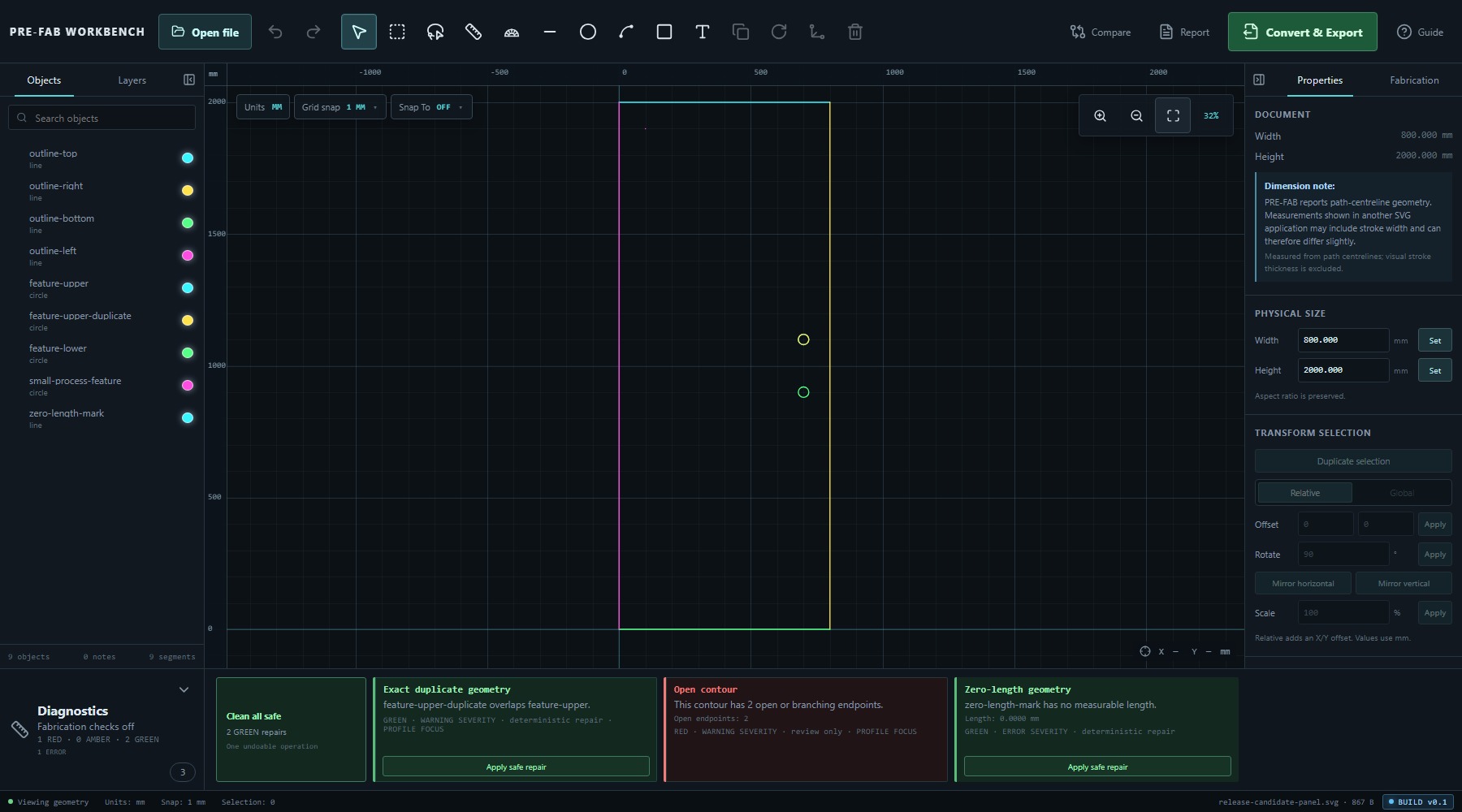
Open release-candidate-panel.svg. Confirm millimetres, the 800 × 2000 mm document size, nine Objects and nine segments before making changes. Visually identify the four outline lines, two intended circles and the small isolated circular feature.
Diagnostics initially shows three intrinsic findings: GREEN Exact duplicate, RED Open contour, and GREEN Zero-length geometry. The zero-length card is ERROR severity; the other two are WARNING severity. Confidence colour and severity describe different aspects of a finding.
Diagnose before editing
Read all three cards before selecting a repair. The duplicate and zero-length findings are deterministic GREEN findings with safe repairs. The open contour is RED, review only and requires an explicit geometry decision.
Do not begin with the visually obvious gap. First separate what PRE-FAB can remove without changing design intent from what needs human authorisation. This keeps automatic cleanup narrow and preserves control over geometry-changing work.
Apply deterministic repairs
Select Clean all safe. PRE-FAB removes the exact duplicate and zero-length entity as two repair records in one undoable operation. The drawing changes from nine Objects/nine segments to seven Objects/seven segments. The RED Open contour remains.
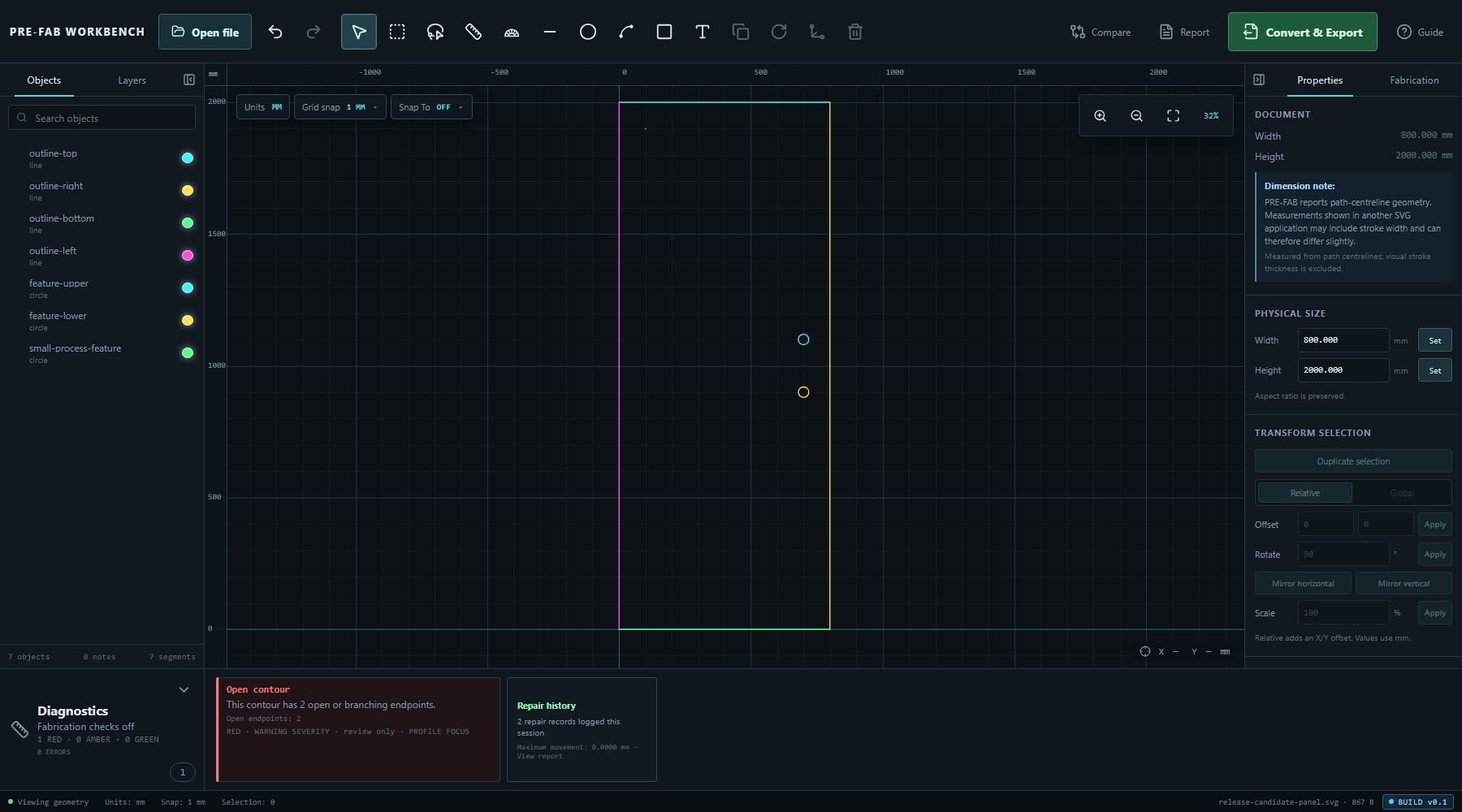
Review the viewport, Objects count and Repair history before continuing. Safe cleanup has removed only the deterministic defects; it has not guessed how the open endpoints should be resolved.
Authorise the geometry change
Select the two outline endpoints and start Gap Close. PRE-FAB previews a Current gap of 0.0800 mm, Movement each of 0.0400 mm and Maximum allowed of 0.1000 mm. The workspace states: User-authorised movement ghost. Geometry remains unchanged until Apply.
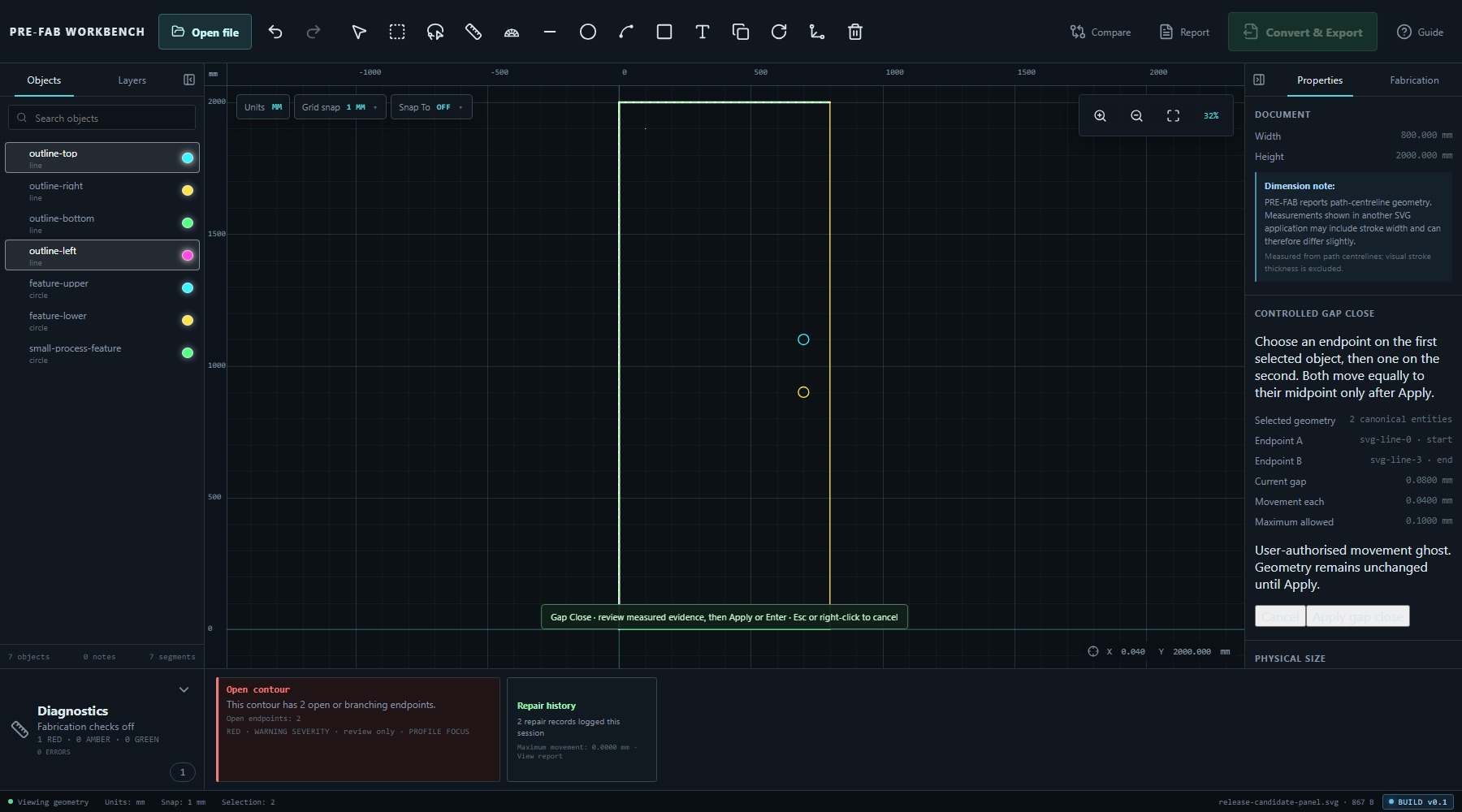
Check the measurement against the intended outline, then apply the close. The result contains six Objects and seven segments because the two joined lines become one object with two segments. The open-contour finding clears, while Repair history remains visible for the completed repairs.
Review the fabrication profile
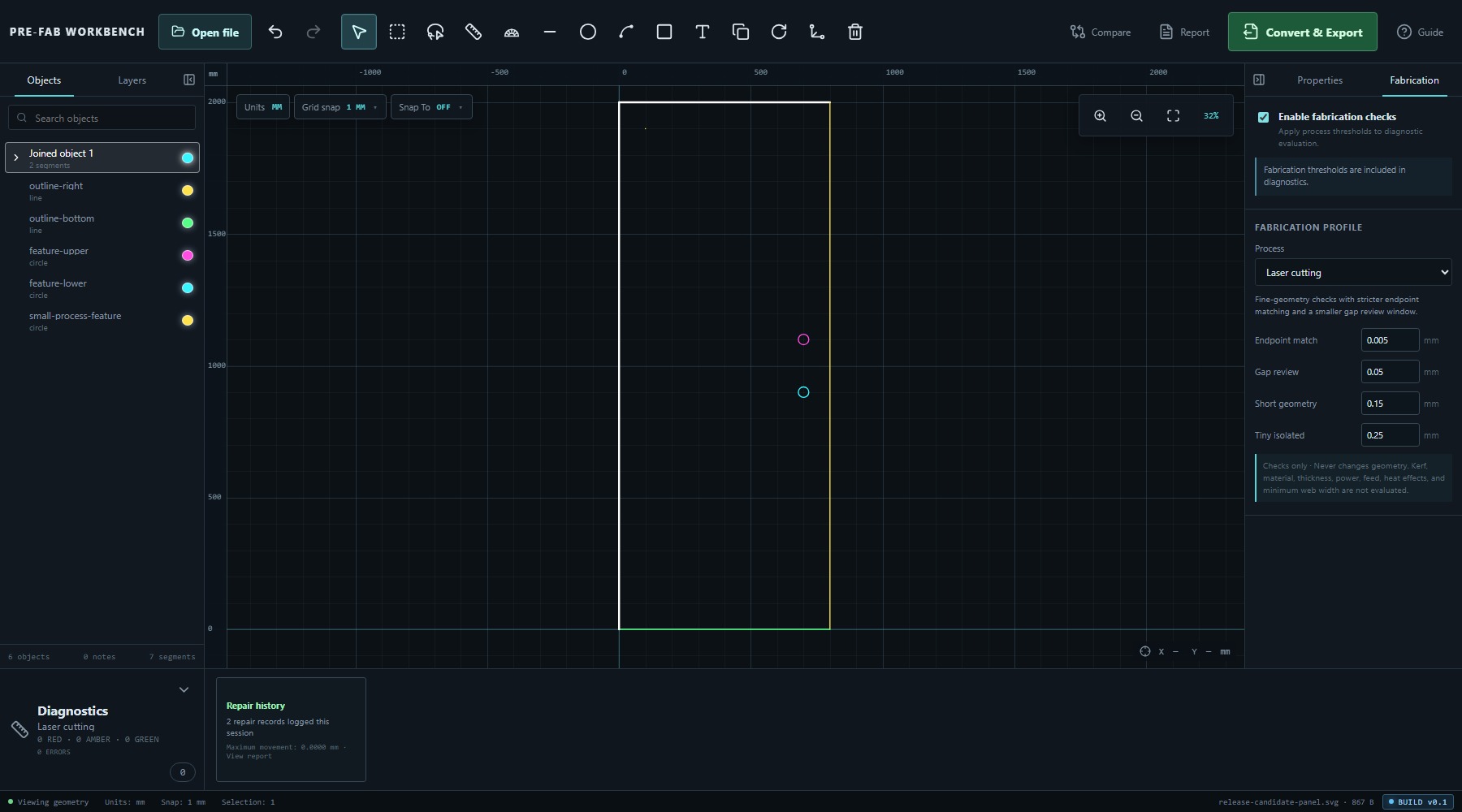
Open Fabrication, enable checks and choose Laser cutting for this exercise. The verified profile uses 0.005 mm Endpoint match, 0.05 mm Gap review, 0.15 mm Short geometry and 0.25 mm Tiny isolated. Diagnostics reports zero active findings under Laser cutting; Repair history remains visible for the completed repairs.
Read the limitation in the same panel: kerf, material, thickness, power, feed, heat effects and minimum web are not evaluated. A clear profile result therefore means only that the active threshold checks found no measurable issue.
Compare original and current
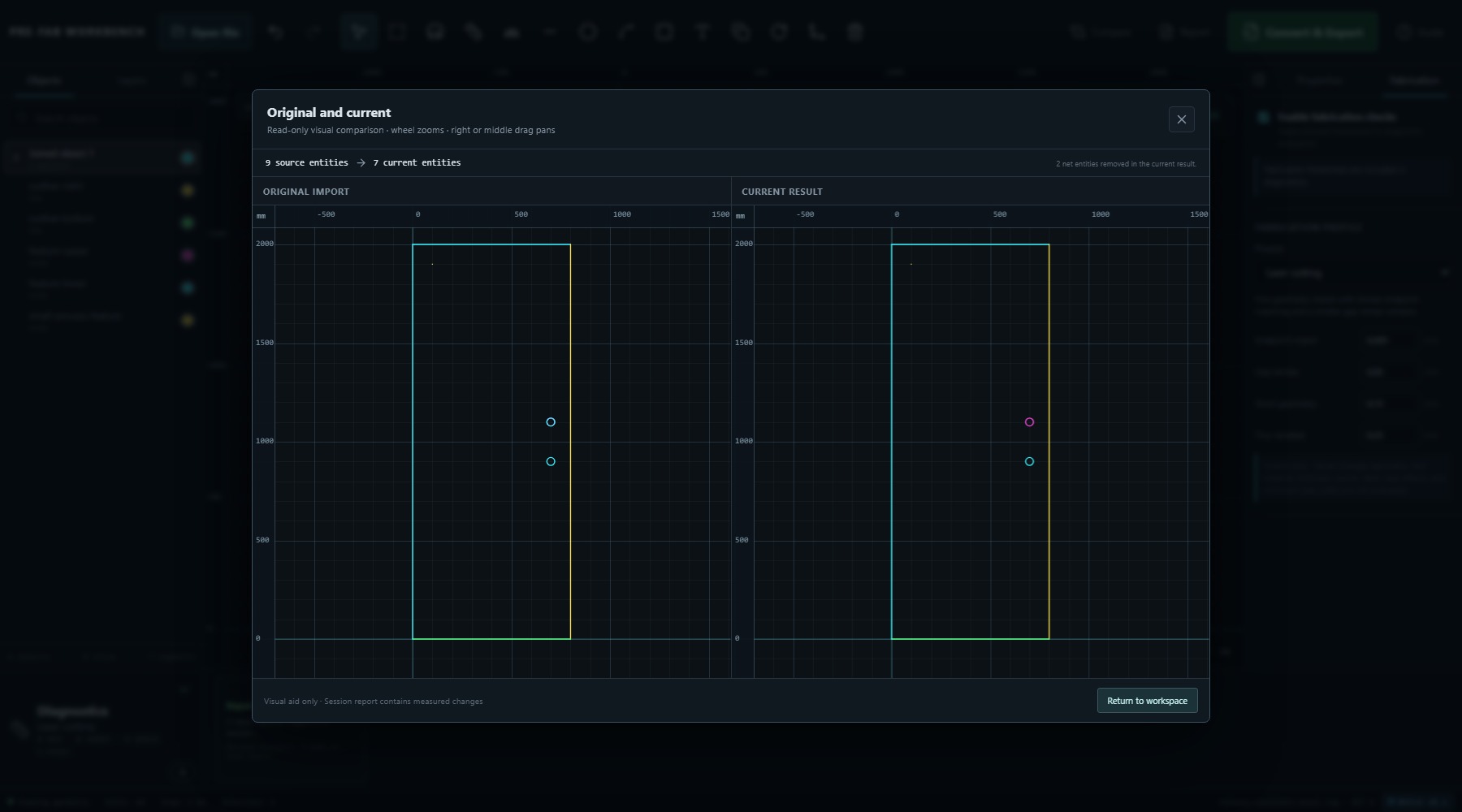
Open Compare. The read-only view reports 9 source entities → 7 current entities and 2 net entities removed in the current result. The original and current drawings remain visible side by side.
Those entity counts come from the canonical source/current documents. They differ from the current Objects summary of six objects and seven segments because the joined outline object contains two segments. Compare is a visual aid; pair it with Repair history and the measurements recorded during Gap Close.
Validate and export DXF
Open Convert & Export, select DXF · AutoCAD 2000 ASCII, and retain the verified 0.01 mm Curve tolerance for this exercise. Select Validate & export DXF. PRE-FAB validates every download by re-import first.
The verified result showed Re-import check passed, No unresolved diagnostic findings, and: DXF exported and re-import checked. 0 curve(s) approximated; maximum estimated deviation 0.000000 mm.
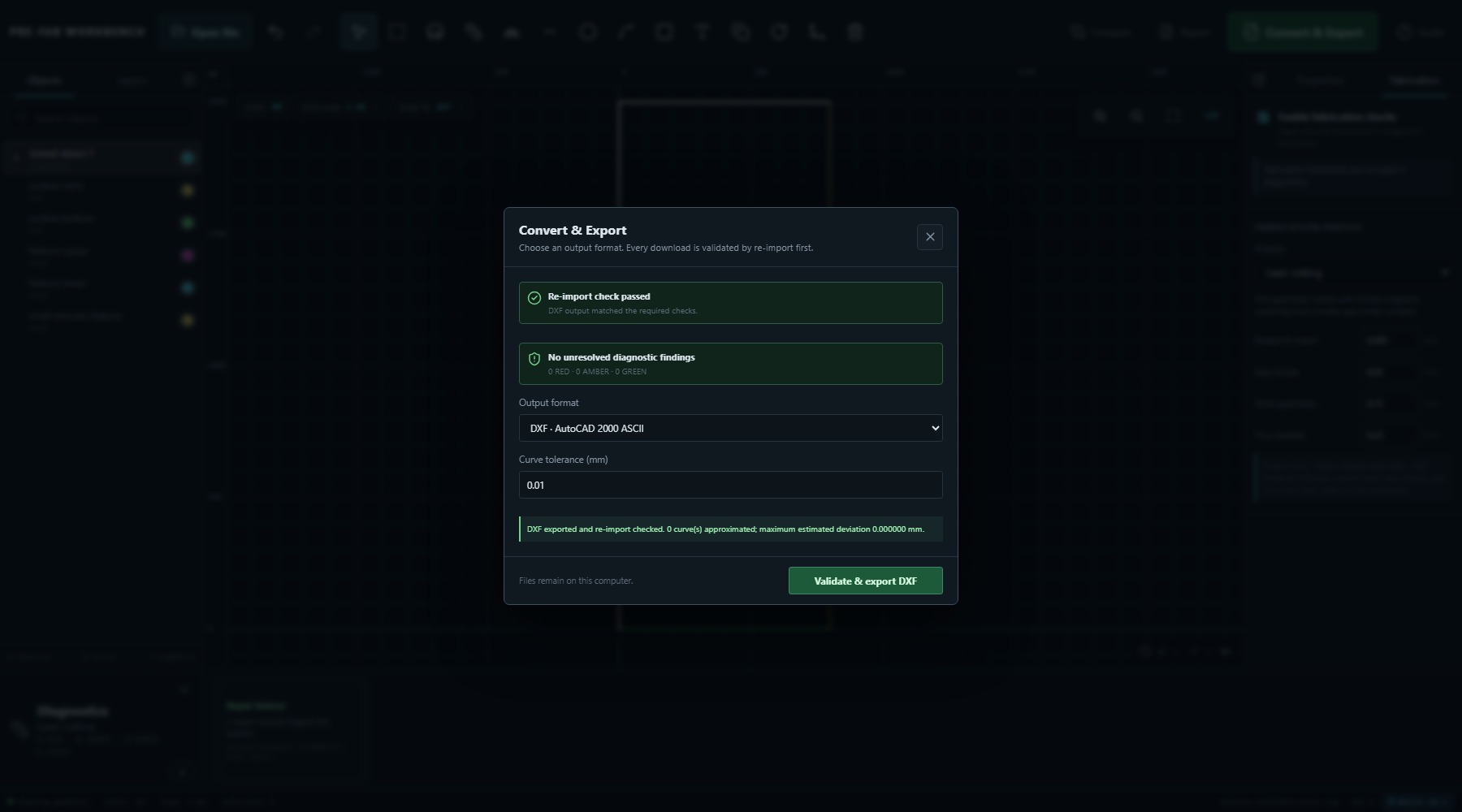
These statements confirm the required round-trip checks for this generated file. Curve tolerance is an output-conversion setting, not machine accuracy, kerf or process tolerance.
- Review Diagnostics and the fabrication-profile decision.
- Open Convert & Export.
- Choose DXF · AutoCAD 2000 ASCII.
- Confirm a finite positive Curve tolerance; use 0.01 mm for this exercise.
- Select Validate & export DXF.
- Wait for Re-import check passed before treating the download as approved.
Reopen and inspect the output
Reopen release-candidate-panel-verified.dxf in PRE-FAB. Confirm millimetres, the 800 × 2000 mm outline, seven Objects/seven segments and the three intended circular features. Re-enable Laser cutting and confirm no detected issues under the same verified thresholds.
The exported DXF uses generic entity names such as LINE[0] and CIRCLE[4]. Re-import establishes a new intake state, so names and object grouping need not match the edited source exactly. Geometry, dimensions and diagnostic evidence are the important checks.
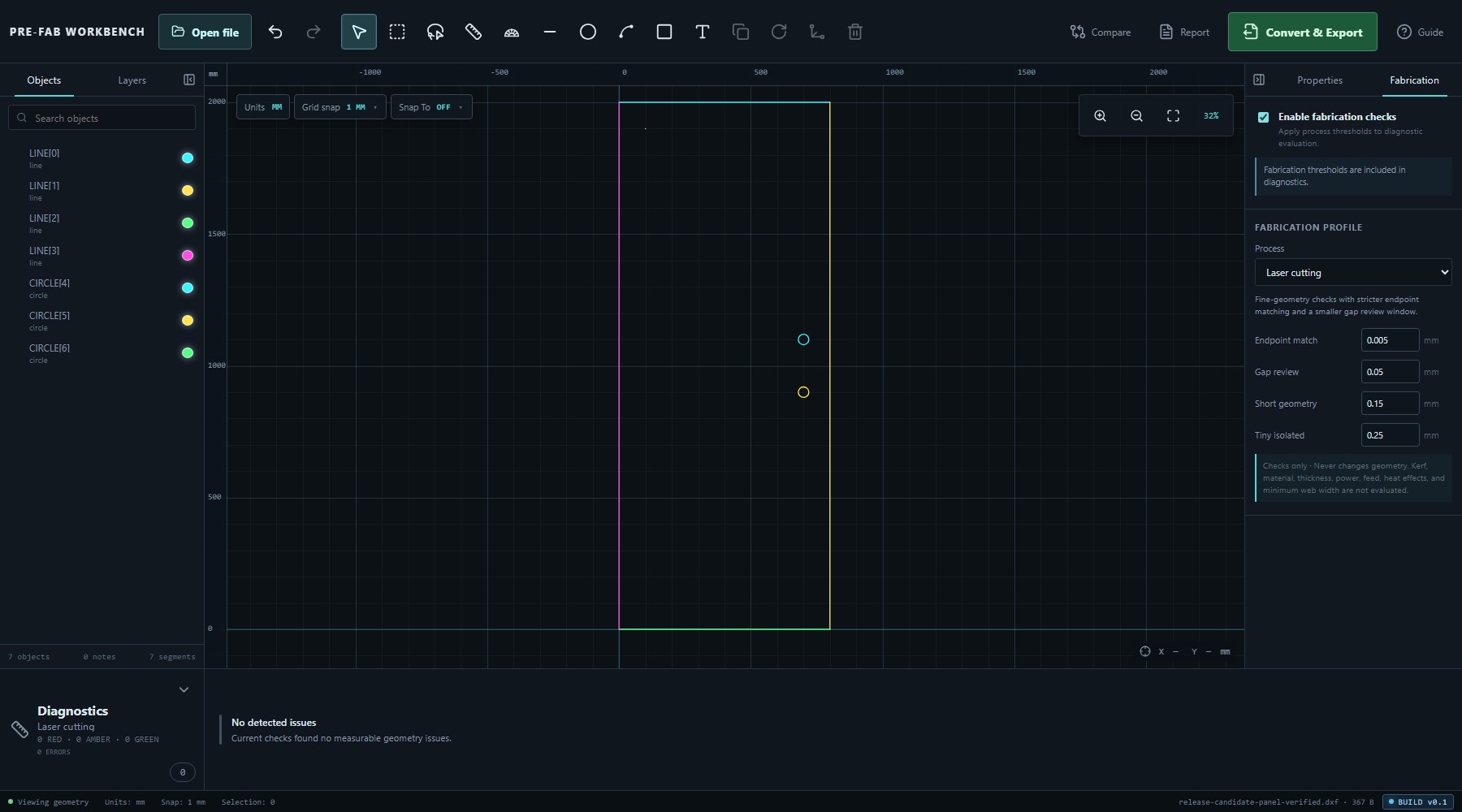
The Laser cutting limitation still applies after a successful round trip. Reopening verifies file integrity and the repeated PRE-FAB review; it does not supply missing material or machine data.
Release checklist
Before handing the output onward, retain a compact record:
- original file name and intake dimensions;
- initial Diagnostics and object/segment counts;
- deterministic repairs and the undoable cleanup operation;
- Gap Close measurement and explicit authorisation;
- selected fabrication profile, unchanged or custom thresholds, and limitations;
- Compare source/current counts and reviewed visual result;
- output format, curve tolerance and validation message;
- reopened-output dimensions, counts and diagnostic result;
- downstream checks still required for material, machine and CAM.
This record keeps geometric facts, manufacturing interpretation and output validation separate while showing how the release decision was reached.
Common mistakes / things to notice
- Editing before recording intake evidence weakens the audit trail.
- Clean all safe does not resolve review-only findings.
- Gap Close geometry remains unchanged until Apply.
- Six Objects and seven segments after joining is expected; one object contains two segments.
- Compare counts canonical entities, not Objects-panel groups.
- A clear Laser cutting profile does not evaluate kerf, material, thickness, power, feed, heat effects or minimum web.
- Curve tolerance belongs to output conversion, not machine capability.
- A downloaded file is not approved until the re-import validation passes.
- Reopened DXF names and grouping may differ while geometry remains correct.
- PRE-FAB validation does not replace inspection in the actual receiving CAD/CAM system.
Key points
- Use the order: inspect, diagnose, repair, interpret, compare, validate, reopen.
- Preserve deterministic cleanup separately from human-authorised geometry change.
- Record the Gap Close measurements before applying the change.
- Fabrication profiles add bounded process interpretation to intrinsically reviewed geometry.
- Compare and Repair history explain how source became current.
- Every approved download is validated by re-import first.
- Reopen the output and inspect it as a new intake state.
- Verified output is evidence of file integrity, not manufacturing certification.