Using PRE-FAB · Lesson 07
Diagnose and Repair Problem Geometry
Teach a measured repair workflow using the imperfect SVG imported in Lesson 06. The learner will distinguish deterministic GREEN repairs from RED review-only findings, remove an exact duplicate and zero-length entity in one undoable safe-clean operation, close a measured 0.08 mm endpoint gap deliberately, retain unsupported-source evidence, and compare the repaired result with the canonical import.
What you'll learn
- Read diagnostic title, message, measurement, confidence, severity and repair status separately.
- Distinguish GREEN deterministic repairs from RED review-only findings.
- Use Clean all safe for revalidated exact duplicates and zero-length geometry.
- Read Repair history after automatic cleanup.
- Use Gap Close only after selecting the intended Lines and reviewing measured movement.
- Keep unsupported-source evidence visible when PRE-FAB cannot reconstruct intent.
- Use Compare to review the net change from the canonical import.
Begin with the imported findings
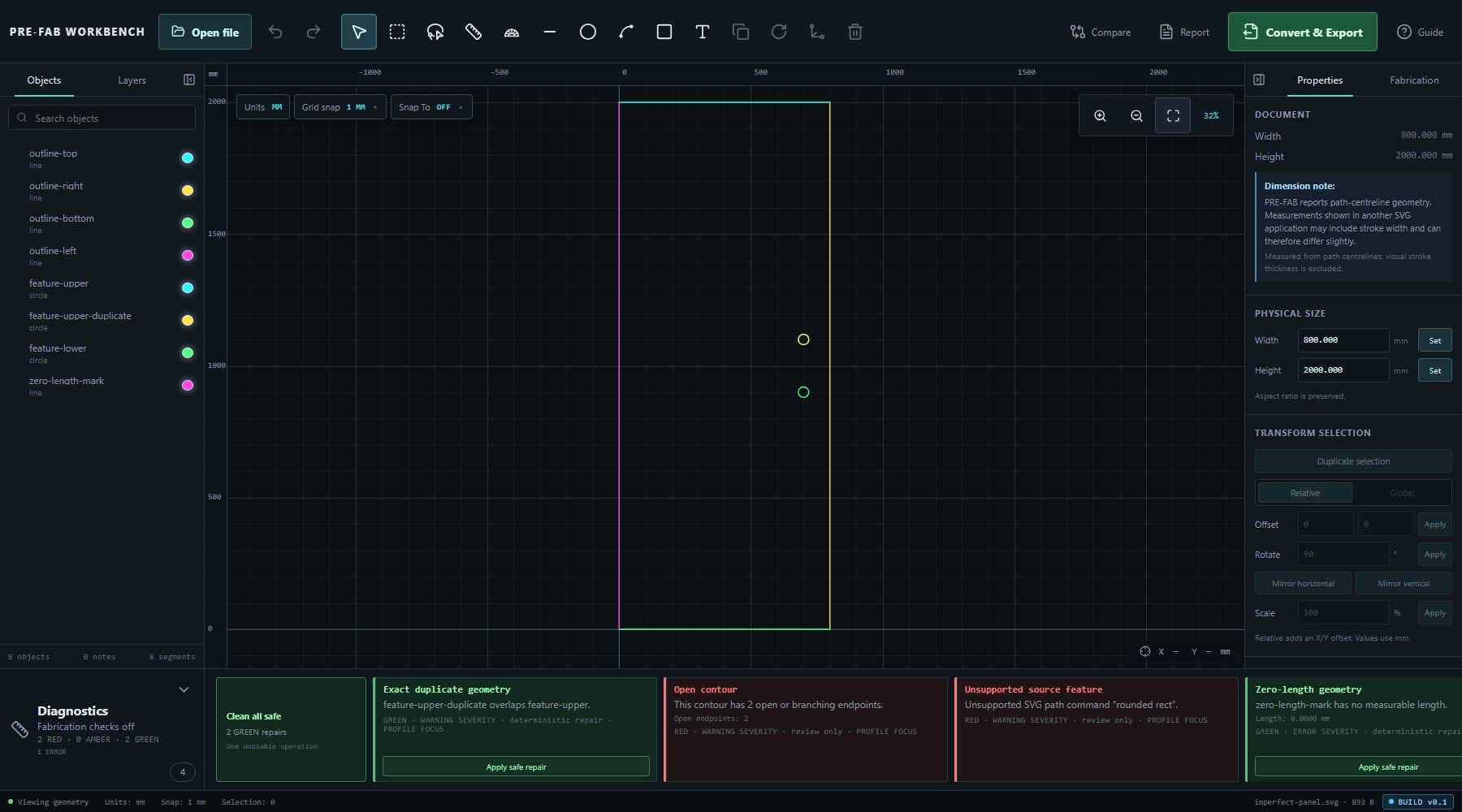
Open imperfect-panel.svg from Lesson 06 and wait for analysis. The imported state contains eight objects and four findings:
- Exact duplicate geometry —
feature-upper-duplicateoverlapsfeature-upper. - Open contour — two open or branching endpoints.
- Unsupported source feature — unsupported SVG rounded rectangle.
- Zero-length geometry —
zero-length-markhas length 0.0000 mm.
Do not repair from the colour alone. Read what was measured, which entities are involved and whether PRE-FAB offers a deterministic repair.
Read confidence and severity separately
Each card combines two different judgements:
- Repair confidence: GREEN means PRE-FAB can perform the displayed deterministic repair; RED means the finding requires review and PRE-FAB will not decide intent.
- Severity: WARNING or ERROR describes the detected condition independently of repair confidence.
The zero-length entity is GREEN · ERROR SEVERITY · deterministic repair. The unsupported rounded rectangle is RED · WARNING SEVERITY · review only. Green therefore does not mean the geometry is acceptable, and red does not automatically mean the file cannot be opened.
Double-clicking a diagnostic can locate and zoom to its geometry where geometry exists. A source-warning about skipped content may have no canonical entity to select.
Clean deterministic issues
The initial panel shows Clean all safe — 2 GREEN repairs — One undoable operation. In this fixture, the eligible findings are the exact duplicate and zero-length Line.
Select Clean all safe only after confirming that one copy of the duplicate is sufficient and the zero-length entity is not intentional reference data. PRE-FAB revalidates the findings, removes the duplicate copy and degenerate Line, and records both repairs as one undoable operation.
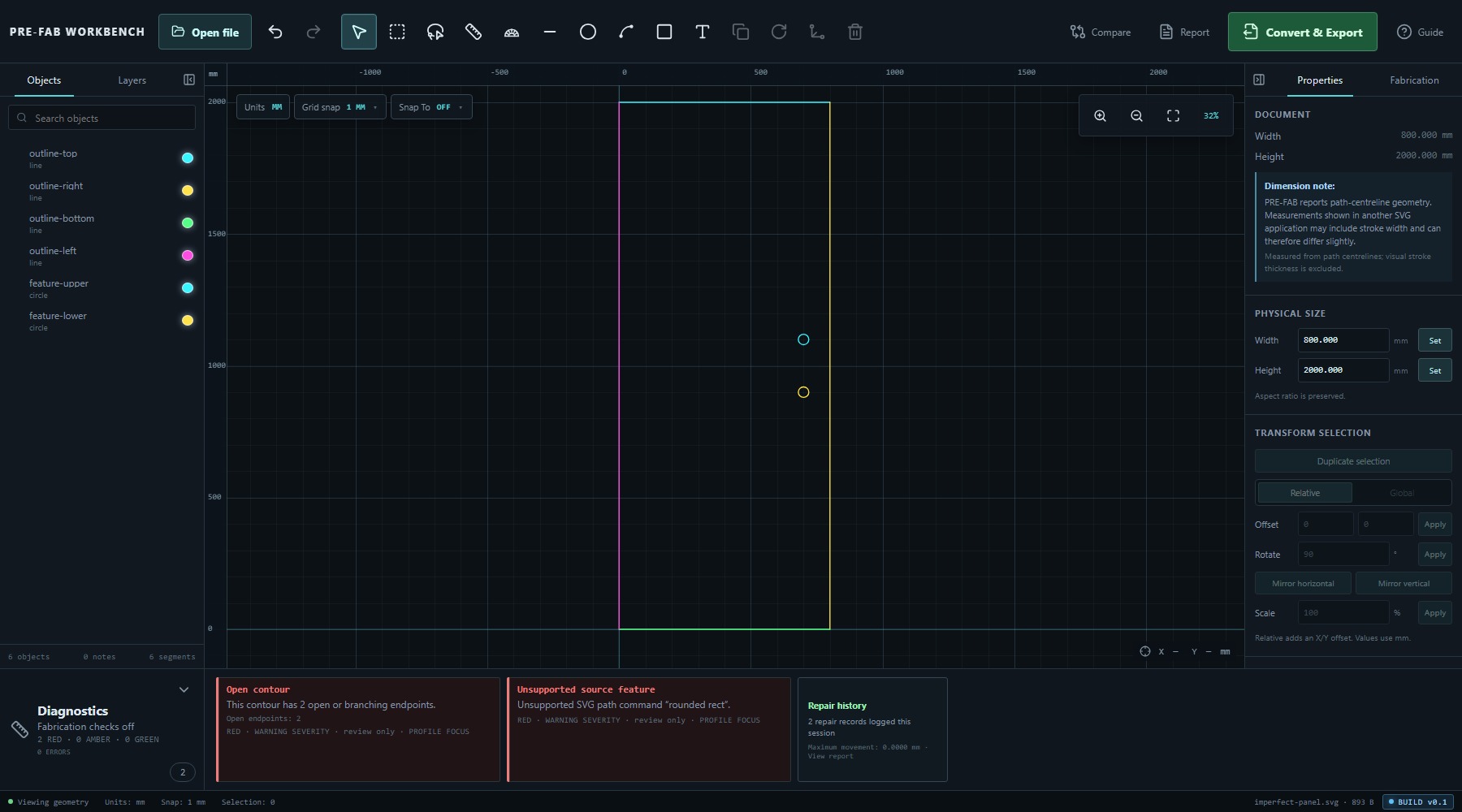
After cleanup, the summary changed from eight objects to six. The Open contour and Unsupported source feature cards remained because neither is a deterministic deletion or reconstruction.
- Read both GREEN finding cards.
- Confirm the named duplicate and zero-length Line against the source intent.
- Select Clean all safe.
- Wait for analysis to complete again.
- Confirm six objects remain and the two RED review-only findings are still present.
Check Repair history
After cleanup, Diagnostics adds Repair history. The verified state reported 2 repair records logged this session and Maximum movement: 0.0000 mm. The two safe repairs removed geometry without moving the remaining points.
Repair history makes automatic changes auditable and links to the session report. It does not replace visual and dimensional review of the result.
Resolve the controlled endpoint gap
The remaining Open contour belongs to the outline's top and left Lines. Selection basics were introduced in Lesson 03; select outline-top and Ctrl-select outline-left, then choose Gap Close.
In CONTROLLED GAP CLOSE, choose the endpoint on the first selected object and then the endpoint on the second. PRE-FAB reported:
- Current gap: 0.0800 mm.
- Movement each: 0.0400 mm.
- Maximum allowed: 0.1000 mm.
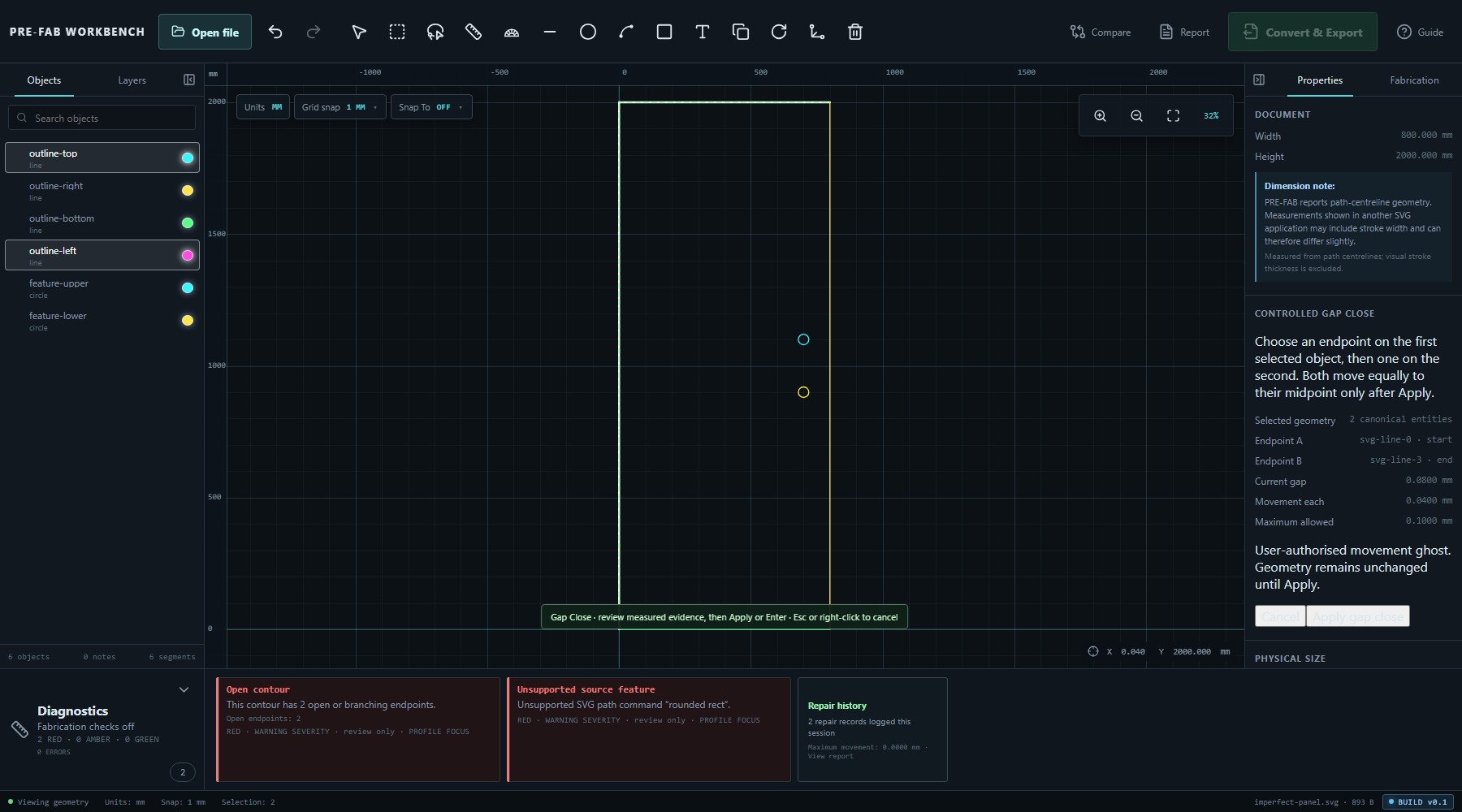
The panel calls this a User-authorised movement ghost and states that geometry remains unchanged until Apply. Both endpoints move equally to their midpoint only after Apply gap close.
- Select
outline-topandoutline-left. - Select Gap Close.
- Choose the two endpoints at the open corner.
- Confirm the measured gap, per-endpoint movement and maximum allowed value.
- Select Apply gap close only when those values match the intended repair.
- Wait for analysis to rerun and confirm the Open contour finding is gone.
Review unsupported source content
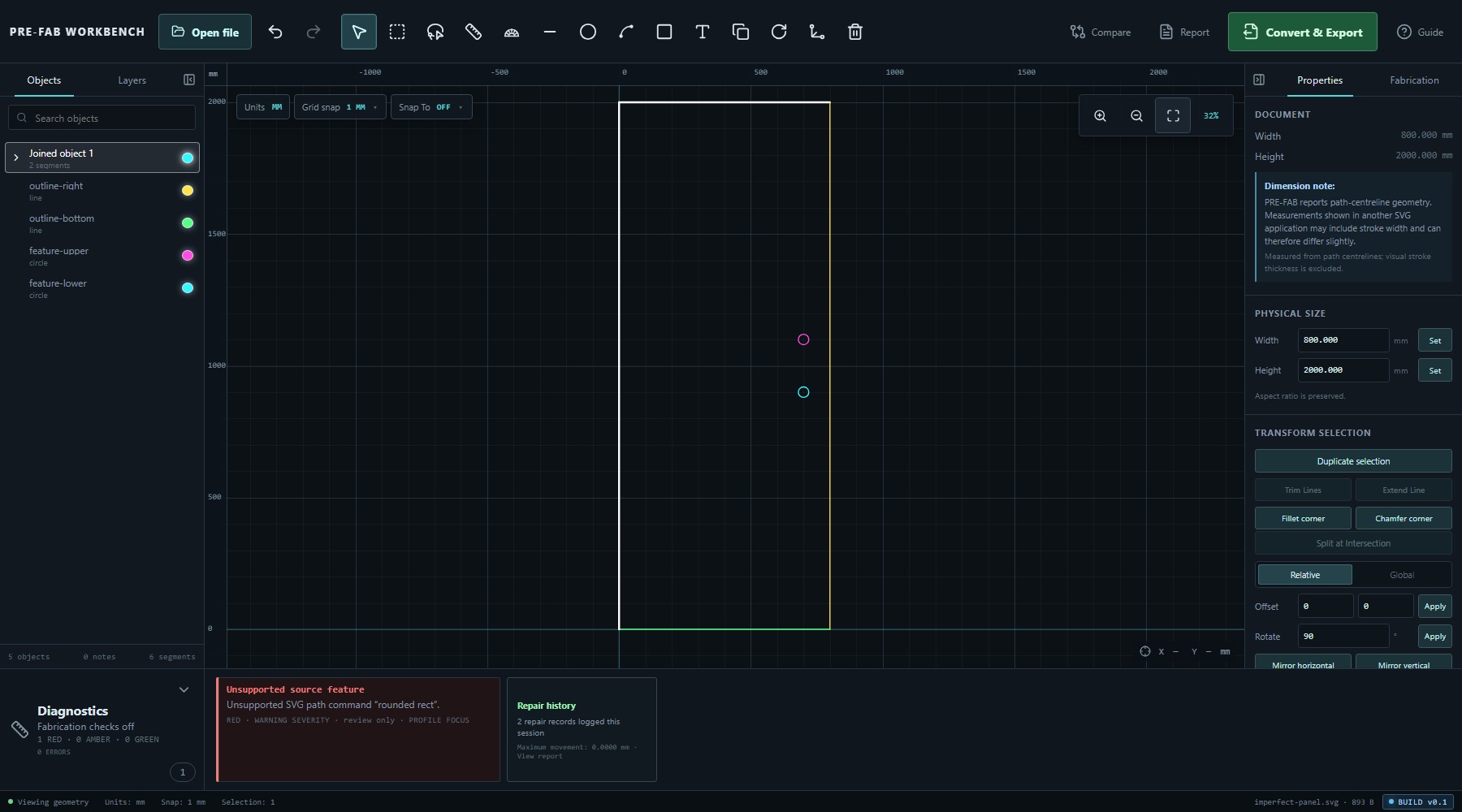
After the duplicate, zero-length entity and gap are resolved, Unsupported source feature remains. The rounded rectangle was skipped during import, so there is no canonical rounded slot for PRE-FAB to repair.
Return to the source drawing or an authoritative reference and decide whether that skipped feature is required. If it is essential, correct or replace it in an appropriate authoring workflow and import again. Do not draw an assumed replacement merely to make Diagnostics empty.
The cleaned fixture deliberately retains this finding so Lesson 08 can show that export validation and unresolved diagnostic review are separate.
Compare the repaired result
Open Compare again. The verified repaired state reported 8 source entities → 6 current entities and 2 net entities removed in the current result. The two removed entities are the duplicate and zero-length Line. Gap Close joined the selected Lines into one object while retaining six canonical segments overall.
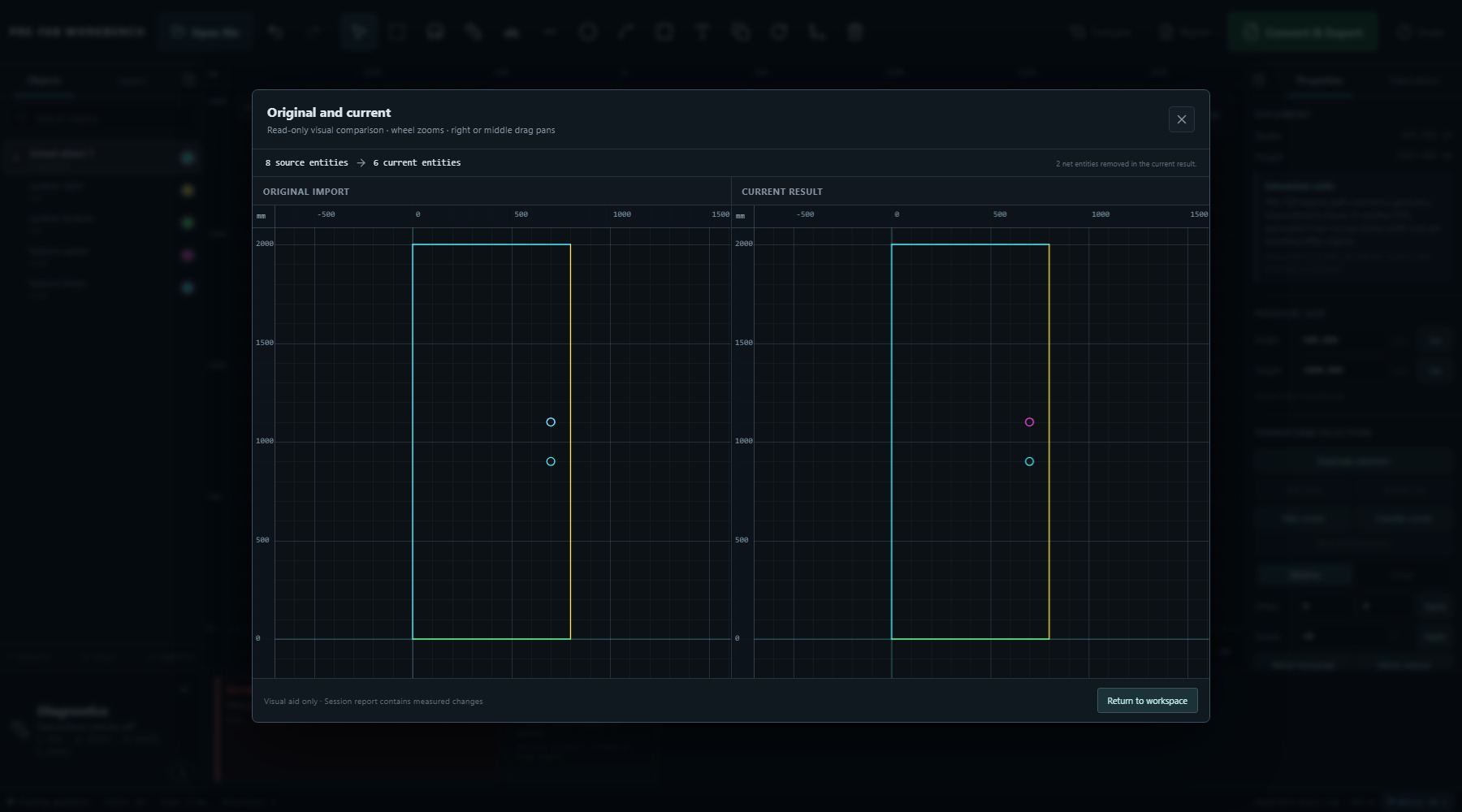
Use the side-by-side previews to check that the panel outline and the two intended circles remain. Compare is still a visual aid; use the repair record and measured gap evidence to understand what changed.
Recheck before output
Before continuing to conversion:
- Confirm the Objects summary is 5 objects, 0 notes, 6 segments.
- Confirm the panel remains 800.000 × 2000.000 mm.
- Confirm Repair history contains two automatic repair records.
- Confirm the Open contour finding is gone.
- Confirm the unsupported rounded-rectangle evidence still remains for review.
- Use Compare to confirm the intended outline and two circles remain.
The drawing is now the reviewed state for Lesson 08. It is not declared fabrication-ready, and the unsupported source feature has not been resolved.
Common mistakes / things to notice
- GREEN describes deterministic repair confidence, not acceptable geometry.
- ERROR describes severity; the zero-length ERROR was still a GREEN deterministic repair.
- Clean all safe is one undoable operation even though it created two repair records.
- Safe cleanup removed only the exact duplicate and zero-length entity; it did not close the contour or recreate skipped source content.
- Gap Close requires the intended Lines and endpoints to be selected explicitly.
- A gap within the maximum allowed value is tool-eligible, not automatically correct.
- Applying Gap Close changed object grouping: five Objects contained six segments afterward.
- Unsupported source content cannot be repaired from information that was never imported.
- Compare counts canonical entities, not unsupported source elements that were skipped at intake.
Key points
- Read title, evidence, repair confidence and severity as separate fields.
- Use deterministic repairs only after confirming they match source intent.
- Repair history records automatic changes and measured movement.
- Gap Close is a measured, user-authorised geometry change.
- Review-only findings stay visible when PRE-FAB cannot infer intent safely.
- Compare the canonical import with the current result after repairs.
- A reviewed geometry state can still carry unresolved source evidence.