Using PRE-FAB · Lesson 08
Convert, Validate and Export
Teach the output workflow from the reviewed Lesson 07 geometry. The learner will review unresolved findings, choose among standards-oriented SVG, Compatibility SVG and AutoCAD 2000 ASCII DXF, understand output-specific options, run PRE-FAB's mandatory re-import validation, and distinguish a passed round-trip integrity check from diagnostic or fabrication approval.
What you'll learn
- Review unresolved diagnostics before output.
- Distinguish the three verified output formats.
- Understand the SVG presentation note and DXF curve tolerance control.
- Run Validate & export and interpret Re-import check passed.
- Recognise that validation can pass while a diagnostic finding remains.
- Reopen an exported file and inspect its new intake evidence.
- Choose Compatibility SVG for a verified legacy/CAM-risk case without treating it as universal certification.
Start from the reviewed result
Continue from Lesson 07 after safe cleanup and Gap Close. The reviewed state contains five Objects, six segments and two intended circles. The Open contour is resolved, but Unsupported source feature remains because the rounded rectangle was skipped during intake.
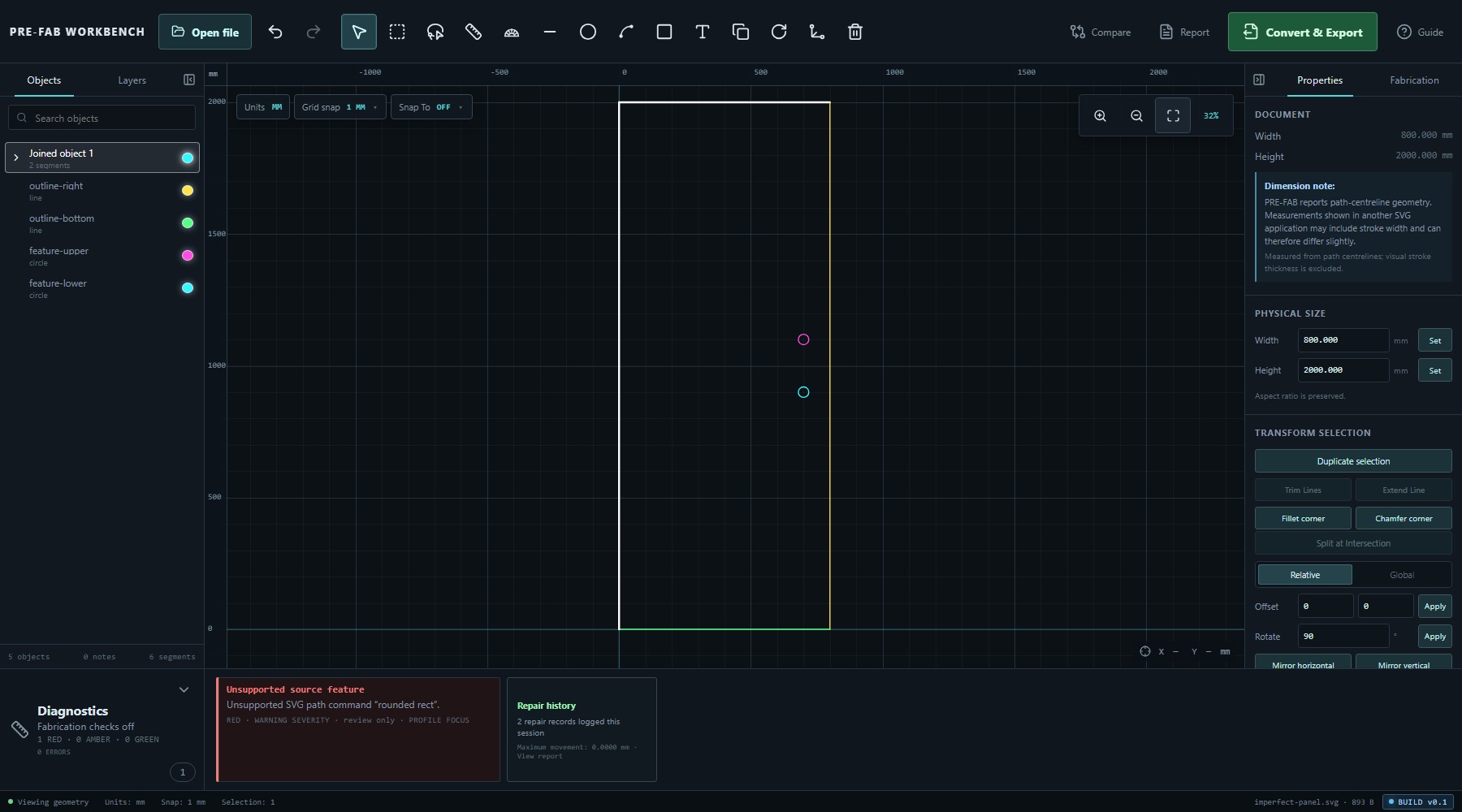
Select Convert & Export only after the current geometry and unresolved evidence have been reviewed. A pending drawing or edit operation must be applied or cancelled before output.
Review unresolved findings
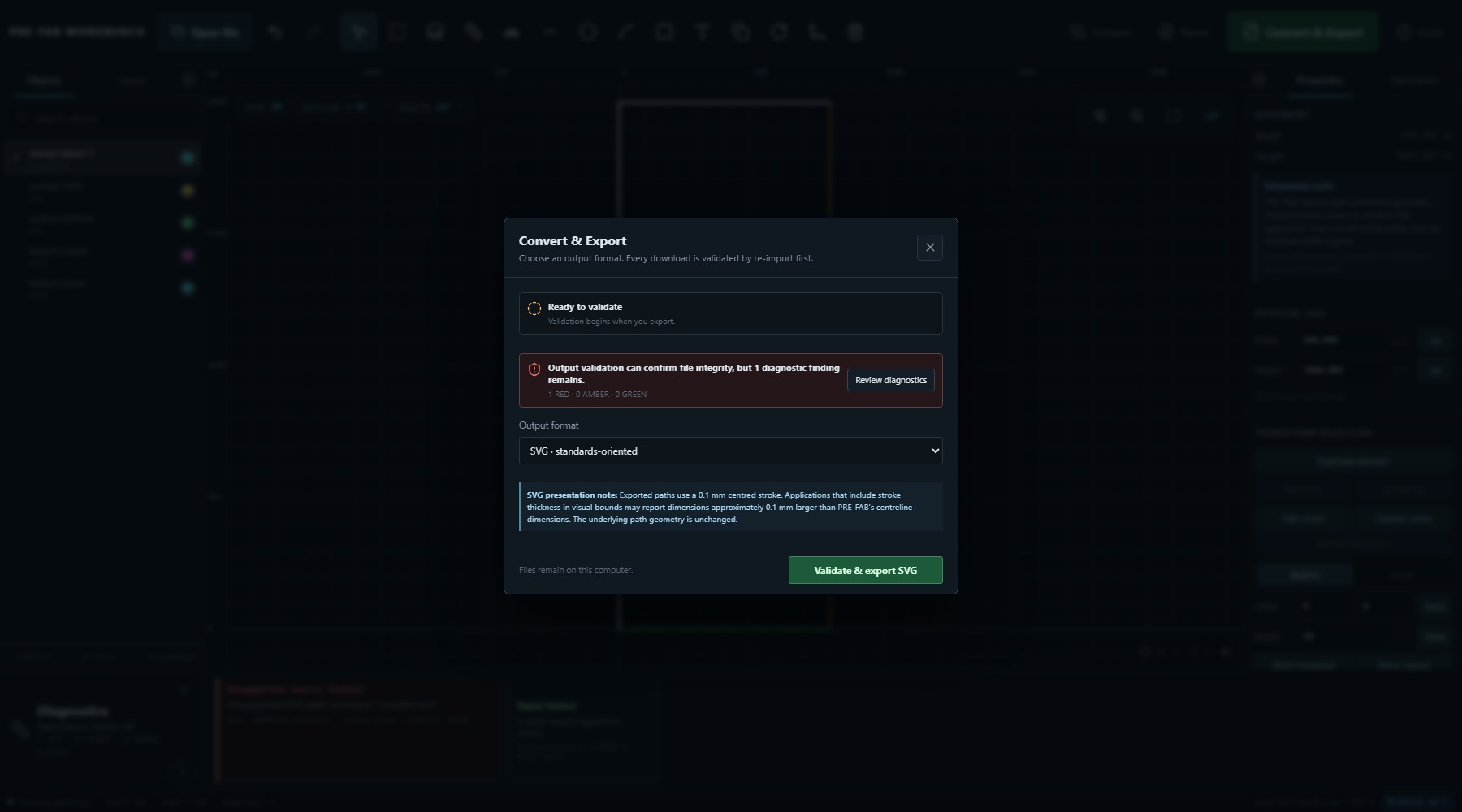
The dialog reported Ready to validate, but also stated: Output validation can confirm file integrity, but 1 diagnostic finding remains. The count was 1 RED · 0 AMBER · 0 GREEN, with Review diagnostics available.
These messages are deliberately independent. Validation asks whether the chosen output can be generated and re-imported through the required checks. Diagnostics records what is still unresolved about the working drawing or its source evidence. A validation pass does not erase the unsupported rounded-rectangle warning.
Choose an output format
Output format provides three verified choices:
- SVG · standards-oriented — retains standards-oriented SVG representation.
- Compatibility SVG · Legacy/CAM-safe — resolves transforms into coordinates and converts circular/elliptical geometry to cubic Bézier curves.
- DXF · AutoCAD 2000 ASCII — writes DXF with a configurable curve approximation tolerance where approximation is required.
Choose for the receiving workflow, not from file extension familiarity alone. PRE-FAB's compatibility description is based on reproduced legacy-importer failures and explicitly says it is not universal CAM certification.
Standards-oriented SVG
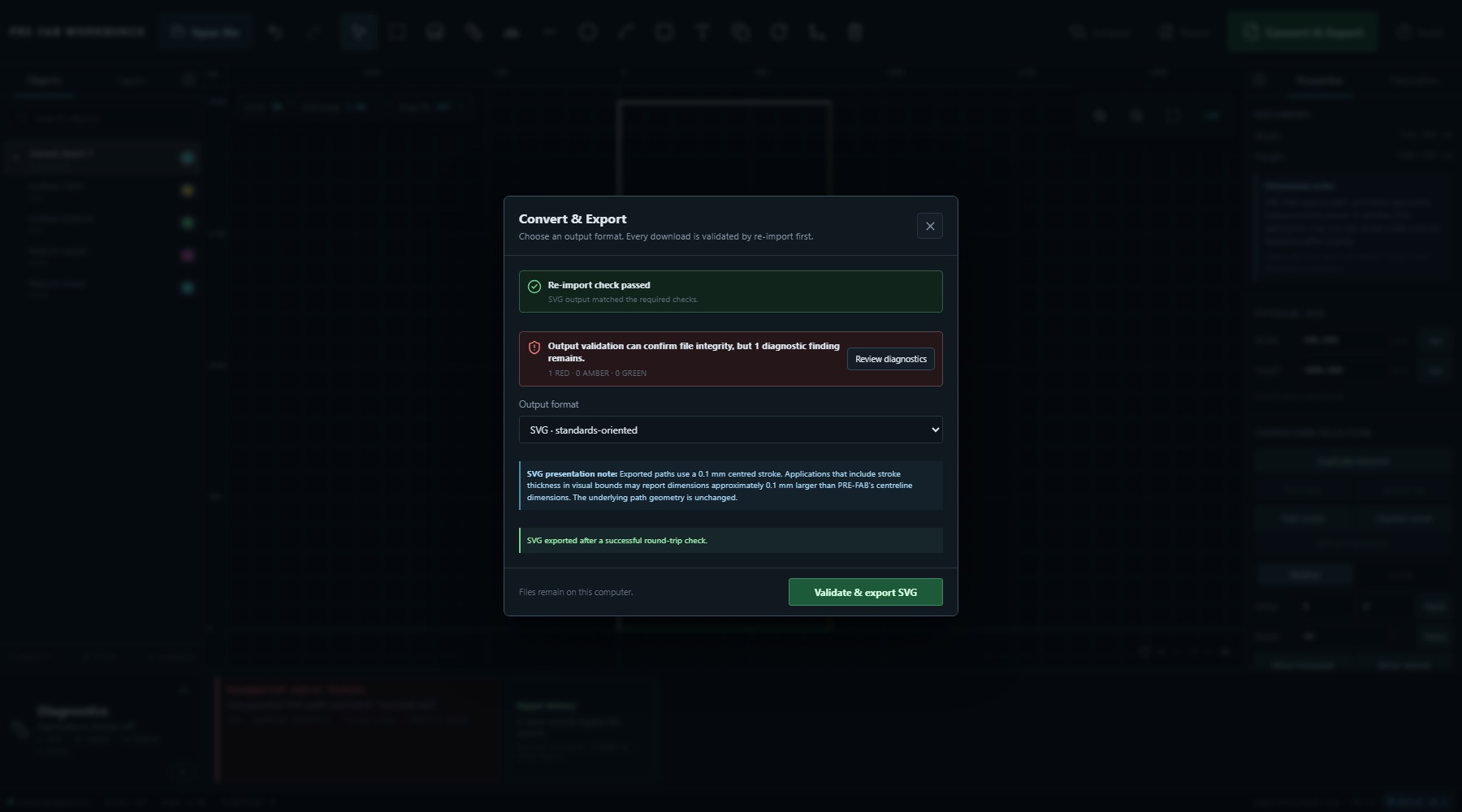
The standards-oriented SVG option includes an SVG presentation note. Exported paths use a 0.1 mm centred stroke. Applications that include stroke thickness in visual bounds may report dimensions approximately 0.1 mm larger than PRE-FAB's centreline dimensions; the underlying path geometry is unchanged.
Select Validate & export SVG to begin the built-in round trip. In the verified exercise, the dialog changed to Re-import check passed and stated SVG output matched the required checks and SVG exported after a successful round-trip check.
Compatibility SVG
Compatibility SVG is intended for a receiving workflow affected by legacy/CAM representation risk. It resolves geometry transforms into coordinates and converts circular or elliptical geometry to cubic Bézier curves.
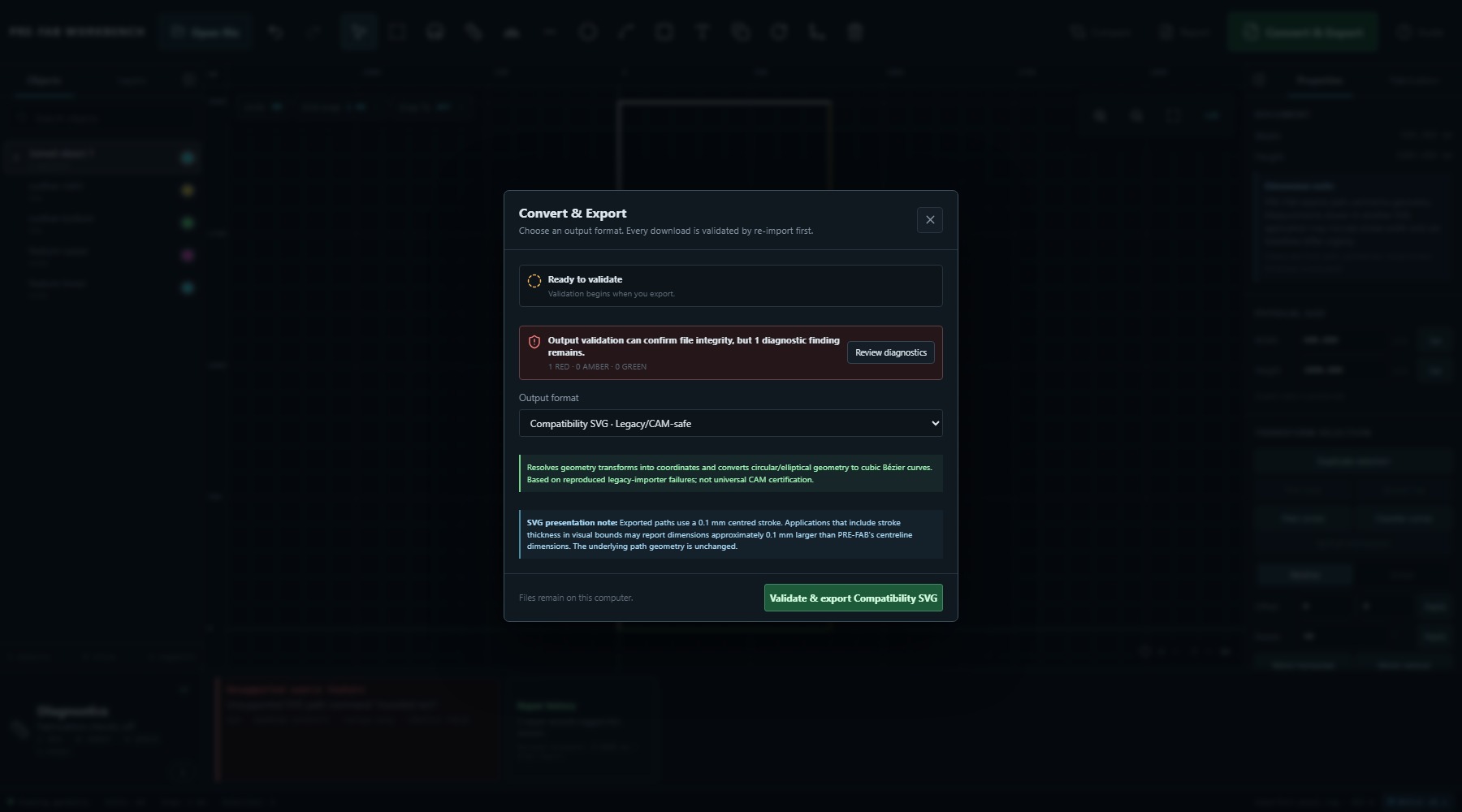
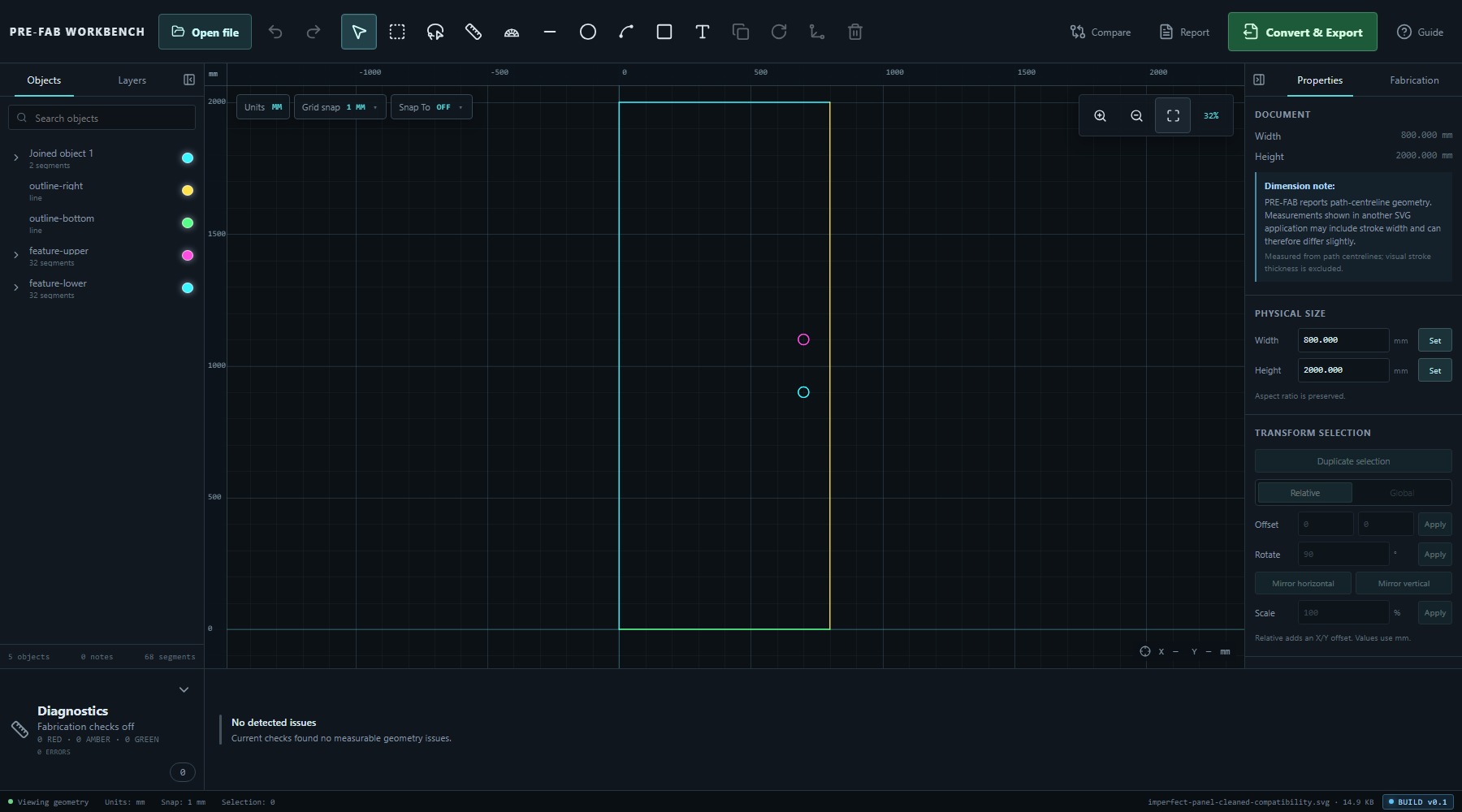
For this fixture, the validated Compatibility SVG reported: two curved source entities converted to 64 cubic segments, one transform resolved, and zero geometry transforms or SVG A commands remaining. Those counts describe this file, not a fixed conversion formula.
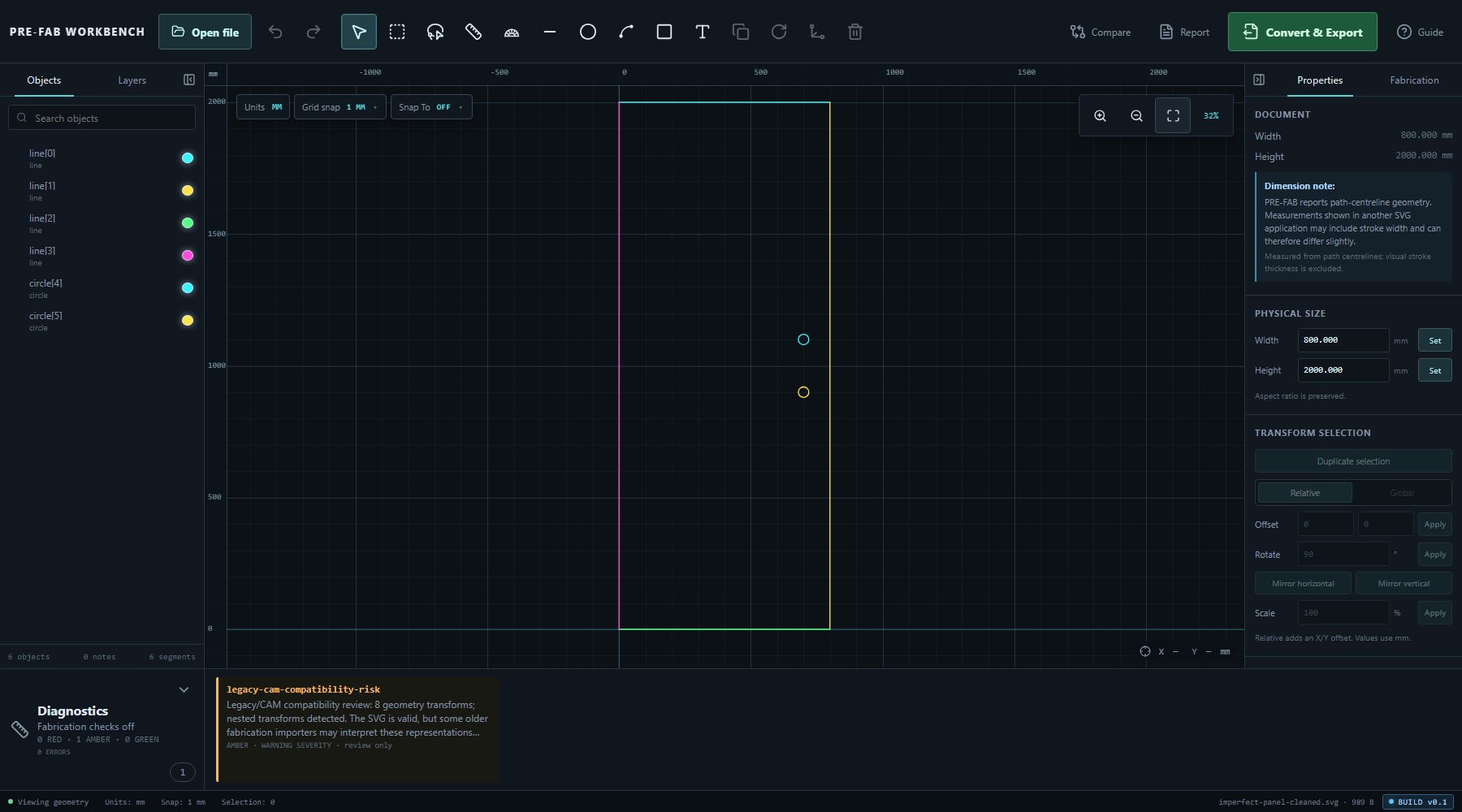
When the standards SVG was manually reopened in PRE-FAB, Diagnostics produced one AMBER legacy-cam-compatibility-risk warning describing eight geometry transforms and nested transforms. Reopening the Compatibility SVG produced No detected issues, five objects and 68 segments. The circles remained visually circular but were represented by Bézier segments.
DXF and curve tolerance
The DXF option is labelled DXF · AutoCAD 2000 ASCII and exposes Curve tolerance (mm). The verified value was 0.01 mm. The tolerance must be finite and positive for export to be available.
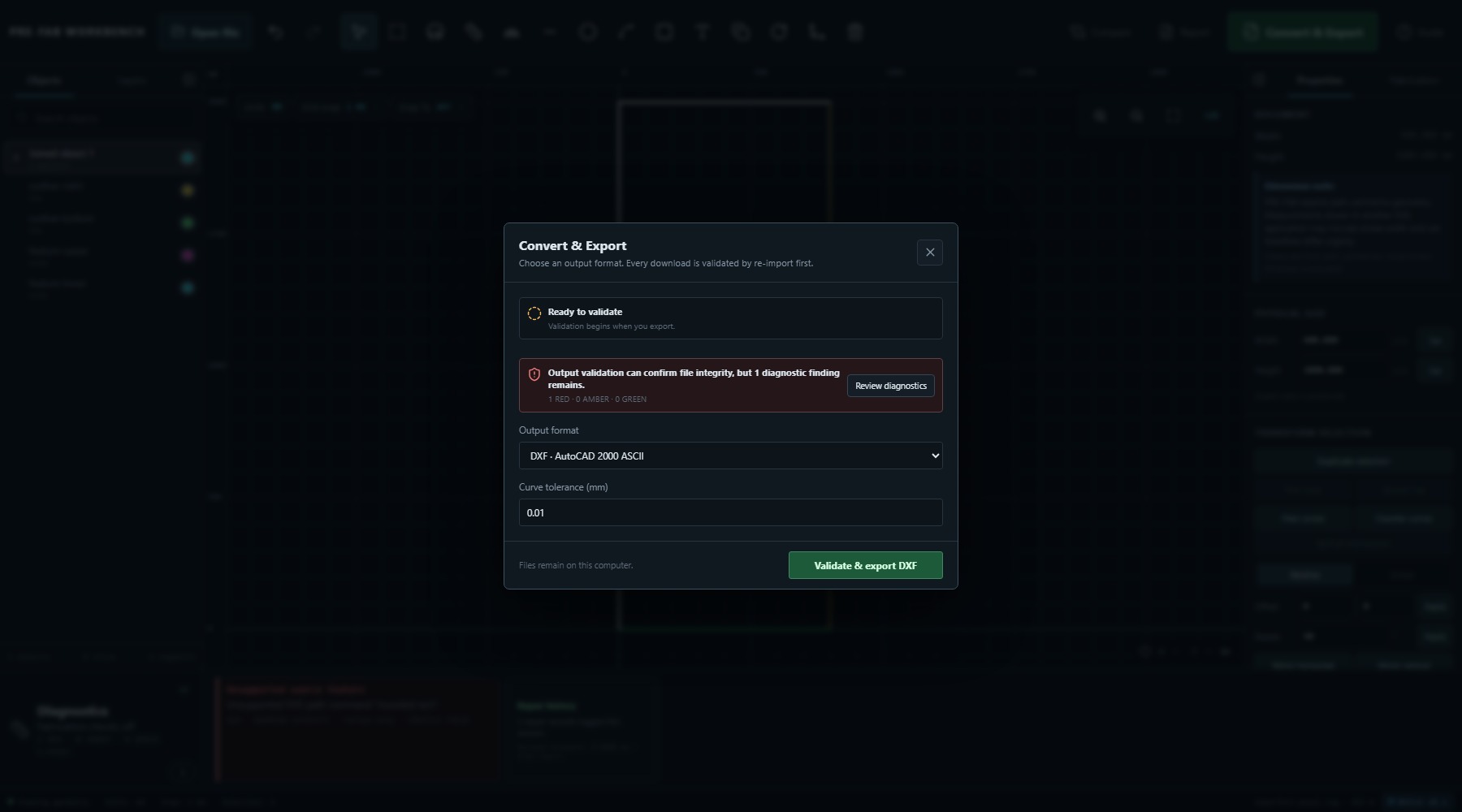
Tolerance controls permitted deviation when curved geometry must be approximated. In this fixture, PRE-FAB reported 0 curve(s) approximated; maximum estimated deviation 0.000000 mm because the two circles could be represented without approximation in this output.
Choose tolerance from the receiving workflow's geometric requirements. A smaller number is not automatically better and does not define machine accuracy.
Validate and download
Every download is validated by re-import first. The action button therefore says Validate & export, and the dialog shows Validation running… while processing. A download is approved only after the chosen output passes the required checks.
The verified fixture successfully downloaded standards SVG, Compatibility SVG and DXF. Each success message described its own result, while the unresolved source diagnostic remained visible in the same dialog.
- Open Convert & Export.
- Review the diagnostic summary and use Review diagnostics if anything is not understood.
- Choose the required Output format.
- Set a valid DXF Curve tolerance when DXF is selected.
- Select the matching Validate & export button.
- Wait for Re-import check passed.
- Retain the downloaded file with the reviewed source and repair evidence.
Reopen and inspect the output
Built-in validation is the first check, not the last. Reopen the exact file produced by the Validate & export action you just completed—not the original source or an earlier download—and repeat the Lesson 06 intake review: units, dimensions, Objects, Diagnostics and visual geometry.
The standards SVG reopened at 800 × 2000 mm with six objects and six segments, but raised the AMBER legacy/CAM compatibility review. Complex imported artwork can likewise pass standards SVG validation and still produce this advisory when the exact downloaded standards file is manually reopened because transforms remain.
Where that advisory appears, return to the reviewed working drawing, export Compatibility SVG, and reopen that exact new download for comparison. In the verified fixture, the Compatibility SVG reopened at the same size with five objects and 68 segments and no detected issues. Different object and segment counts are expected because Compatibility SVG resolves supported transforms and converts relevant curved source entities for legacy/CAM interoperability.
If the receiving application is the actual destination, inspect there as well. Confirm geometry, layers/entities, reference content and toolpaths before fabrication.
Interpret a validation pass correctly
For this exercise:
- The working drawing retained one unresolved unsupported-source finding.
- All three output formats passed PRE-FAB's required re-import validation.
- Standards SVG still raised a compatibility advisory when manually reopened.
- Compatibility SVG removed that advisory in the verified PRE-FAB re-import.
These facts can coexist. A passed export validates the round-trip checks for the generated file. It does not prove that skipped source content was unimportant, that a third-party importer behaves identically, or that the geometry suits a manufacturing process.
Common mistakes / things to notice
- Ready to validate is not the same as Re-import check passed.
- A passed validation does not clear unresolved Diagnostics.
- Standards SVG and Compatibility SVG represent the same intended geometry differently.
- The 0.1 mm SVG stroke note concerns visual bounds, not path-centreline geometry.
- Compatibility SVG's legacy/CAM-safe label is accompanied by an explicit no-universal-certification caveat.
- DXF curve tolerance is a conversion setting, not a machine/process tolerance.
- Object and segment counts may change after valid representation conversion.
- Reopening the output can expose new intake evidence such as compatibility risk.
- A clean PRE-FAB re-import does not replace testing in the actual receiving CAD/CAM system.
Key points
- Review diagnostics before choosing an output.
- PRE-FAB offers standards SVG, Compatibility SVG and AutoCAD 2000 ASCII DXF.
- Every approved download is validated by re-import first.
- Validation pass and diagnostic status answer different questions.
- Compatibility SVG resolves transforms and converts circular/elliptical geometry to cubic Bézier representation.
- DXF curve tolerance applies only where curves require approximation.
- Reopen exported files and inspect units, geometry and diagnostics again.
- Output validation is evidence of integrity, not fabrication certification.