Using PRE-FAB · Lesson 05
Measure, Dimension and Communicate a Drawing
Teach the difference between inspecting a geometric fact, placing persistent reference content and changing production geometry. The learner will use Ruler and Protractor, turn verified measurements into dimensions, add a text reference, and check how those notes appear in the drawing structure.
What you'll learn
- Use Ruler to inspect distance, Delta X and Delta Y without changing geometry.
- Use Protractor to inspect an angle without changing geometry.
- Add linear and angular dimensions as reference content.
- Add a text annotation with an explicit role.
- Find dimensions and annotations under ANNOTATIONS / REFERENCES in Objects.
- Communicate useful drawing information without confusing reference content with production contours.
Start from known geometry
Open the original, unsplit Lesson 02 practice panel: one 800 × 2000 mm rectangular outline with two Ø40 circular features. The Objects summary must show 3 objects and 3 segments before communication content is added.
This lesson does not resize or repair the part. Measurement reads geometric facts; dimensions and annotations record reference information. That boundary keeps production contours separate from the information people use to inspect and discuss them.
Measure without changing geometry
Select Ruler or Protractor from the top toolbar. Each measurement panel says that the measurement does not change the drawing. You can choose points in the viewer or enter exact coordinates in Properties.
A live measurement is temporary inspection. Close it when finished, or choose Add dimension when the result should remain as reference content.
Use the Ruler
Ruler uses two points, A and B. The Properties panel reports Distance, Delta X and Delta Y. For the verified panel-width check, A was (0, 0) and B was (800, 0), producing Distance 800.0000 mm, Delta X 800.0000 mm and Delta Y 0.0000 mm.
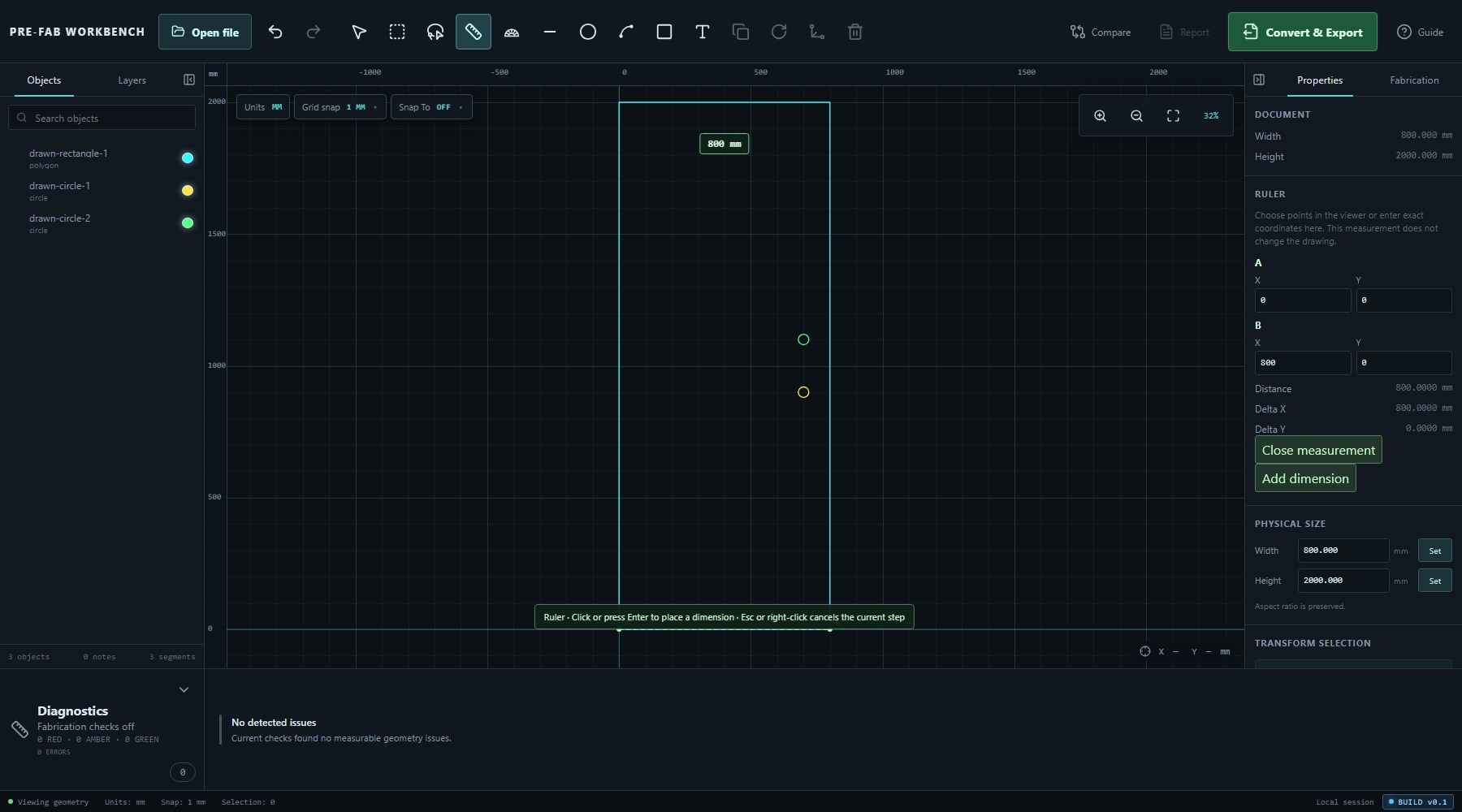
- Select Ruler.
- Choose the first and second points in the viewer, or enter exact A and B coordinates.
- Read Distance, Delta X and Delta Y.
- Select Close measurement if the value is needed only temporarily.
- Select Add dimension if the measured distance should remain as a reference.
Add a linear dimension
After Add dimension, PRE-FAB opens PLACE LINEAR DIMENSION. The panel identifies the measured distance and provides Dimension offset (mm) to position the annotation away from the measured geometry.
The viewport shows a ghost annotation. The panel explicitly states Production geometry is unchanged. Choose Apply dimension to add the reference, or Cancel to return without adding it.
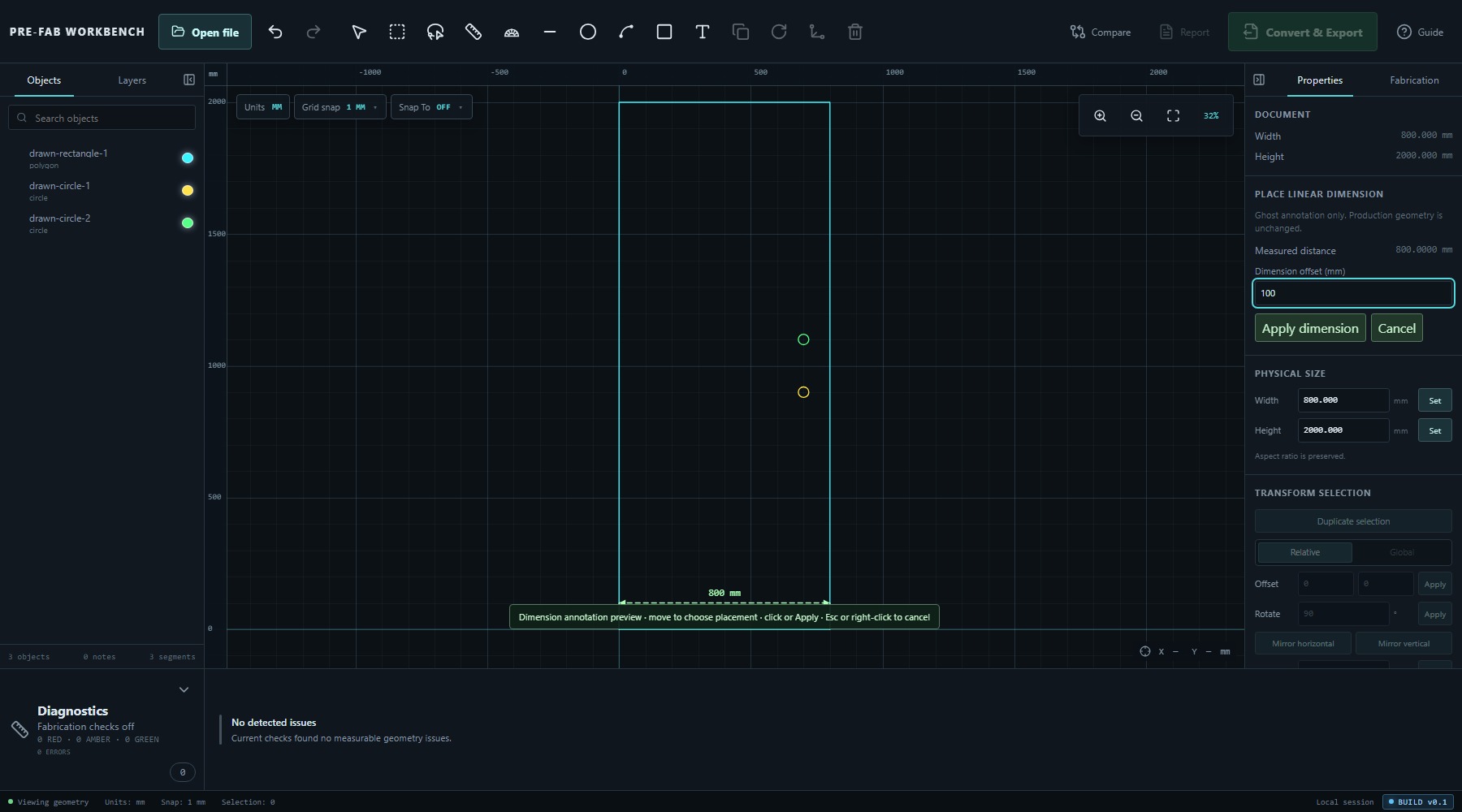
- Complete a Ruler measurement.
- Select Add dimension.
- Enter a suitable Dimension offset.
- Check the dimension line, extension lines and label position.
- Select Apply dimension.
Use the Protractor
Protractor uses three points: A, vertex B and C. PRE-FAB reports the angle at B. In the verified right-angle check, A was (0, 0), B was (0, 2000) and C was (800, 2000), producing Angle 90.0000°.
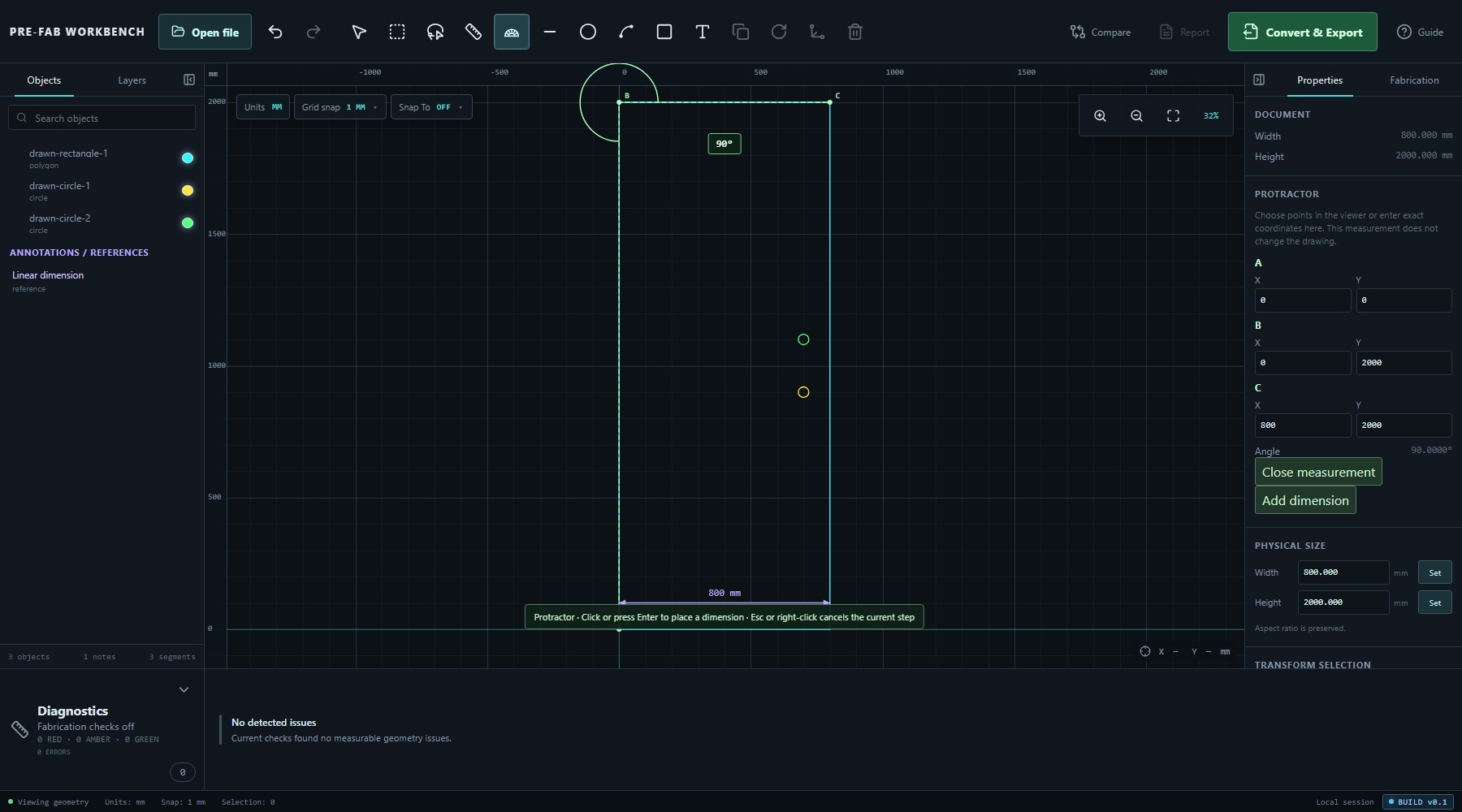
- Select Protractor.
- Choose A, the vertex B, and C in order, or enter their exact coordinates.
- Read the reported Angle.
- Close the measurement, or select Add dimension to keep it as reference content.
Add an angular dimension
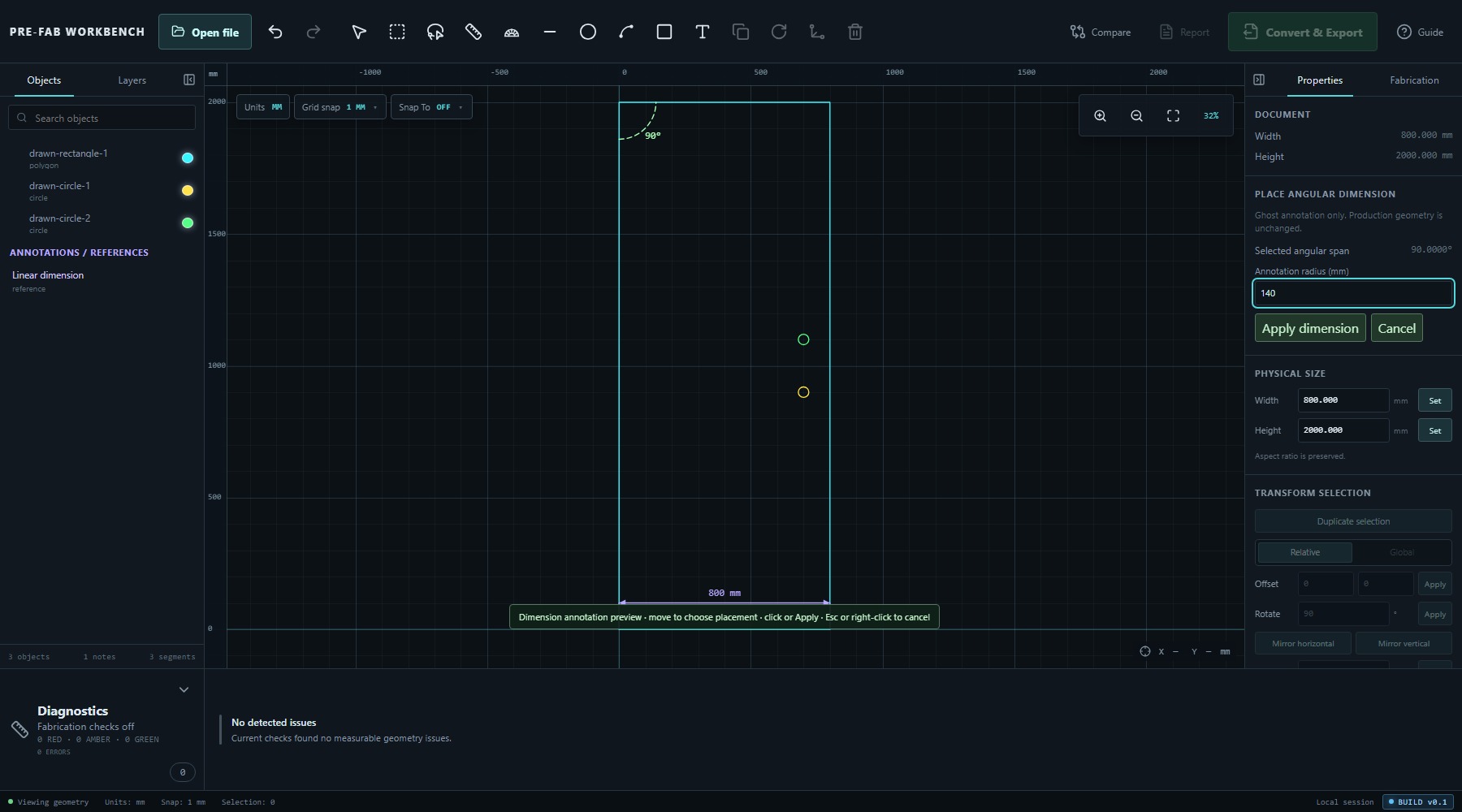
After a Protractor measurement, Add dimension opens PLACE ANGULAR DIMENSION. It reports the selected angular span and provides Annotation radius (mm) to control how far the arc label sits from the vertex.
As with the linear tool, the preview is a ghost annotation and production geometry remains unchanged. Review the arc, extension rays and degree label, then choose Apply dimension or Cancel.
Add a text reference
Select Text annotation to place written reference content. PLACE ANNOTATION provides Text, X, Y, Rotation, Height, Align and Role. The verified example used PANEL A — CHECK Ø40 FEATURES, positioned at X 100 mm and Y 1800 mm, with Rotation 0°, Height 30 mm, Align Left and Role Reference.
The panel states that text is a reference, not a PRE-FAB production contour. It also warns that downstream CAD/CAM may treat exported text as machinable, so layer and toolpath handling must be verified before fabrication; font styling is not preserved.
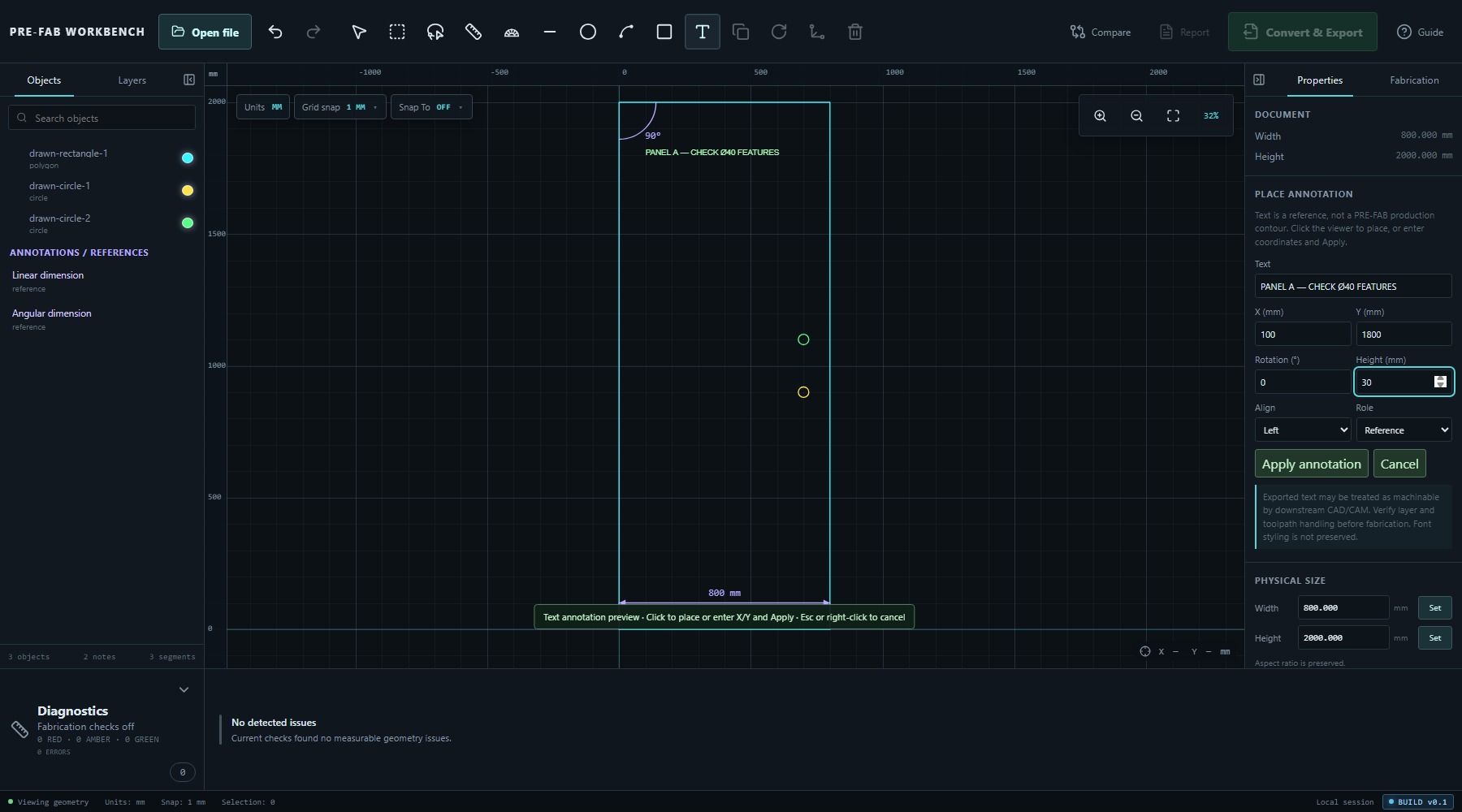
- Select Text annotation.
- Enter concise text that adds information not already obvious from the geometry.
- Set its position, rotation, height, alignment and Role.
- Inspect the viewport preview.
- Select Apply annotation.
Check references in Objects
Applied dimensions and text appear under ANNOTATIONS / REFERENCES in the Objects panel. In the verified final state, the panel listed the text reference, Linear dimension and Angular dimension separately from the three geometric objects. The summary reported 3 objects, 3 notes and 3 segments.
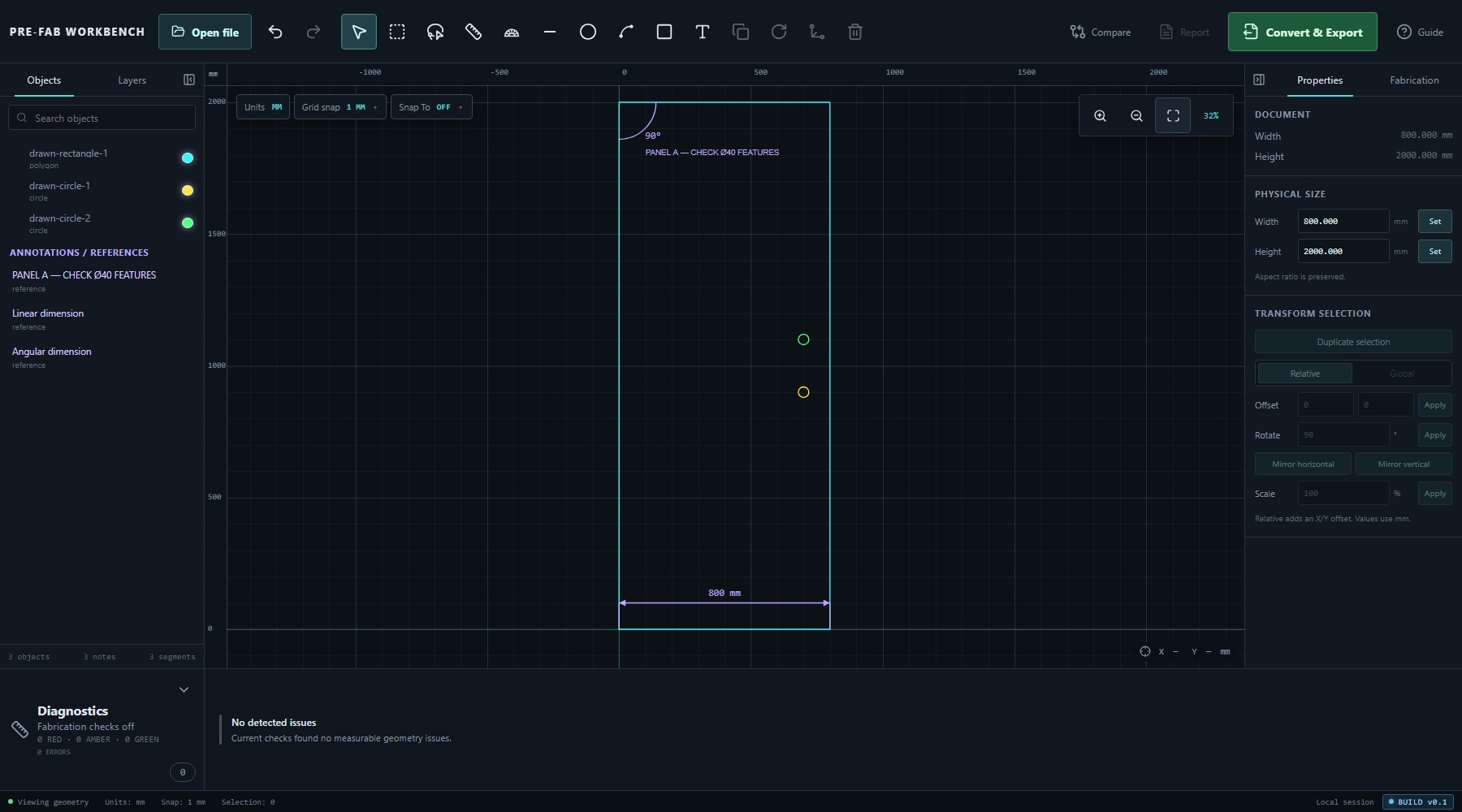
This separation helps you audit what will communicate intent and what defines the part. It does not guarantee that another CAD/CAM system will preserve the same distinction after export.
Communicate and verify
Before sharing or exporting a documented drawing:
- Confirm the underlying geometry is still the intended size and position.
- Confirm dimensions report the expected values and do not overlap important features.
- Confirm annotation wording, position and Role.
- Check ANNOTATIONS / REFERENCES for accidental or duplicate notes.
- Read Diagnostics separately from the communication content.
Dimensions and notes make a drawing easier to understand, but they do not repair geometry, define manufacturing intent automatically or certify process suitability. Conversion, re-import validation and fabrication interpretation remain separate later workflows.
Common mistakes / things to notice
- Ruler and Protractor measurements do not change the drawing.
- Ruler uses A and B; Protractor uses A, vertex B and C.
- Delta X and Delta Y are components of the measured distance, not extra dimensions.
- Add dimension opens a preview; the dimension is not stored until Apply dimension.
- Dimension offset and Annotation radius position the reference graphic; they do not change measured geometry.
- A dimension reports a fact but does not constrain the source geometry.
- Text Role should match its communication purpose.
- Text is a PRE-FAB reference, but downstream CAD/CAM may treat exported text as machinable.
- Notes can be geometrically tidy while the part still has unresolved diagnostic or fabrication findings.
Key points
- Measure first; decide separately whether the result needs a persistent dimension.
- Ruler reports distance and X/Y components from two points.
- Protractor reports the angle at vertex B from three points.
- Linear and angular dimensions are reference annotations; production geometry remains unchanged.
- Text annotations carry explicit communication content and a Role.
- Objects keeps annotations/references separate from production objects.
- Verify both the underlying geometry and the communication layer before sharing or exporting.