Using PRE-FAB · Lesson 04
Edit Existing Geometry
Teach the first safe geometry-editing workflow using the panel created in Lessons 02 and 03. The learner will select geometry, preview a change, apply or cancel it deliberately, and recognise when an operation needs Lines rather than a closed polygon. The editing operations are independent practice branches, not one uninterrupted sequence. The lesson introduces transform and topology tools without becoming a complete command reference.
What you'll learn
- Recognise PRE-FAB's preview, Apply and Cancel pattern for geometry-changing commands.
- Move and duplicate selected geometry using context-sensitive Properties.
- Rotate or mirror a selection around the shown pivot.
- Use Break Apart when a closed outline must become individually editable Lines.
- Use Trim Lines, Extend Line, Fillet corner and Chamfer corner on eligible Line selections.
- Delete selected geometry and recover with Undo when needed.
- Recheck Objects and Diagnostics after an edit without treating diagnostics as manufacturing approval.
Start from the practice panel
Continue with the panel from Bundle A: one 800 × 2000 mm rectangular outline and two Ø40 circular features. If that drawing is not available, recreate it from Lesson 02 before continuing.
Begin each practice branch from that original, unsplit panel with 3 objects and 3 segments. After exploring a command, use Undo until that summary is restored, or recreate/reopen the Lesson 02 panel before trying another branch.
Editing always begins with selection. Select the object or objects you intend to change, then read the right-hand Properties panel. PRE-FAB enables only the commands that apply to the current selection.
Preview, apply or cancel
Geometry-changing commands use an explicit preview. After values are entered, the viewport shows the proposed result and the Properties panel states that the geometry is unchanged. The change becomes part of the drawing only when you select Apply, press Enter where offered, or complete the indicated viewport action.
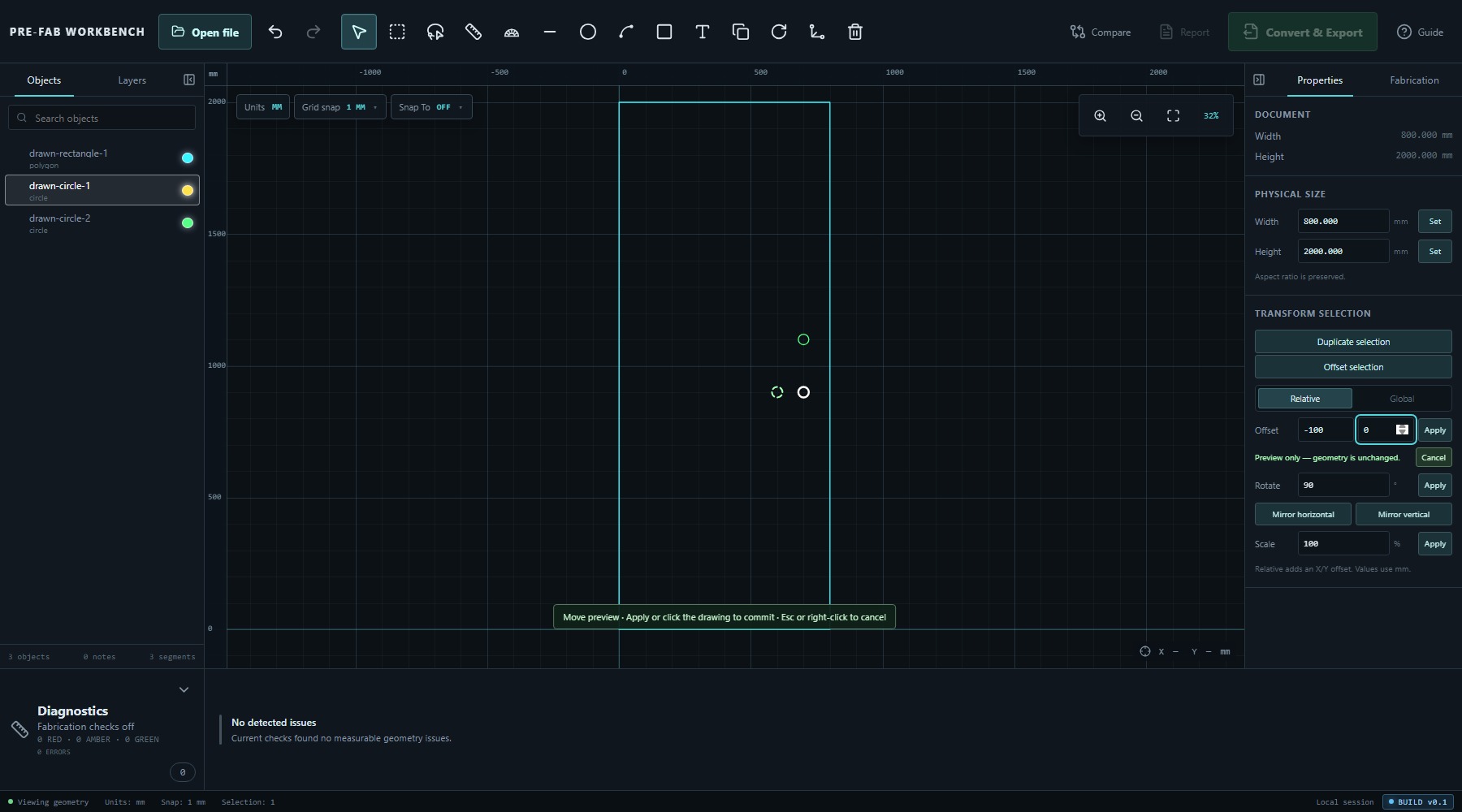
Select Cancel, press Esc or right-click to abandon the pending edit. Check the ghost geometry before committing; do not infer the result from the command name alone.
Move and duplicate
Select one circular feature. Under TRANSFORM SELECTION, Relative movement adds an X/Y offset to the current position; Global movement uses the global coordinate route shown by the control. For a known displacement, enter the values, inspect the preview and choose Apply.
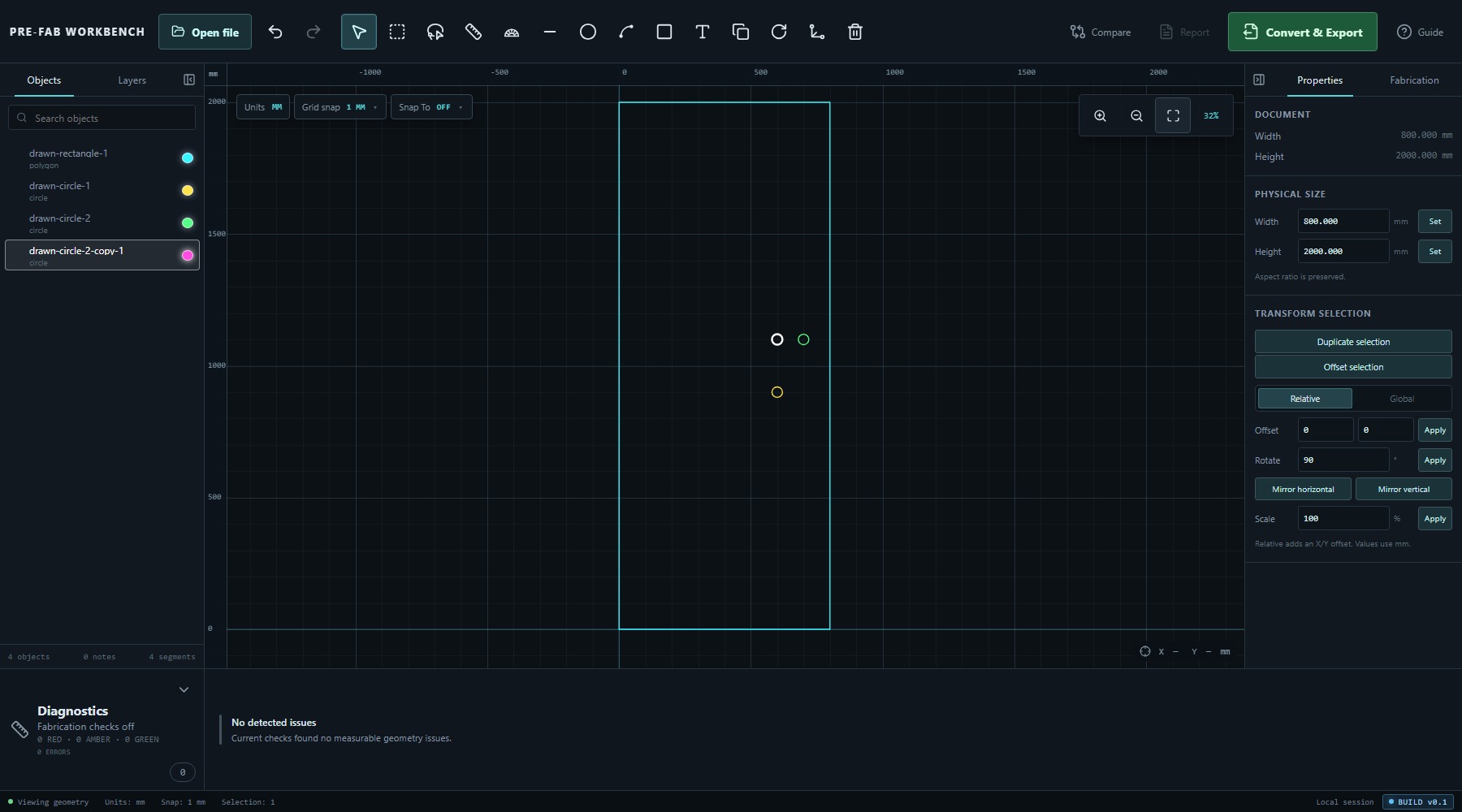
To make a separate copy, select Duplicate selection first. The copy becomes another object, after which it can be moved independently. In the verified exercise, duplicating a circle increased the summary from three objects to four; deleting that copy returned it to three.
- Select one circle in the viewport or Objects panel.
- Select Duplicate selection if the original must remain.
- Keep Relative selected and enter the required X and Y offsets.
- Inspect the ghost position.
- Select Apply to commit, or Cancel to leave the geometry unchanged.
Rotate and mirror
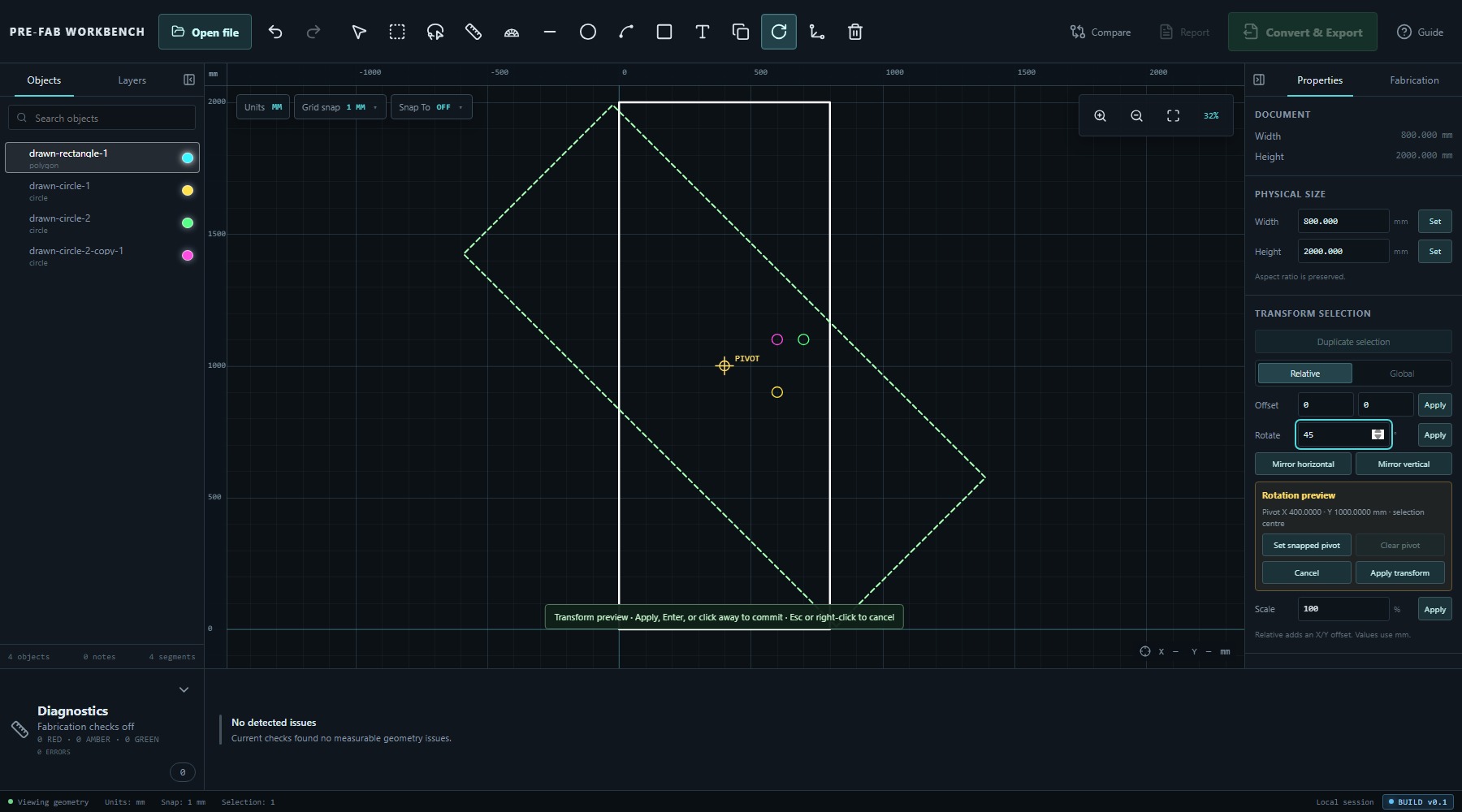
Rotate previews the selection around the pivot reported in the transform controls. The verified state used the selection centre and showed the pivot coordinates before Apply transform. Enter the angle, confirm the pivot and review the preview before applying it.
Mirror horizontal and Mirror vertical use the same preview-and-apply pattern. The direction names describe the requested reflection; the viewport preview is the final check. For symmetric geometry such as a circle, the reflected result may look unchanged even though the command is valid, so use an asymmetric selection when learning the effect.
Break Apart and line-based tools
Some edit commands require individual Lines. The practice rectangle appears in Objects as one polygon, so its edges cannot be treated as separately selected Lines until the outline is broken apart.
Right-click the selected rectangle and choose Break Apart. In the verified result, drawn-rectangle-1 became four objects named drawn-rectangle-1 edge 1 through edge 4, each with type line. The two circles remained circles, and the summary changed from three objects and three segments to six objects and six segments.
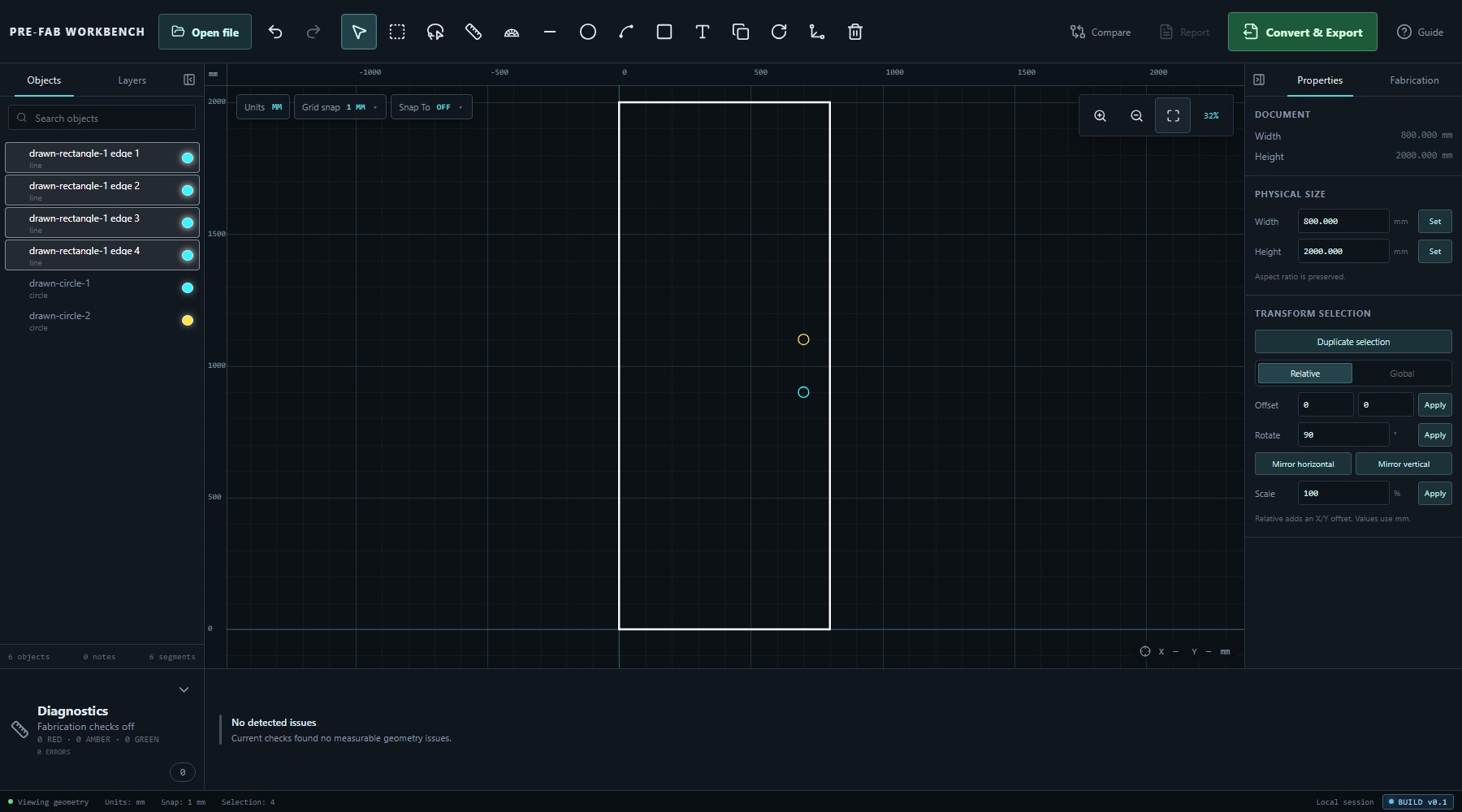
Use Break Apart only when individual edges really need separate topology edits. It changes the object structure and can create open-contour diagnostic findings because the resulting Lines are evaluated independently.
Treat each line-based operation as its own branch. Start from the restored 3-object / 3-segment panel, use Break Apart for the branch that needs Lines, then Undo the topology changes until the original summary is restored before beginning another operation.
Trim and extend
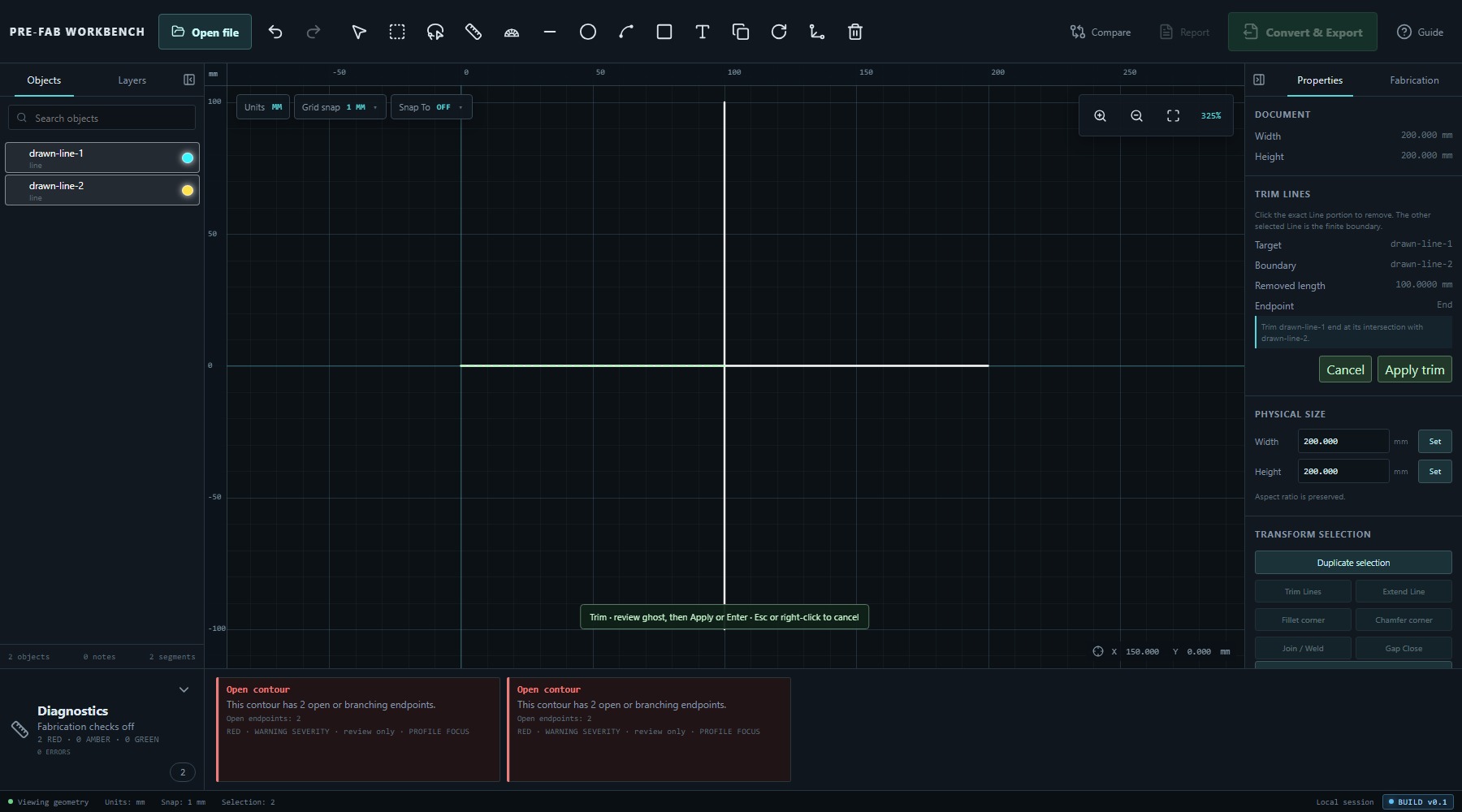
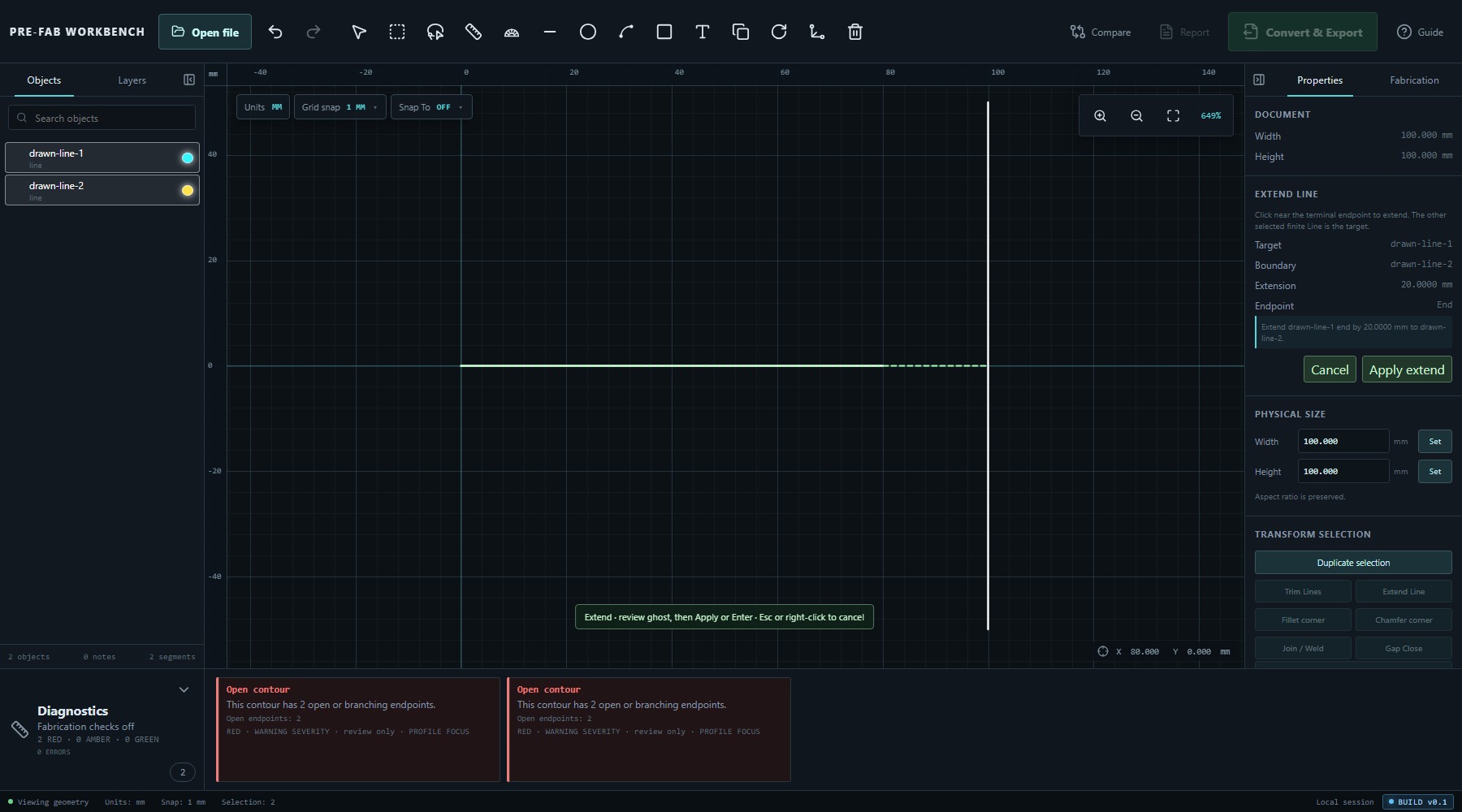
Trim Lines and Extend Line require a suitable arrangement of two finite Lines. The continuing rectangle does not automatically provide the overrun or extension geometry needed for a deterministic exercise, so these commands are introduced conceptually here rather than added to the continuing practice sequence.
For Trim Lines, PRE-FAB asks you to click the exact Line portion to remove. The other selected Line is the finite boundary. The preview identifies the target, boundary, removed length and endpoint before Apply trim.
For Extend Line, click near the terminal endpoint to extend. The other selected finite Line is the target boundary. The preview reports the extension length and endpoint before Apply extend.
Fillet and chamfer
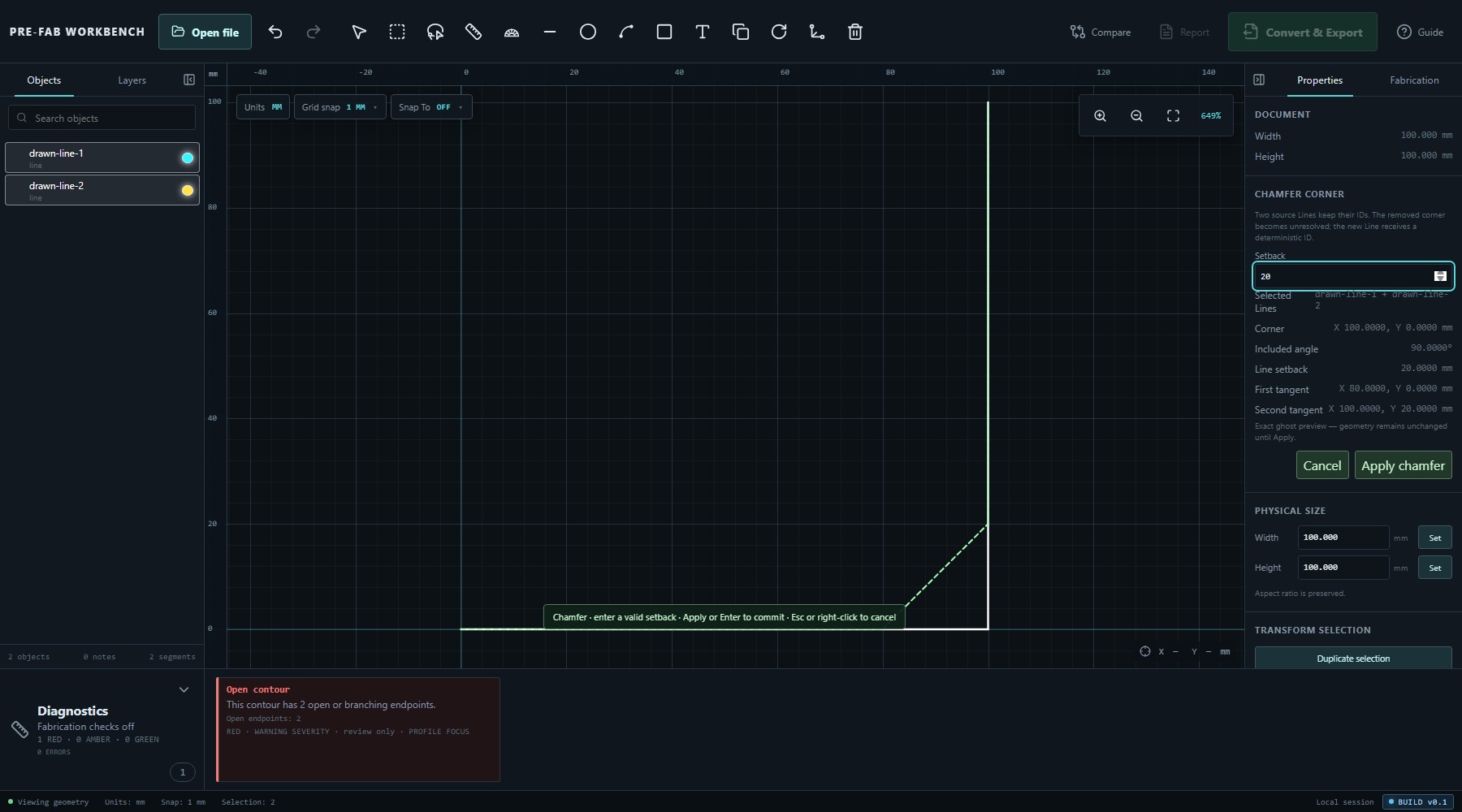
Select two Lines that meet at a corner. Fillet corner replaces the sharp corner with an Arc controlled by Radius. Chamfer corner replaces it with a straight Line controlled by Setback.
Practise Fillet and Chamfer as separate branches. Restore the original 3-object / 3-segment panel, use Break Apart, preview one corner operation, then Undo back to the original panel before practising the other.
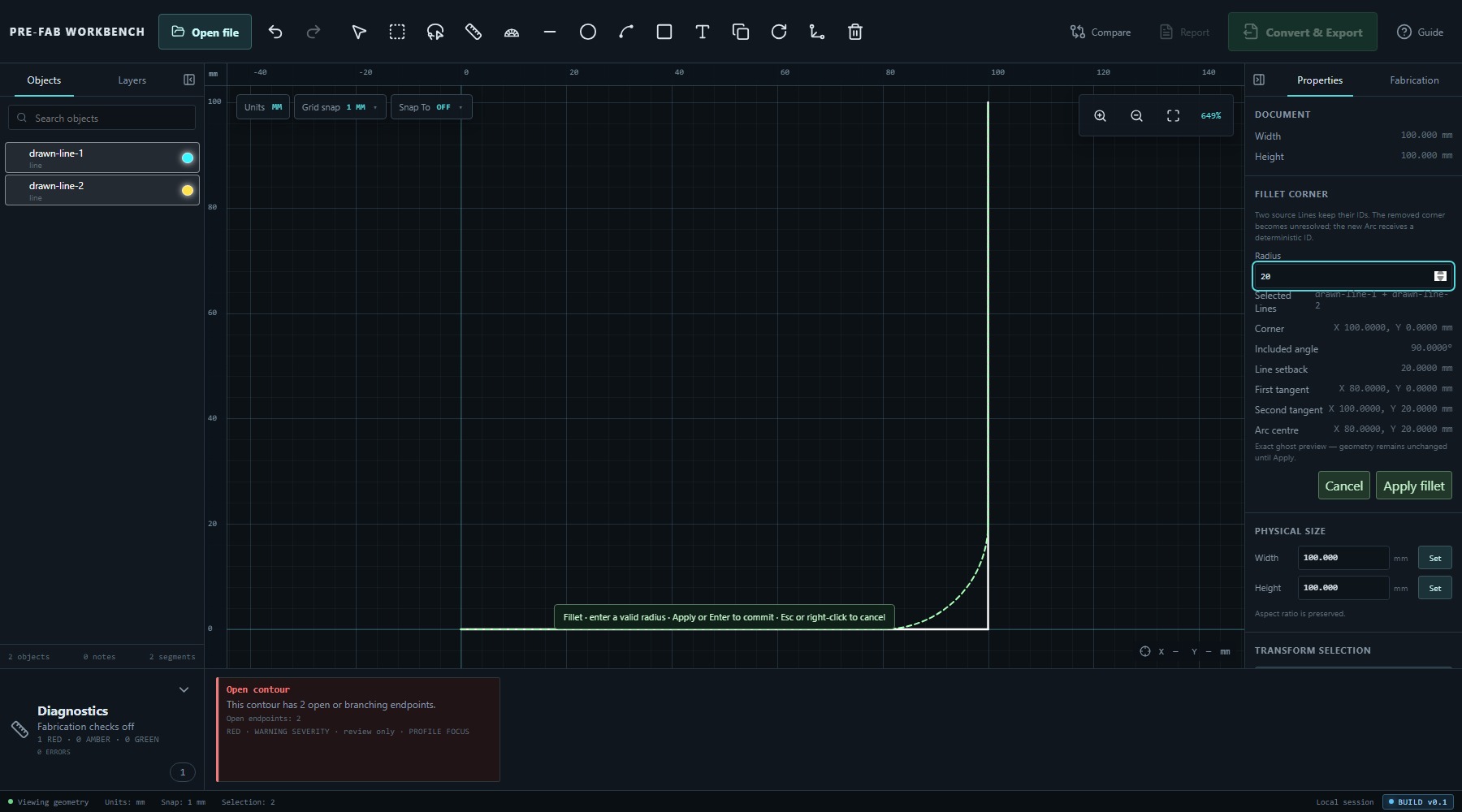
Both panels show the selected Lines, corner coordinate, included angle, line setback and tangent points. Fillet also reports the Arc centre. The dashed ghost is exact preview geometry; the source geometry remains unchanged until Apply fillet or Apply chamfer.
- Select the two corner Lines.
- Choose Fillet corner or Chamfer corner.
- Enter a valid Radius or Setback.
- Review the tangent points and ghost preview.
- Apply the edit only when it matches the intended corner.
Delete, undo and recheck
Right-clicking selected geometry opens Geometry commands. The verified menu included Duplicate, Offset, Move…, Rotate 90°, Mirror horizontal, Mirror vertical, Inspect exact geometry, Focus selection, Break Apart where eligible, and Delete selection.
Use Delete selection only after confirming the highlighted geometry. If the deletion was the latest committed action, Undo restores it. After any topology edit, recheck the Objects list, document summary and Diagnostics. New open-contour findings may be a factual consequence of separated Lines rather than a software failure.
Diagnostics exposes findings; it does not silently repair or guess design intent. Resolve a finding only when the intended geometry is known.
Before continuing to Lesson 05, restore the original Lesson 02 practice panel:
- Undo the Lesson 04 practice edits until the Objects summary again shows 3 objects and 3 segments; or
- Recreate or reopen the original Lesson 02 panel with one rectangular outline and two circles.
Common mistakes / things to notice
- A preview is not committed geometry. Read the Properties message and use Apply deliberately.
- Transform controls act on the current selection. Confirm the Objects row or viewport highlight before applying values.
- Duplicate before moving when the original must remain.
- A circle may look identical after rotation or mirroring. Use asymmetric geometry to learn those transformations.
- A rectangle shown as one polygon is not automatically four selectable Lines.
- Break Apart changes the object structure and may expose open-contour findings.
- Trim depends on the exact portion clicked; Extend depends on the terminal endpoint clicked.
- Fillet uses Radius; Chamfer uses Setback.
- Delete acts on the full current selection, not only the object under the pointer.
- Lesson 04 operations are independent practice branches; restore the starting panel between topology-changing branches and before Lesson 05.
- Diagnostics reports geometric findings; it does not infer the designer's intent or certify fabrication suitability.
Key points
- Select first, then use the commands enabled for that selection.
- Preview, Apply and Cancel make geometry-changing edits explicit.
- Duplicate creates a separate object; Move changes the selected object's position.
- Rotate and mirror use a visible pivot and preview.
- Break Apart is the bridge from a closed outline object to individually editable Lines.
- Trim and Extend require suitable finite-Line arrangements; the continuing rectangle is not a deterministic exercise for them.
- Fillet and Chamfer require eligible Line selections and deliberate target choices.
- Recheck Objects and Diagnostics after every topology change.
- Restore the original 3-object / 3-segment panel before continuing to Lesson 05.