Using PRE-FAB · Lesson 01
Workbench Basics
Orient a CAD-capable first-time user inside the PRE-FAB Workbench. By the end of the lesson, the user should understand what the main regions are for, where to look for tools and feedback, and how a piece of geometry moves through PRE-FAB from a blank or imported starting point to checked output. This lesson is deliberately an orientation, not an operations manual. It introduces the relationship between geometry, inspection, manufacturing checks, comparison and output without teaching detailed drawing, editing, import or fabrication settings.
What you'll learn
- Choose between opening an SVG or DXF and starting an empty drawing with Skip.
- Recognise the top toolbar, viewport, left Objects/Layers panel, right Properties/Fabrication panel, Diagnostics area and bottom status bar.
- Use the basic selection and view controls needed to inspect a drawing.
- Understand that Properties, toolbar actions and the right-click menu respond to the current selection and tool state.
- Explain where Compare, fabrication checks, validation and export fit in the broad PRE-FAB workflow.
- Distinguish geometric facts from manufacturing interpretation, and distinguish successful output validation from manufacturing certification.
Starting PRE-FAB
PRE-FAB opens by asking how you want to begin. Choose file opens a supported SVG or DXF from this computer. You can also drop a supported file onto the startup panel. Skip starts a blank drawing instead.
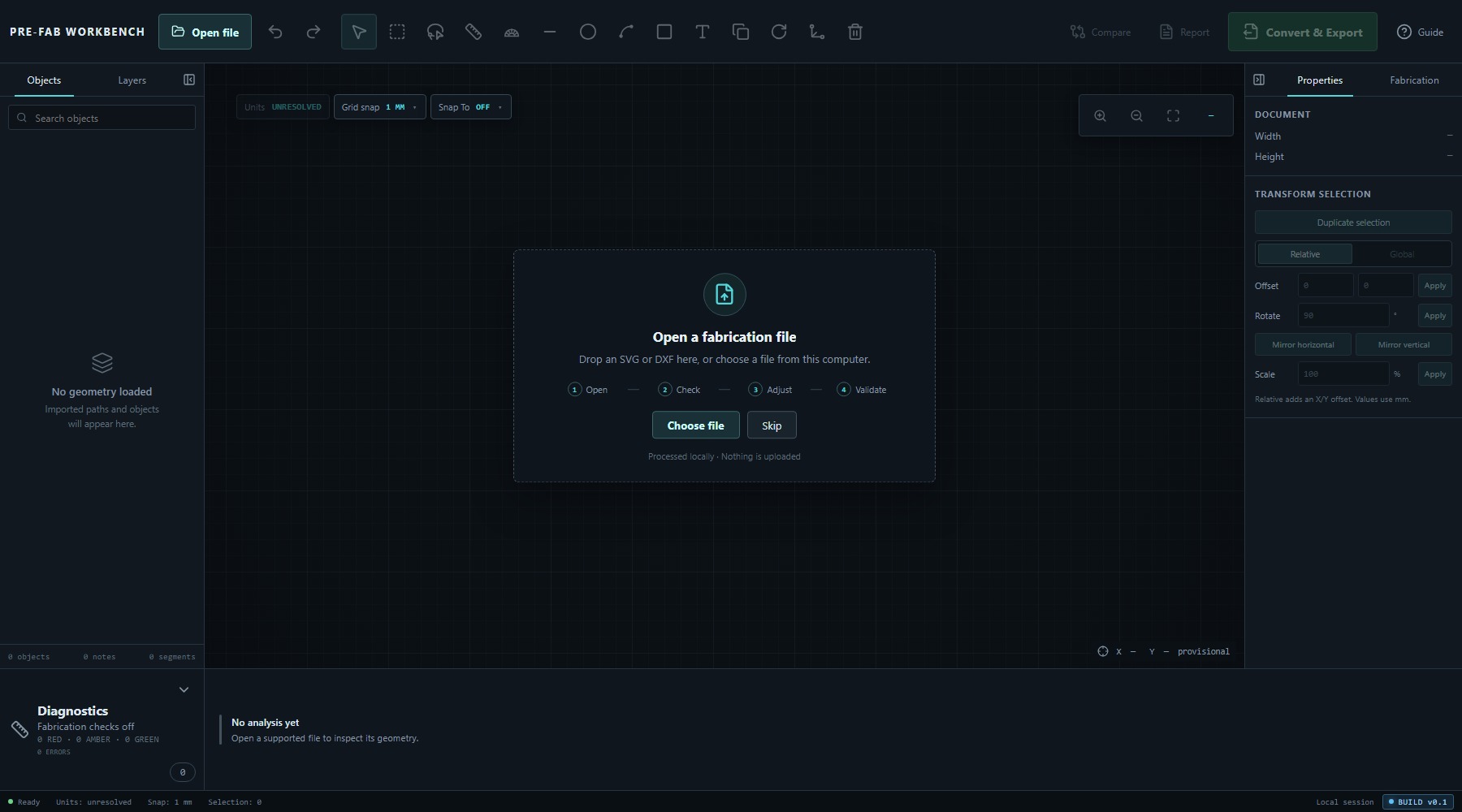
The startup panel summarises the broad sequence as Open → Check → Adjust → Validate. It also states Processed locally · Nothing is uploaded. That local-workflow boundary is part of the Workbench, not a browser upload step.
Choose the route that matches the job in front of you:
- Use Choose file when geometry already exists and you want PRE-FAB to inspect or prepare it.
- Use Skip when you want an empty workspace. This is the cleanest starting point for learning the interface.
After Skip, PRE-FAB opens a millimetre workspace and runs its intrinsic geometry checks. With no geometry present, the Diagnostics area settles on No detected issues.
Workbench at a glance
The Workbench is arranged around a central drawing viewport:
- The top toolbar contains file access, undo and redo, selection, measurement and drawing tools, common edit commands, Compare, Report, Convert & Export and Guide. Controls that do not apply to the current state are dimmed.
- The viewport is the large gridded area where geometry is displayed and selected. Units and snapping controls sit at its upper left; zoom controls sit at its upper right.
- The Objects / Layers panel on the left helps you find and organise what is in the drawing.
- The Properties / Fabrication panel on the right shows document or selection information and, separately, manufacturing-check settings.
- Diagnostics runs across the lower part of the Workbench and reports findings.
- The bottom status bar summarises the current viewing state, units, snap spacing, selection count and local session.
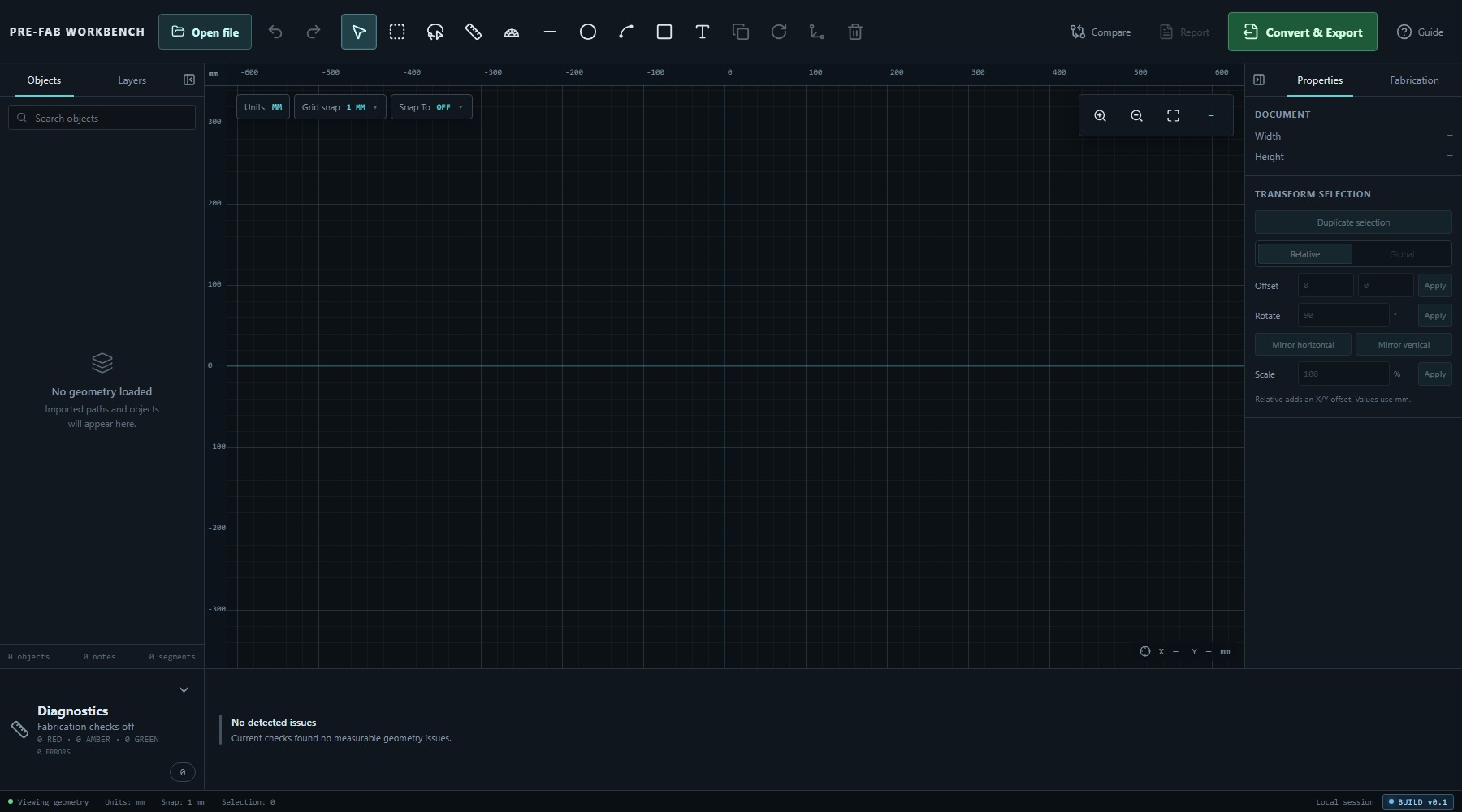
The panels can be collapsed when more viewport space is useful. Their purpose does not change: left is for finding geometry, centre is for seeing and interacting with it, right is for inspecting or interpreting it, and the lower area is for feedback.
Viewport
The viewport shows the drawing against a measured grid with horizontal and vertical axes. The pointer readout at the lower right reports X and Y coordinates in the current display unit.
Use the controls at the upper right to Zoom in, Zoom out or Zoom to fit. The mouse wheel also zooms. Right-drag or middle-drag pans the view. These view changes do not alter the geometry.
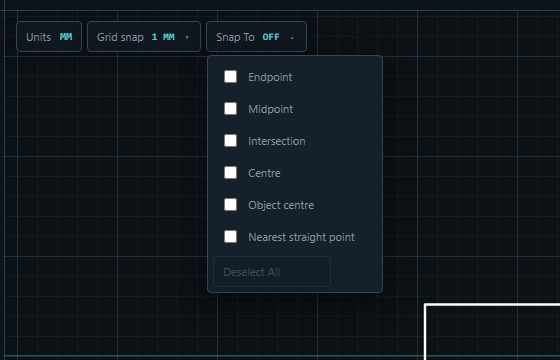
At the upper left, Units changes the display unit. Grid snap controls regular spacing; the current beta offers No snap, 0.1 mm, 0.5 mm and 1 mm. Snap To controls object-based targets: Endpoint, Midpoint, Intersection, Centre, Object centre and Nearest straight point. Leave snapping at a simple default until a later operation needs a specific target.
Objects and Layers
The Objects tab lists geometry by object name and geometry type. The summary at the bottom reports counts for objects, notes and segments. Selecting an object in the drawing is reflected in this panel.
Use Search objects to narrow the list. Search matches an object name, geometry type or reference label. If nothing matches, PRE-FAB shows No matching objects and suggests trying another object name, geometry type or reference label; the search has filtered the list, not deleted anything.
The Layers tab currently shows a single Workspace layer. PRE-FAB states that one visible layer is active for now and that source layer metadata is preserved for later controls. Treat Layers as orientation in this lesson; detailed layer work is outside the current introductory scope.
Properties and Fabrication
The right-hand panel has two different jobs.
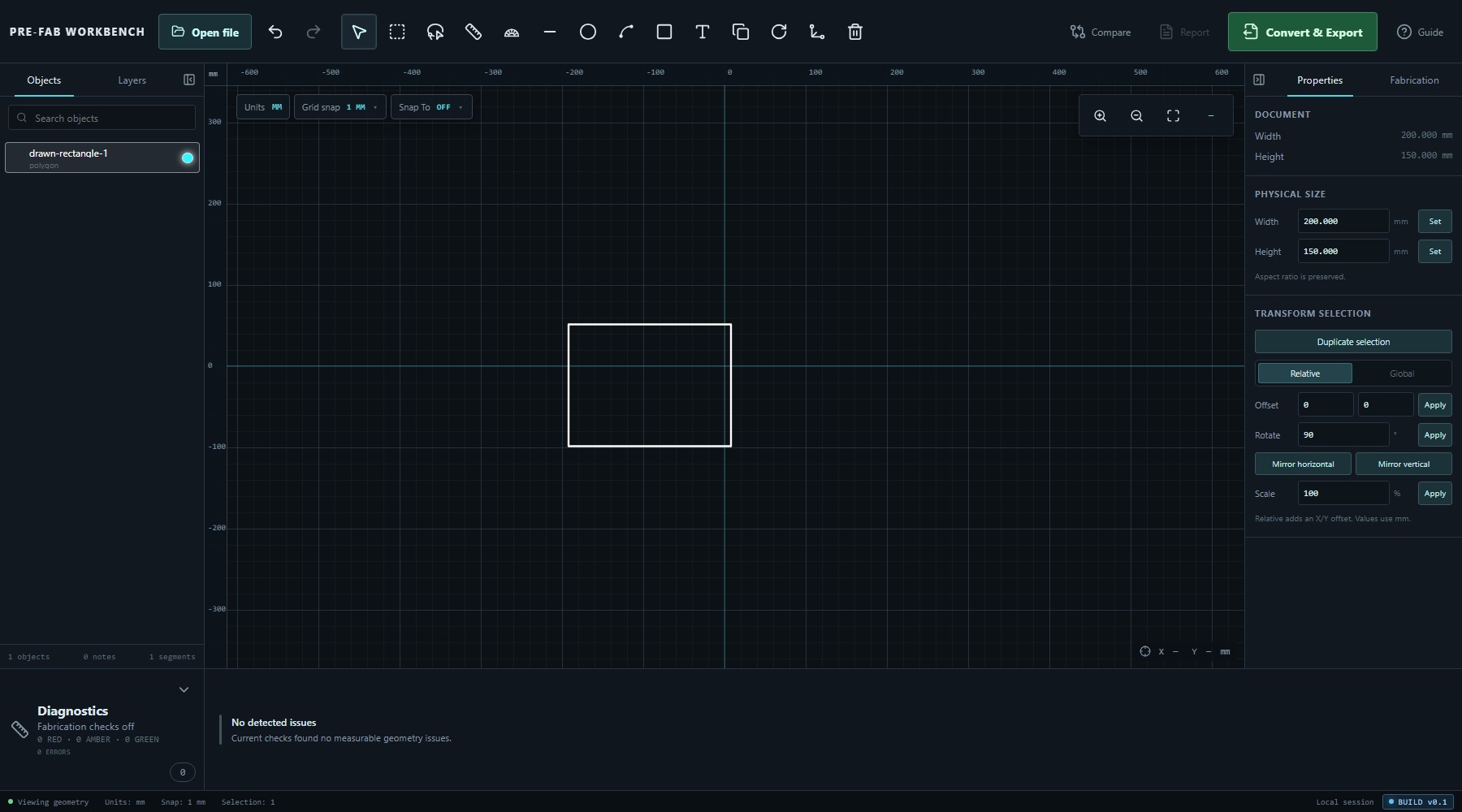
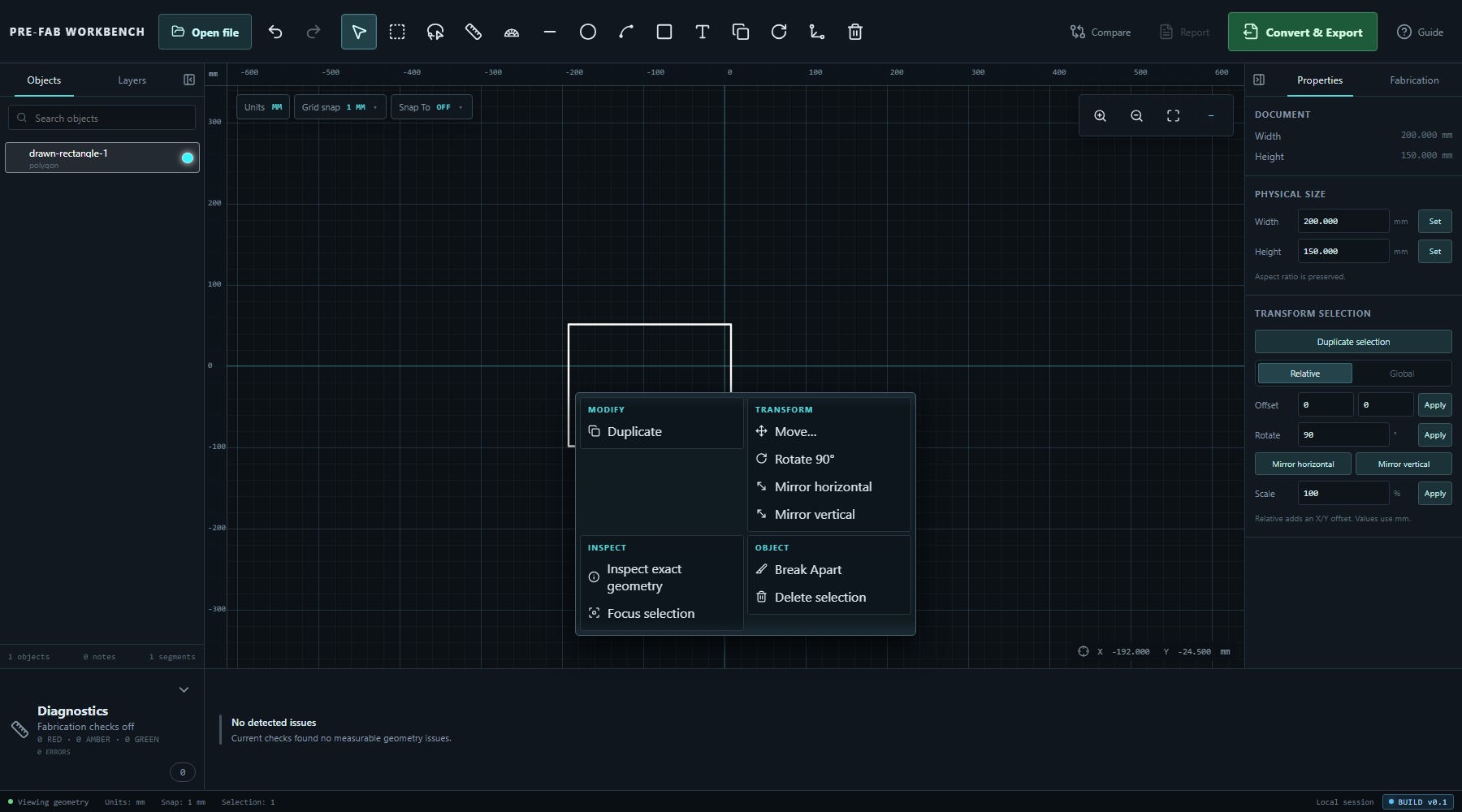
Properties shows document information such as width and height. With geometry selected, selection-dependent controls become available under TRANSFORM SELECTION. The panel therefore changes with context: no selection gives document-level information; a selection adds controls that can act on that geometry.
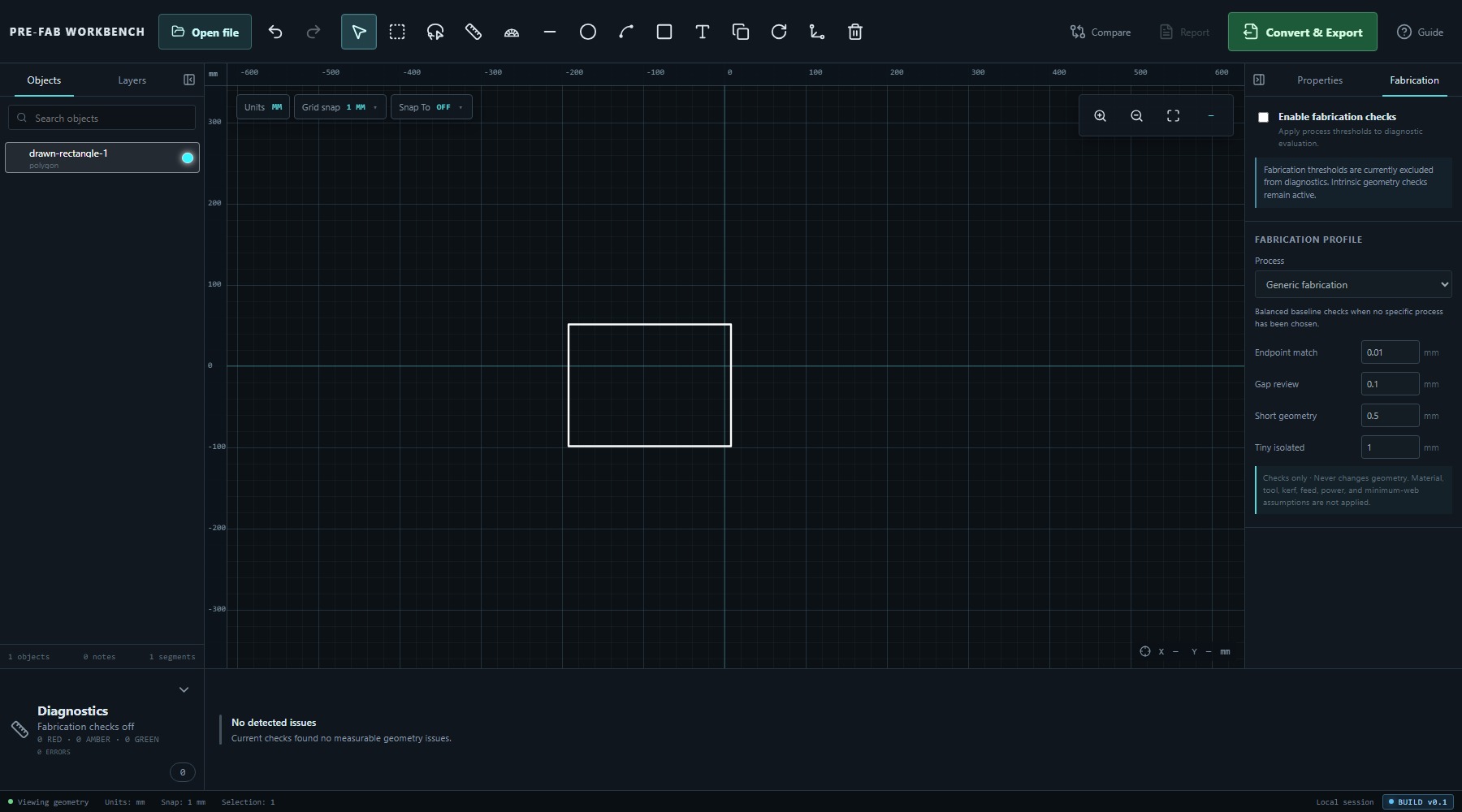
Fabrication is separate from Properties because manufacturing interpretation is separate from geometric fact. With Enable fabrication checks off, PRE-FAB says that fabrication thresholds are excluded while intrinsic geometry checks remain active. Turning fabrication checks on includes the selected manufacturing profile and its thresholds in diagnostic evaluation.
Fabrication checks are checks only. The panel states Never changes geometry and makes clear that material, tool, kerf, feed, power and minimum-web assumptions are not applied. Detailed profile and threshold choices belong in a later fabrication lesson.
Diagnostics and status
The Diagnostics area reports what PRE-FAB found. Its header shows whether fabrication checks are off or which profile is active, together with RED, AMBER, GREEN and error counts. The message area explains the current result, for example No analysis yet, Analysing geometry… or No detected issues.
Intrinsic geometry checks remain active even when fabrication checks are off. Enabling a fabrication profile adds process thresholds to evaluation; it does not rewrite geometry. This separation lets PRE-FAB expose measured findings without silently guessing what you intended to manufacture.
The bottom status bar is a quick context check. In the verified empty and simple-geometry states it reported Viewing geometry, the current units, snap spacing, selection count and Local session, with the beta build marker at the far right.
Selection, navigation and context
PRE-FAB's basic inspection controls are:
- Left click selects geometry.
- Ctrl + click adds to the selection.
- Esc clears the selection.
- Right-drag or middle-drag pans.
- The mouse wheel zooms.
The selection count in the bottom status bar confirms how many items are selected. When the selection changes, toolbar commands and TRANSFORM SELECTION controls enable or disable to match.
Right-clicking selected geometry opens a context menu grouped into MODIFY, TRANSFORM, INSPECT and OBJECT. In the verified rectangle state it offered Duplicate, Move…, Rotate 90°, Mirror horizontal, Mirror vertical, Inspect exact geometry, Focus selection, Break Apart and Delete selection. This lesson only identifies where those commands live; later lessons should teach when and how to use them.
Compare and Export
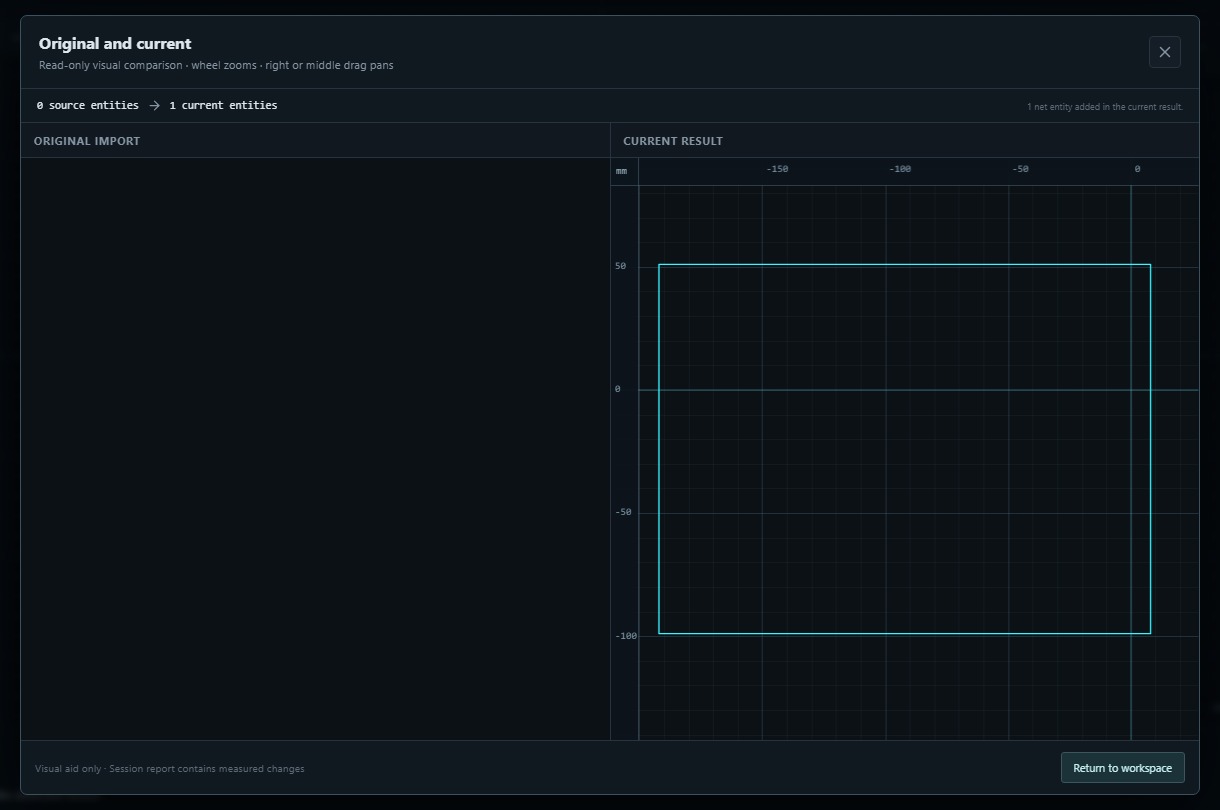
Compare opens Original and current, a read-only visual comparison between the imported source and the current result. It reports source and current entity counts and summarises the net change. The comparison itself says Visual aid only · Session report contains measured changes. Starting with Skip means there is no original import, so the verified blank-start example shows zero source entities and one current entity.
Use Compare when the relationship between an imported file and the edited result matters. It is an inspection view, not an editing surface. The comparison view supports wheel zooming and right- or middle-drag panning.
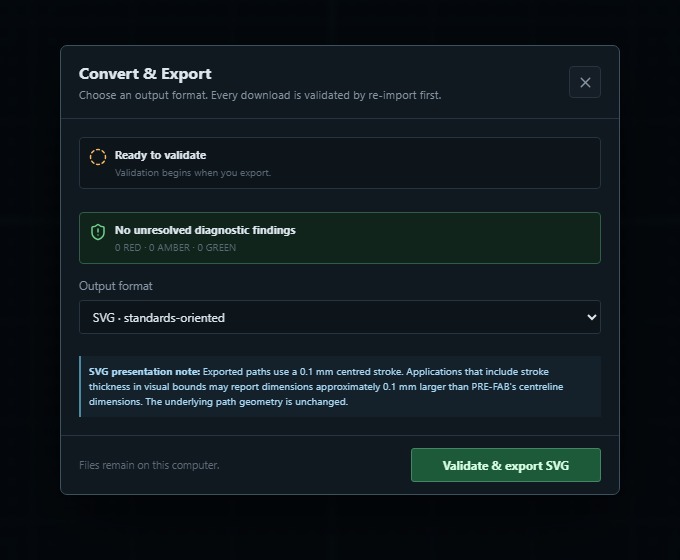
Convert & Export opens an output gate rather than downloading immediately. The dialog reports diagnostic status, lets you choose SVG · standards-oriented, Compatibility SVG · Legacy/CAM-safe or DXF · AutoCAD 2000 ASCII, and states that every download is validated by re-import first. The primary action is labelled Validate & export for the chosen format, and the dialog reiterates that files remain on this computer.
Re-import validation checks that PRE-FAB can read the file it is about to provide. It does not prove that the geometry suits a particular machine, material or process.
Basic PRE-FAB workflow
The broad PRE-FAB workflow is:
- Start — open an SVG or DXF, or use Skip for a blank drawing.
- Orient — confirm the display units, inspect the viewport, and find geometry in Objects and Layers.
- Inspect — select the relevant geometry and read Properties. Use exact-geometry inspection when a later task calls for it.
- Adjust deliberately — use drawing or editing tools only for intended changes. Detailed operations are covered in later lessons.
- Read Diagnostics — resolve intrinsic geometric findings; add fabrication checks when a real process interpretation is relevant.
- Compare when useful — review Original and current when an imported source or a sequence of edits needs visual confirmation.
- Validate and export — choose an output format and let PRE-FAB perform its re-import validation before download.
At every stage, keep three questions separate: what the geometry actually is, what a manufacturing process might require, and whether the output file passes PRE-FAB's validation. PRE-FAB exposes evidence and findings so the user can make those decisions deliberately.
Common mistakes / things to notice
- Choose file and Skip lead to different starting states. Skip is not a sample-file loader; it opens an empty drawing.
- A dimmed toolbar or Properties control usually needs a relevant selection or finished tool action.
- Object search filters the Objects list. No matching objects does not mean geometry was removed.
- Clicking empty space inside a hollow outline is not the same as selecting the outline itself; select the geometry you intend to act on and confirm the selection count.
- Panning and zooming change the view, not the geometry.
- A right-click menu is selection-sensitive. Check what is selected before using a command.
- No detected issues means the active checks found no measurable issue. It does not certify manufacturability.
- Fabrication profile changes affect diagnostic interpretation and never change geometry.
- Compare is most informative after an import. A session started with Skip has no original import to show.
- Re-import validation confirms the output file can be read back; it is not proof of suitability for a particular material, tool or process.
Key points
- PRE-FAB can start from a supported SVG or DXF, or from an empty drawing with Skip.
- The left panel finds geometry, the viewport displays and selects it, the right panel describes or interprets it, and Diagnostics reports findings.
- Tools and Properties are context-sensitive; the current selection and pending tool determine what is available.
- Right-drag or middle-drag pans, the wheel zooms, left click selects, Ctrl + click adds, and Esc clears the selection.
- Intrinsic geometry checks are distinct from optional fabrication thresholds, and checks do not silently change geometry.
- Compare is a read-only visual aid; Convert & Export performs a re-import validation before download.
- A valid export is not the same thing as a fabrication-ready or certified part.