Using PRE-FAB · Lesson 02
Create a Drawing From Scratch
Teach a first blank-start creation workflow without turning the lesson into a complete drawing-tool reference. The learner will use Skip, recognise the available primitives, combine exact numeric Properties entry with simple snapping awareness, create one useful fabrication-style example, and recover from an unwanted step with Undo or Redo. The recurring example is a neutral rectangular panel: an 800 × 2000 mm outline with two 40 mm diameter circular features. It resembles a glass or screen panel, but the lesson presents it only as a clear fabrication example rather than a trade-specific design.
What you'll learn
- Start an empty millimetre drawing with Skip.
- Recognise the Line, Circle, Arc and Rectangle drawing tools and understand when a drawing tool is still active.
- Enter exact creation values in the context-sensitive Properties panel.
- Distinguish regular Grid snap spacing from object-based Snap To targets.
- Create an 800 × 2000 mm rectangular outline with two Ø40 mm circular features.
- Use Undo and Redo, including the verified keyboard shortcuts, without rebuilding the whole drawing.
- Check the completed geometry in Objects, Properties, Diagnostics and the status bar without treating a clean diagnostic result as manufacturing certification.
Starting with an empty drawing
Open the Workbench and select Skip. PRE-FAB creates an empty drawing with known millimetre units, Grid snap 1 mm, no selected geometry and No detected issues in Diagnostics.
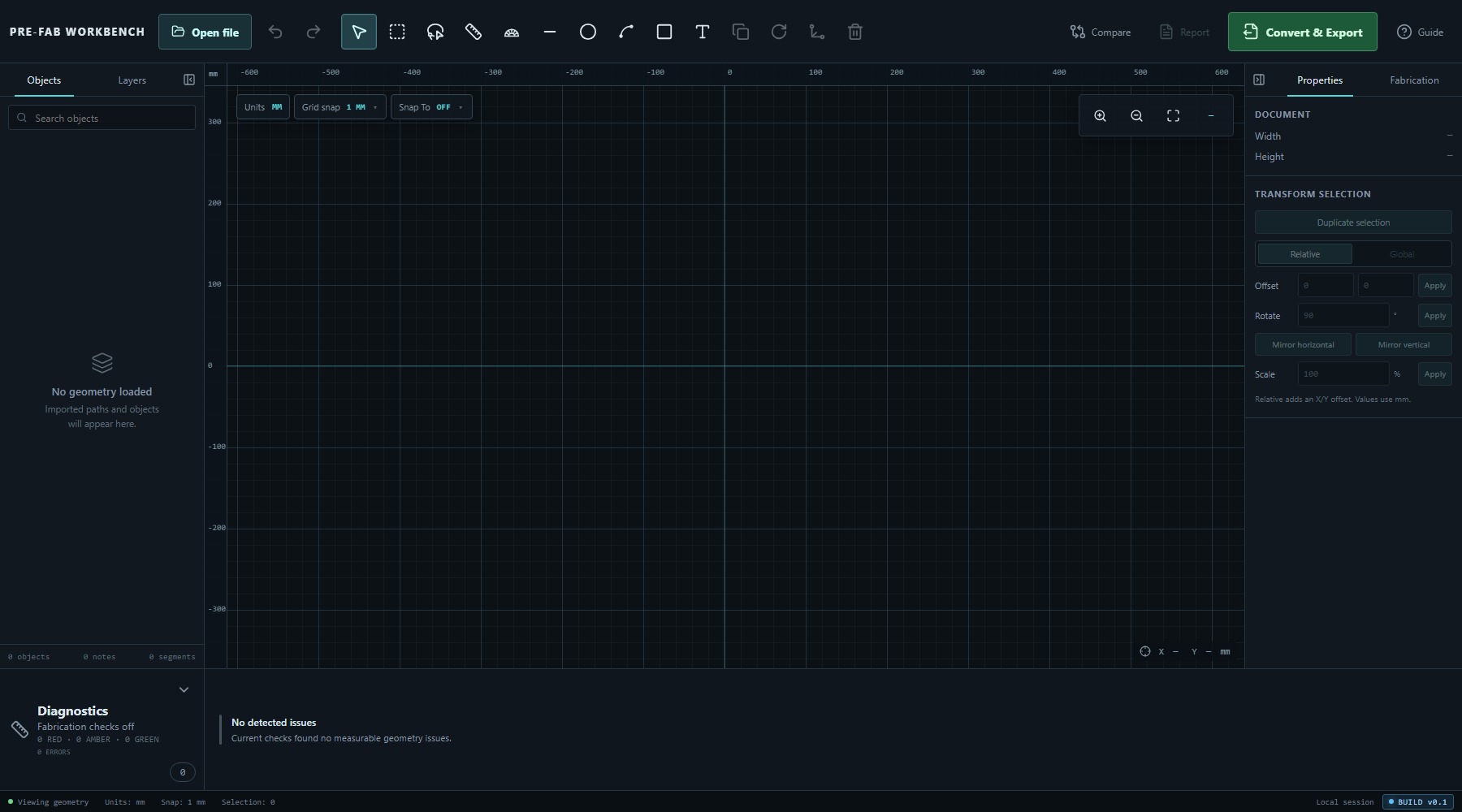
Starting empty is useful when the geometry does not already exist as an SVG or DXF. It does not create a sample part. The viewport is ready, but the drawing remains empty until a drawing tool is applied.
- Open the PRE-FAB Workbench.
- Select Skip on the startup panel.
- Confirm that the status bar shows Units: mm, Snap: 1 mm and Selection: 0.
Drawing tools and active state
The top toolbar provides four geometric drawing primitives: Draw line, Draw circle, Draw arc and Draw rectangle. Text annotation is nearby, but it creates communication content rather than part geometry and is taught later.
Selecting a drawing tool changes the right-hand Properties panel and adds a green pending-tool message over the viewport. The message identifies the active tool, tells you what point or value is needed next, and reminds you that Esc or right-click cancels the current drawing step.
After Apply drawing, the same drawing tool remains active so that repeated items can be created efficiently. Press Esc when you have finished with that tool. If a preview already contains entered values, the first Esc resets that pending operation; another Esc leaves the tool and returns to Select.
Pointer placement and numeric control
Each drawing primitive can begin from the viewport or from exact values in Properties. For a line, circle or rectangle, the tool first asks for a starting point and then a second defining point. Arc creation uses a centre, a start point and an end point.
The Properties panel is the exact-entry route. Its fields change with the active primitive:
- Draw line: Start X, Start Y, End X, End Y, Delta X, Delta Y, Length and Angle.
- Draw circle: Centre X, Centre Y, Radius and Diameter.
- Draw arc: Centre X, Centre Y, Radius, Start angle, End angle and sweep Direction.
- Draw rectangle: Corner X, Corner Y, Width and Height.
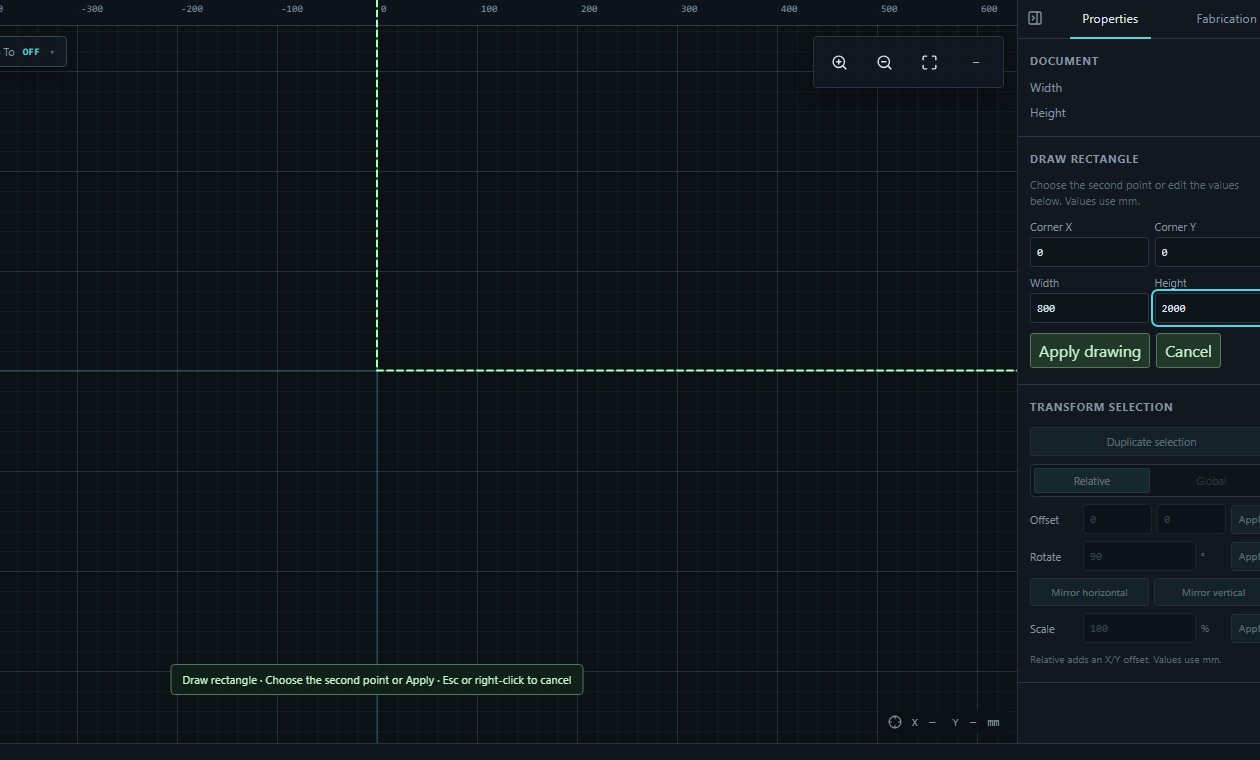
Entering a related value updates the same preview. In the verified circle state, a radius of 20 mm produced a displayed diameter of 40 mm. Apply drawing remains unavailable until PRE-FAB has a finite, positive size and enough information to construct the object.
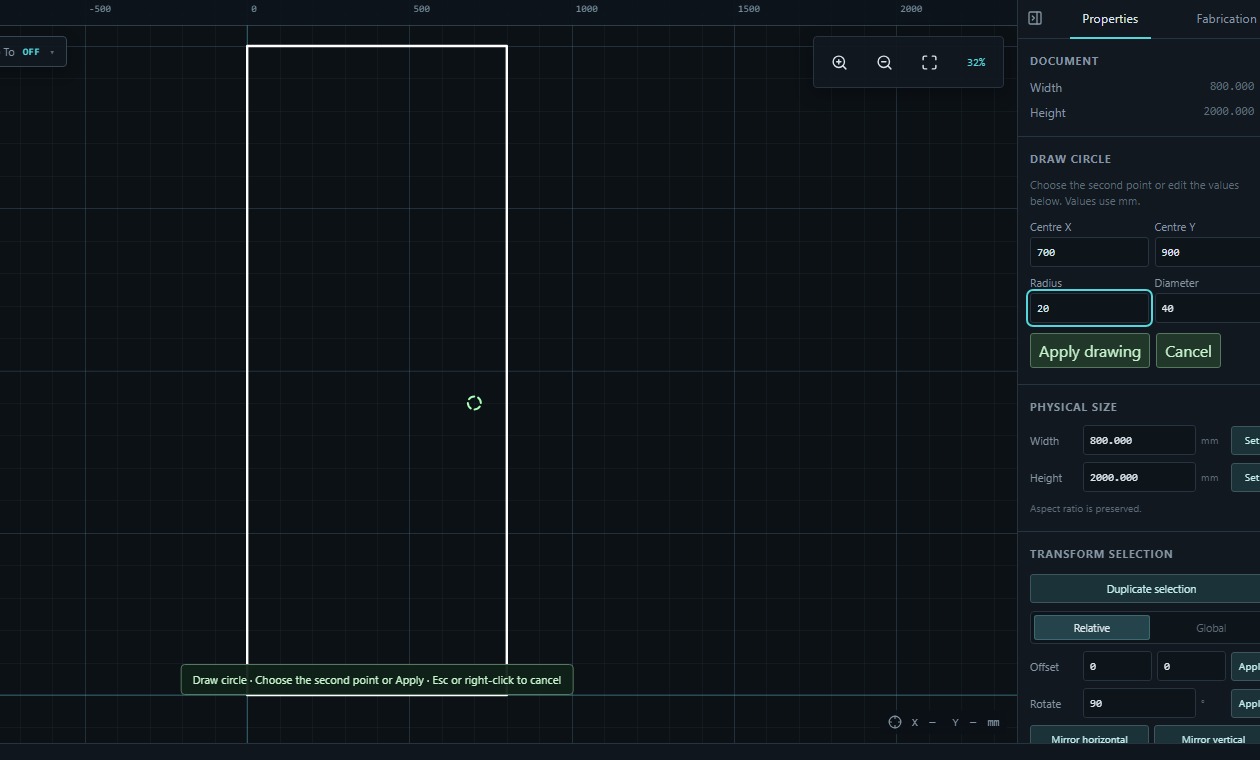
Pointer placement is useful for quick spatial work; exact fields are preferable when dimensions are known. Both routes create geometry through the same pending-tool state, so the preview should be checked before applying it.
Snapping while creating
Grid snap rounds pointer placement to a regular spacing. The verified beta offers No snap, 0.1 mm, 0.5 mm and 1 mm. The current spacing also appears in the bottom status bar.
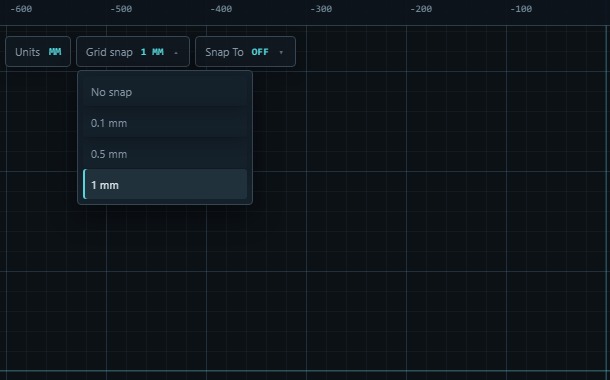
Snap To is different: it enables object-based targets such as Endpoint, Midpoint, Intersection, Centre, Object centre and Nearest straight point. These targets become useful when new geometry must relate to geometry that already exists.
For this practice part, keep Grid snap 1 mm and use the exact Properties fields. Typed coordinates and sizes define the geometry directly; snapping mainly guides pointer placement. Later editing lessons can use object snaps for relationships between existing objects.
Build the panel outline
Create the main rectangular outline with exact values:
- Select Draw rectangle.
- In DRAW RECTANGLE, enter Corner X 0, Corner Y 0, Width 800 and Height 2000.
- Review the dashed preview in the viewport.
- Select Apply drawing.
- Press Esc to finish the repeating Rectangle tool and return to selection.
- Select Zoom to fit if the whole outline is not comfortably visible.
PRE-FAB lists the committed outline as drawn-rectangle-1 with geometry type polygon. Document Properties reports a width of 800.000 mm and height of 2000.000 mm.
Add the circular features
Add two circular features near one side of the panel:
- Select Draw circle.
- Enter Centre X 700, Centre Y 900 and Radius 20. Confirm that Diameter shows 40.
- Select Apply drawing.
- The Circle tool remains active. Enter Centre X 700, Centre Y 1100 and Radius 20.
- Select Apply drawing again.
- Press Esc to finish the Circle tool.
- Select Zoom to fit.
The Objects panel now contains drawn-rectangle-1, drawn-circle-1 and drawn-circle-2. Its summary reports 3 objects, 0 notes and 3 segments in this verified state.
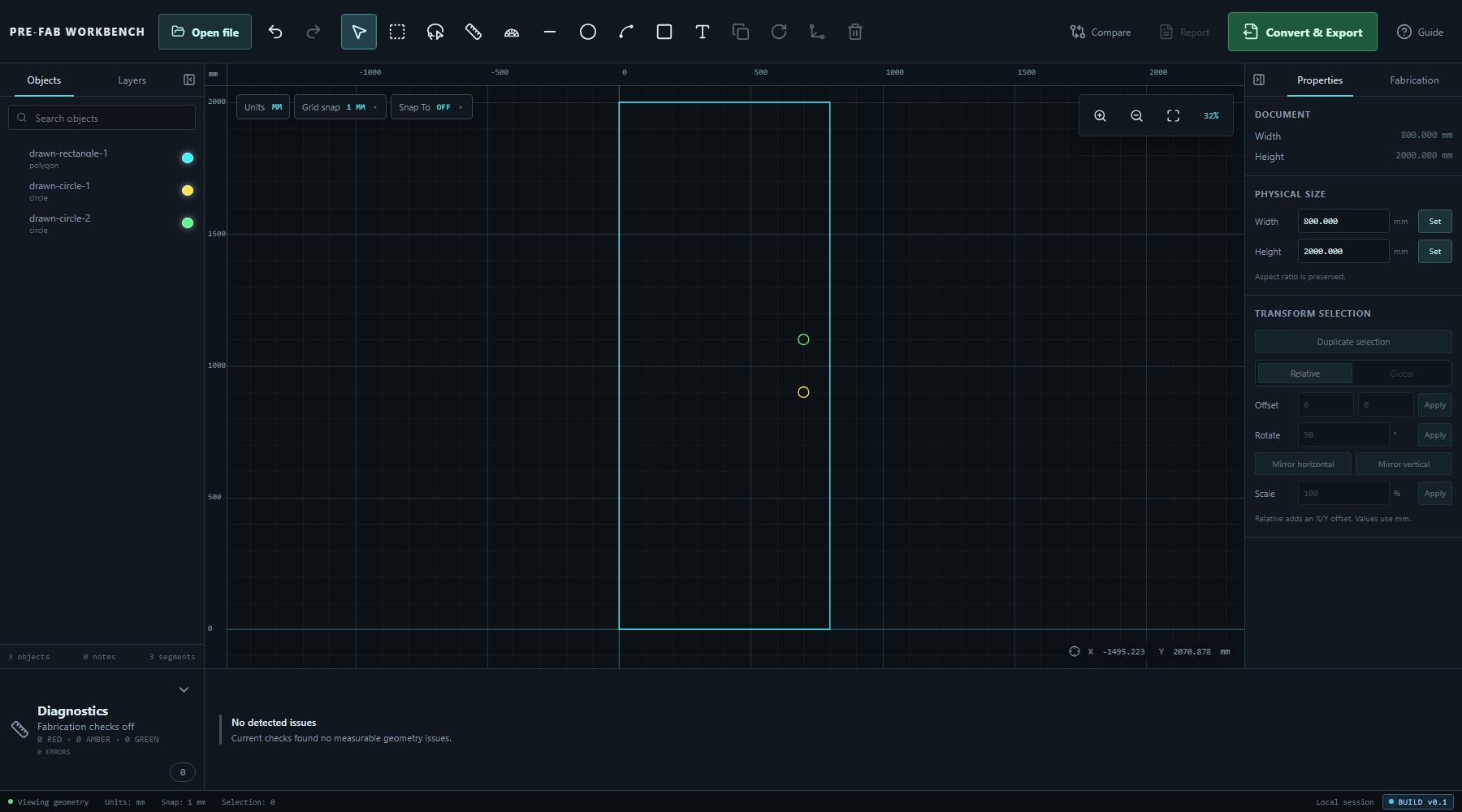
The two circles are useful practice geometry only. Their positions and diameters are not a recommendation for a particular material, fastener or fabrication process.
Undo, redo and correction
Use Undo when the latest committed change is not wanted. In the verified three-object drawing, Undo removed the second circle and changed the Objects summary from three objects to two. Redo restored the third object.
The verified keyboard shortcuts are:
- Ctrl + Z — Undo.
- Ctrl + Shift + Z or Ctrl + Y — Redo.
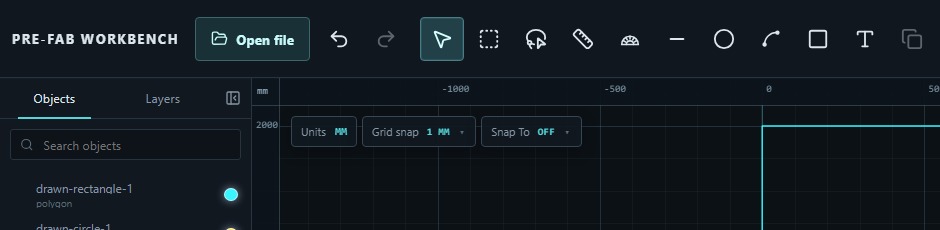
Undo and Redo act on committed operations. If a drawing preview is still pending, cancel or complete that preview first. The toolbar buttons show the current history state: a dimmed Undo or Redo button means there is nothing available in that direction.
Check the completed drawing
Before moving on, make a short geometric check:
- Select Zoom to fit so the complete outline and both circles are visible.
- Confirm the Objects list contains one polygon and two circles.
- Confirm Document Properties shows 800.000 mm × 2000.000 mm.
- Confirm the status bar reports Units: mm and Snap: 1 mm.
- Read Diagnostics. The verified practice state reported No detected issues with fabrication checks off.
This check confirms what PRE-FAB currently knows about the drawing. It does not establish that the panel or circular features are suitable for a particular material, machine or process.
Common mistakes / things to notice
- Skip starts an empty drawing; it does not load example geometry.
- A drawing tool remains active after Apply drawing so repeated objects can be created. Press Esc when finished.
- A dashed or green preview is pending geometry. It is not committed until the required points are completed or Apply drawing is used.
- Rectangle Width and Height must be finite and positive. Circle Radius and Diameter must be finite and positive.
- Circle Radius and Diameter are linked descriptions of the same size; changing one updates the other.
- Grid snap and Snap To solve different problems. Grid spacing does not automatically attach geometry to an endpoint or centre.
- Typed Properties values define the geometry directly; do not expect object snapping to rewrite them.
- The Objects summary counts the verified rectangle polygon and two circles as three objects and three segments. Do not infer a four-line rectangle from that summary.
- Undo affects committed operations. Cancel a pending preview before reasoning about history.
- No detected issues does not mean the example is ready for a particular manufacturing process.
Key points
- Start a blank drawing with Skip and confirm the working units before creating geometry.
- Drawing tools use a pending preview and context-sensitive Properties fields.
- Exact numeric entry and pointer placement are two routes through the same drawing tools.
- Grid snap supplies regular increments; Snap To supplies targets on existing geometry.
- The practice part is one 800 × 2000 mm polygon with two Ø40 mm circles.
- Undo and Redo work from both the toolbar and verified keyboard shortcuts.
- A geometrically clean drawing is not automatically suitable or certified for fabrication.