Using PRE-FAB · Lesson 03
Select and Navigate Geometry
Teach the selection and viewing controls needed before detailed editing. The learner will use the practice panel from Lesson 02 to select geometry in the viewport and Objects panel, build multi-selections, understand directional box selection, pan and zoom without changing geometry, and read the context-sensitive response in Properties, the toolbar and status bar. This lesson deliberately stops before geometry modification. It establishes control and confidence so later editing commands act on the intended objects.
What you'll learn
- Select an individual object in the viewport and confirm that selection in Objects and the status bar.
- Use Ctrl or Shift in the viewport to add geometry to a selection.
- Use ordinary, Ctrl and Shift selection correctly in the Objects list.
- Distinguish left-to-right enclosed box selection from right-to-left crossing selection.
- Pan, zoom and return to Zoom to fit without changing the drawing.
- Recognise how the current selection enables toolbar commands and TRANSFORM SELECTION controls.
- Clear selection safely and verify what will receive the next command.
Use the completed practice drawing
Begin with the completed Lesson 02 practice geometry: one 800 × 2000 mm rectangular polygon with two 40 mm diameter circles centred at X 700, Y 900 and X 700, Y 1100.
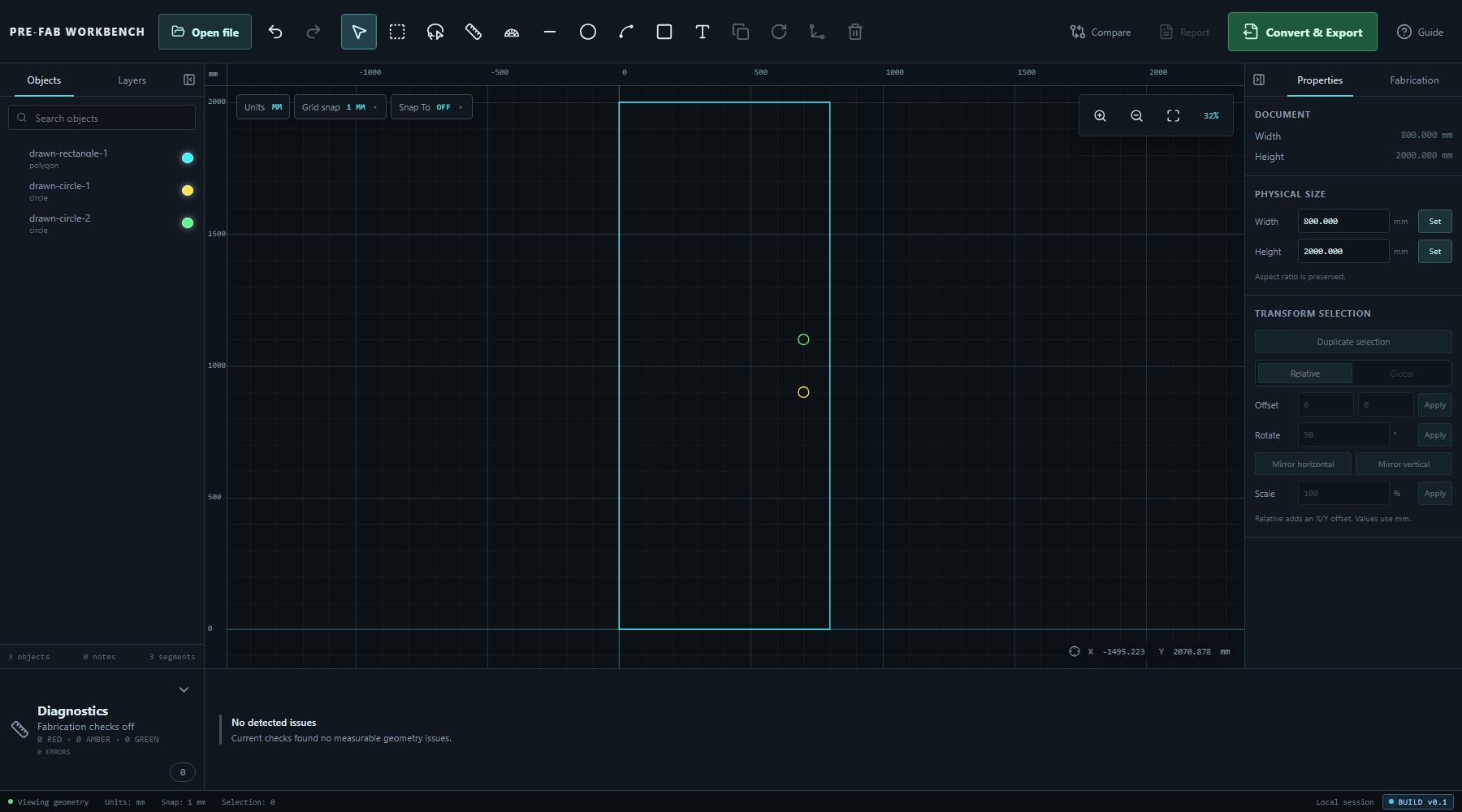
If you are continuing in the same local session, select Zoom to fit and clear any active drawing tool. If you are starting again, recreate the three objects with the exact values from Lesson 02. PRE-FAB does not silently restore a previous local drawing after a fresh page load.
Before selecting anything, confirm that the Objects panel lists drawn-rectangle-1, drawn-circle-1 and drawn-circle-2, and that the status bar shows Selection: 0.
Selection is a shared state
Selection is not confined to one panel. A selected object is reflected across the Workbench:
- its geometry is emphasised in the viewport;
- its row is highlighted in Objects;
- the bottom status bar updates Selection;
- applicable toolbar commands become available;
- TRANSFORM SELECTION in Properties enables controls that can act on the selection.
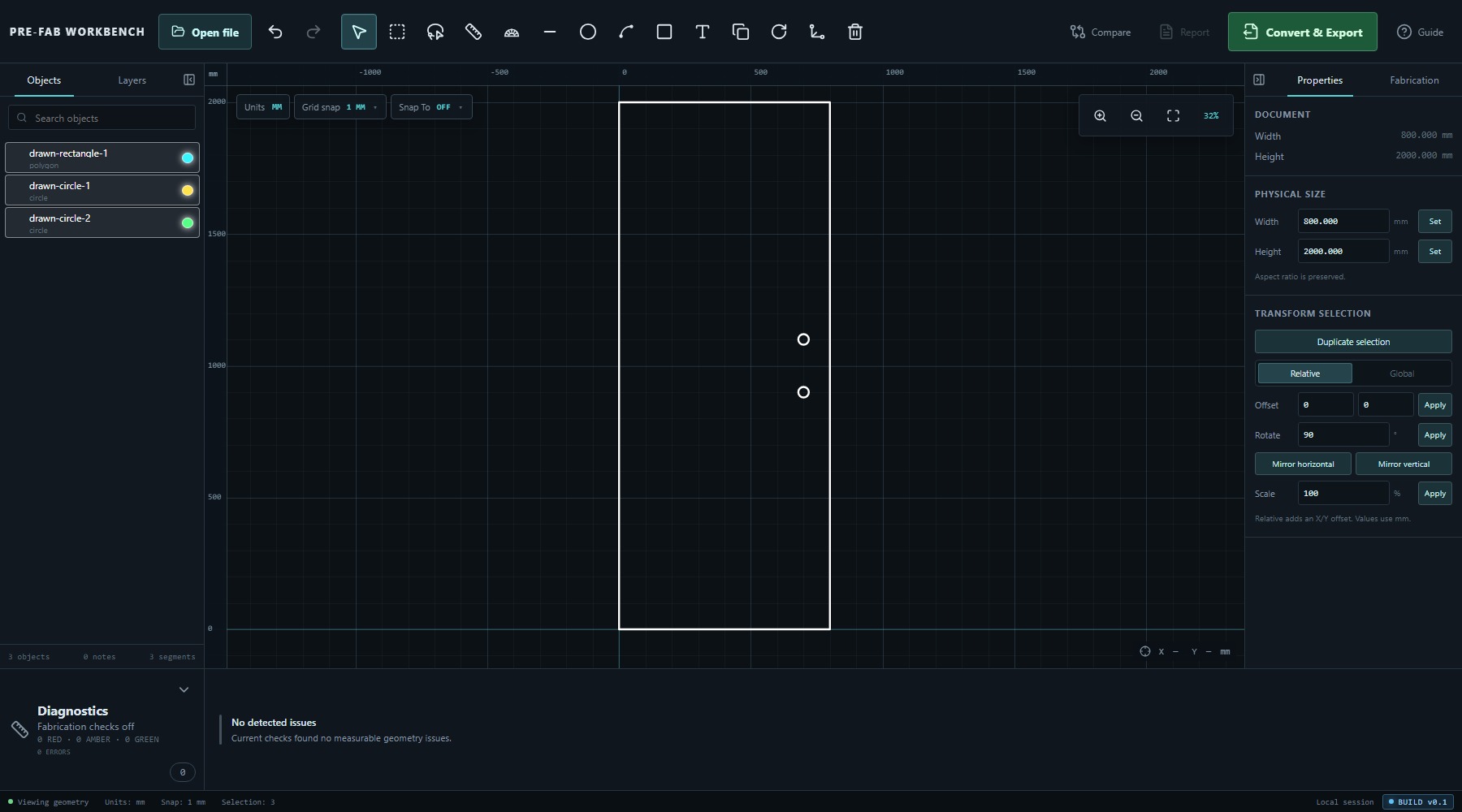
Use all of these signals together. The viewport shows where the geometry is, Objects confirms which logical object PRE-FAB recognises, and the status bar confirms how many selectable items are active.
Selecting in the viewport
With Select active, left-click the visible stroke of an object. Clicking either circle selects that circle and highlights its matching Objects row. Clicking a different object without a modifier replaces the previous selection.
The large rectangular panel is an outline. Clicking open space inside that outline is not the same as clicking its geometric boundary. If selection appears to clear, click the visible edge you intend to select and check the status bar.
Clicking empty viewport space clears the selection. Esc also clears selection when no drawing, measurement or edit operation is pending.
Ctrl and Shift in the viewport
To build a viewport selection one object at a time:
- Select the first circle.
- Hold Ctrl and select the second circle.
- Confirm that both circle rows are highlighted and the status bar shows Selection: 2.
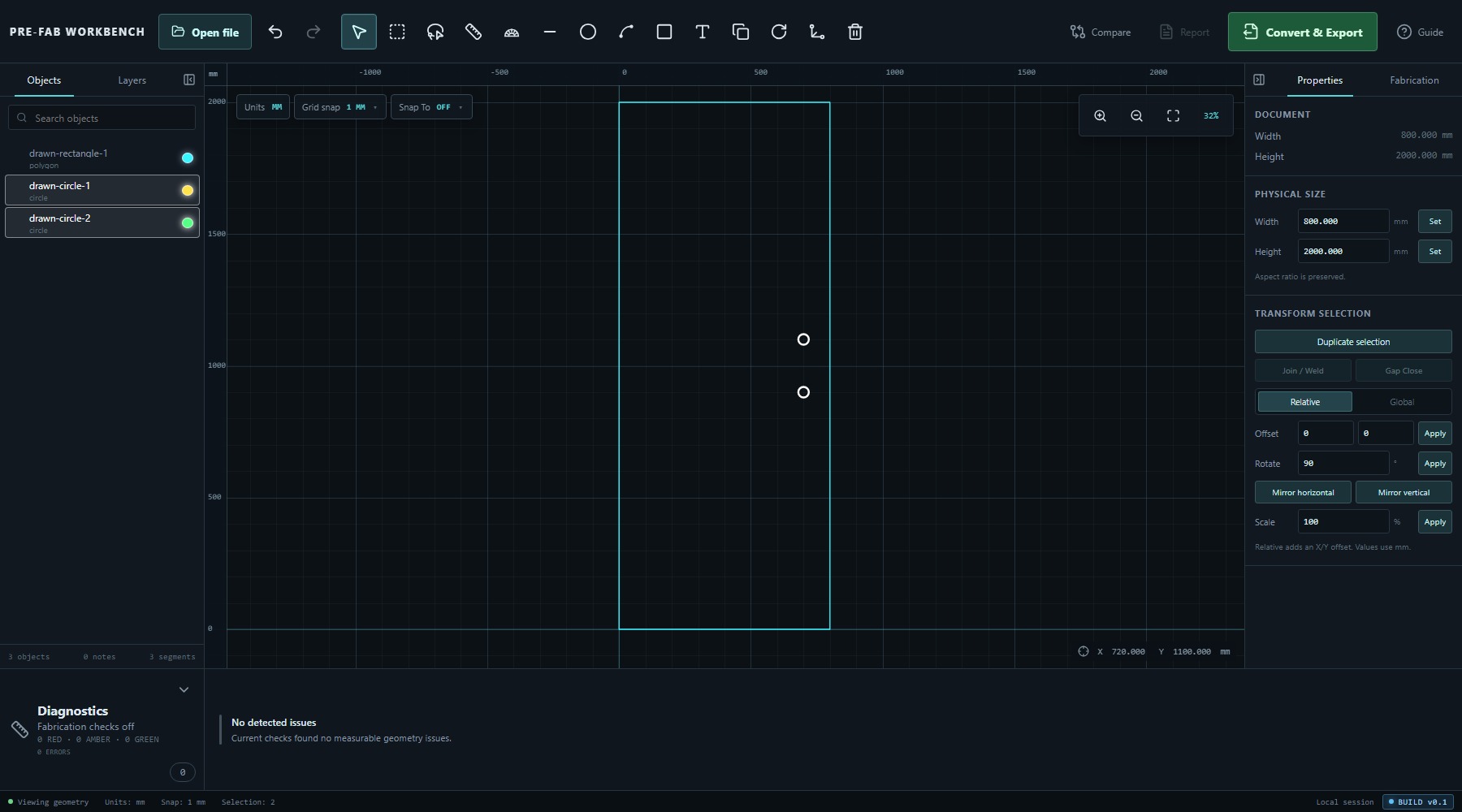
The verified beta also accepts Shift + click as the additive modifier in the viewport. Ctrl and Shift therefore both let you add geometry without replacing what is already selected.
Use modifiers deliberately. A normal click replaces the selection; a modified click changes the existing set. When the required set is complete, release the modifier before continuing.
Selecting from Objects
The Objects panel is useful when geometry is small, overlapping or difficult to hit in the viewport.
- A normal click selects that object and establishes it as the range anchor.
- Ctrl + click toggles the clicked object in or out of the current selection.
- Shift + click selects the contiguous range from the established anchor to the clicked row.
In the verified three-object list, clicking drawn-rectangle-1 and then Shift-clicking drawn-circle-2 selected the rectangle and both circles. The status bar reported Selection: 3, and all three rows were highlighted.
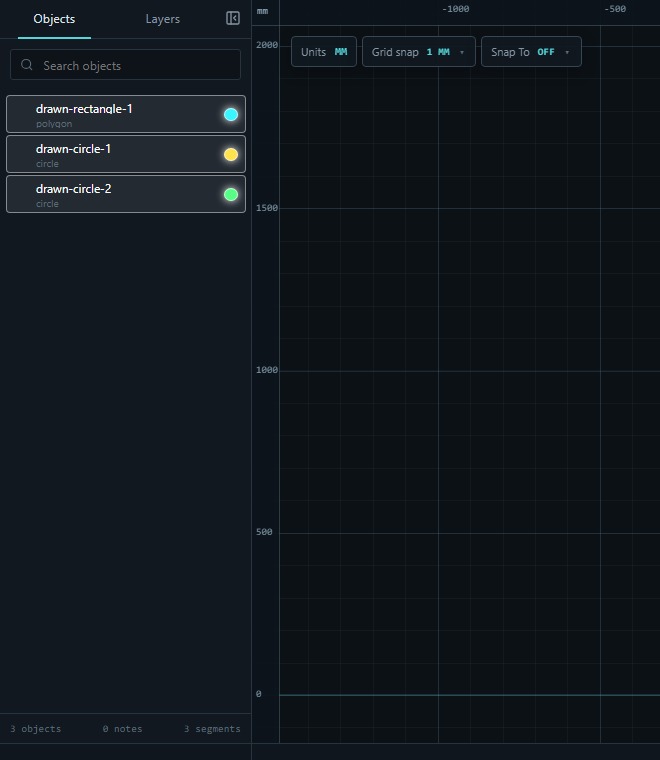
The list and viewport remain synchronised whichever route you use. Selecting from Objects does not create a separate hidden selection.
Directional box selection
Select Box select when one click at a time would be slow. Direction matters:
- Drag left to right to create a cyan enclosed window. PRE-FAB selects only geometry fully inside the rectangle.
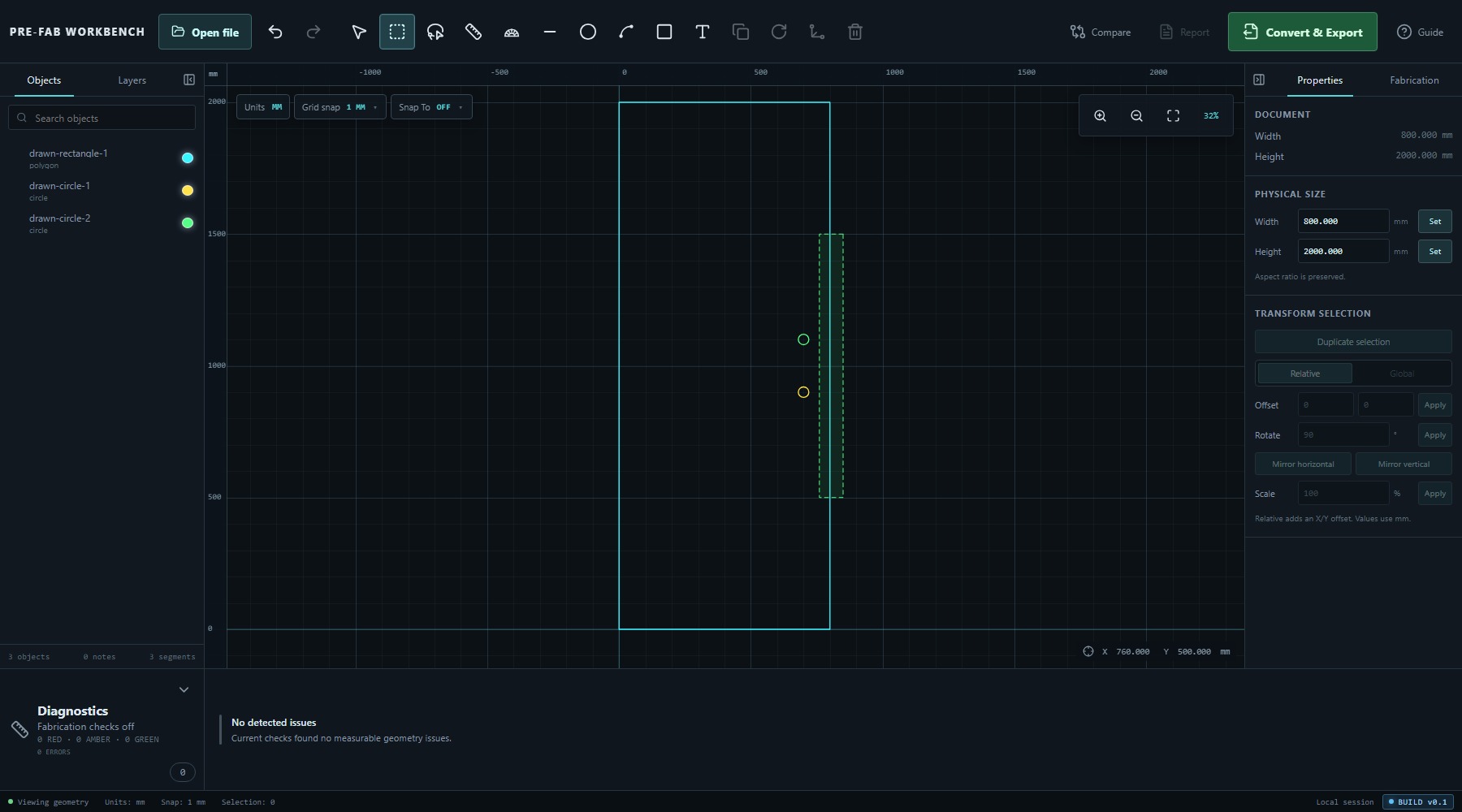
- Drag right to left to create a green crossing window. PRE-FAB selects geometry that the rectangle touches or crosses.
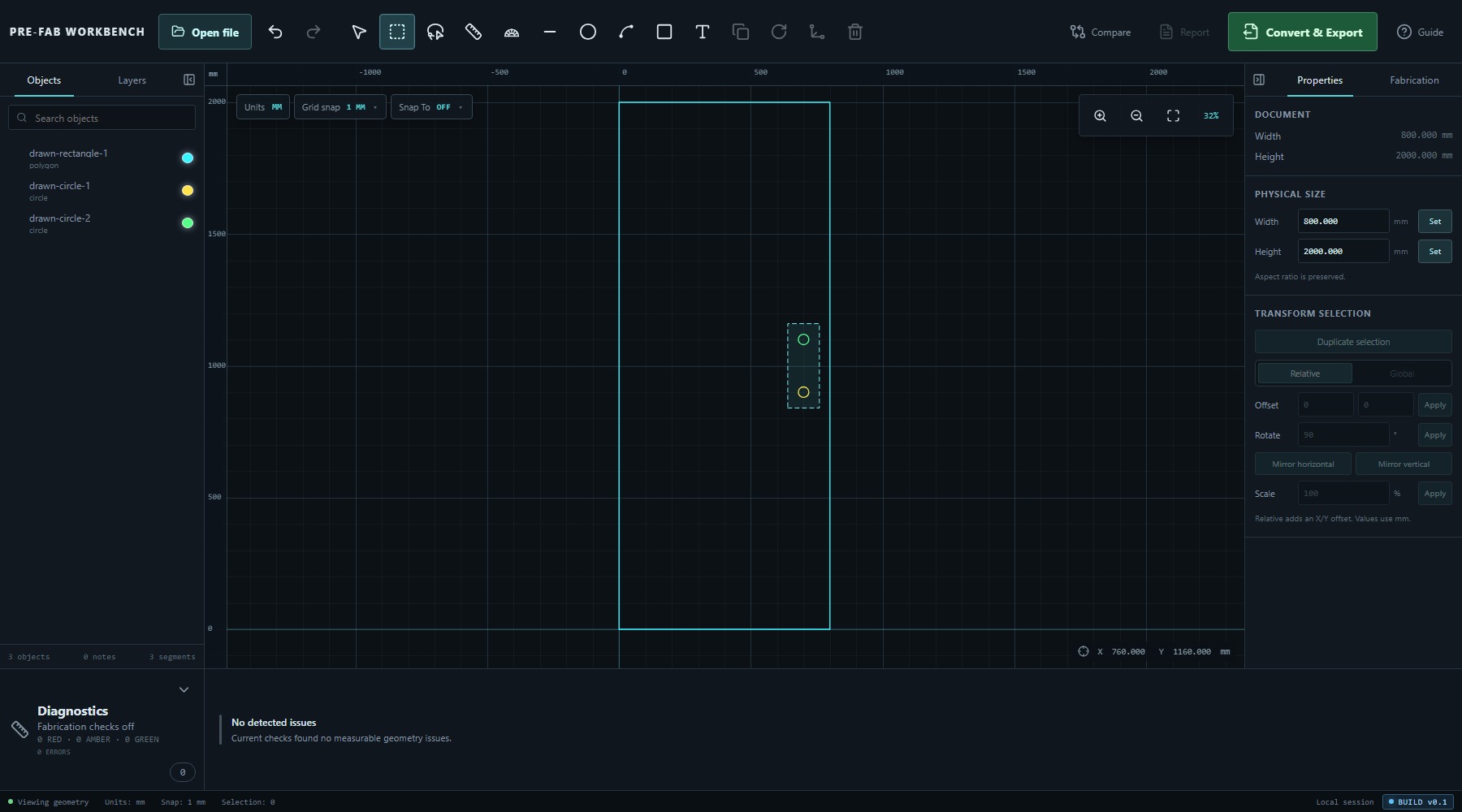
In the verified practice drawing, a left-to-right window around both circles selected the two circles and reported Selection: 2. A narrow right-to-left crossing window over the panel's right edge selected the rectangular polygon even though the whole panel was not enclosed.
Box select also supports a two-click pattern: select the first corner and then the opposite corner. Dragging is easier to read in this lesson because the direction and coloured preview remain visible while the pointer is moving.
Modifiers can add a box result to an existing selection. Without Ctrl or Shift, the box result replaces the current selection.
Pan, zoom and return to fit
Viewing controls do not edit geometry:
- Roll the mouse wheel to zoom around the pointer.
- Right-drag or middle-drag to pan.
- Use Zoom in or Zoom out for stepped changes.
- Use Zoom to fit to bring the complete drawing back into view.
During verification, wheel zoom changed the viewport scale and right-drag changed the camera centre while the Objects summary remained 3 objects, 0 notes, 3 segments. That is the useful distinction: the camera changed, the drawing did not.
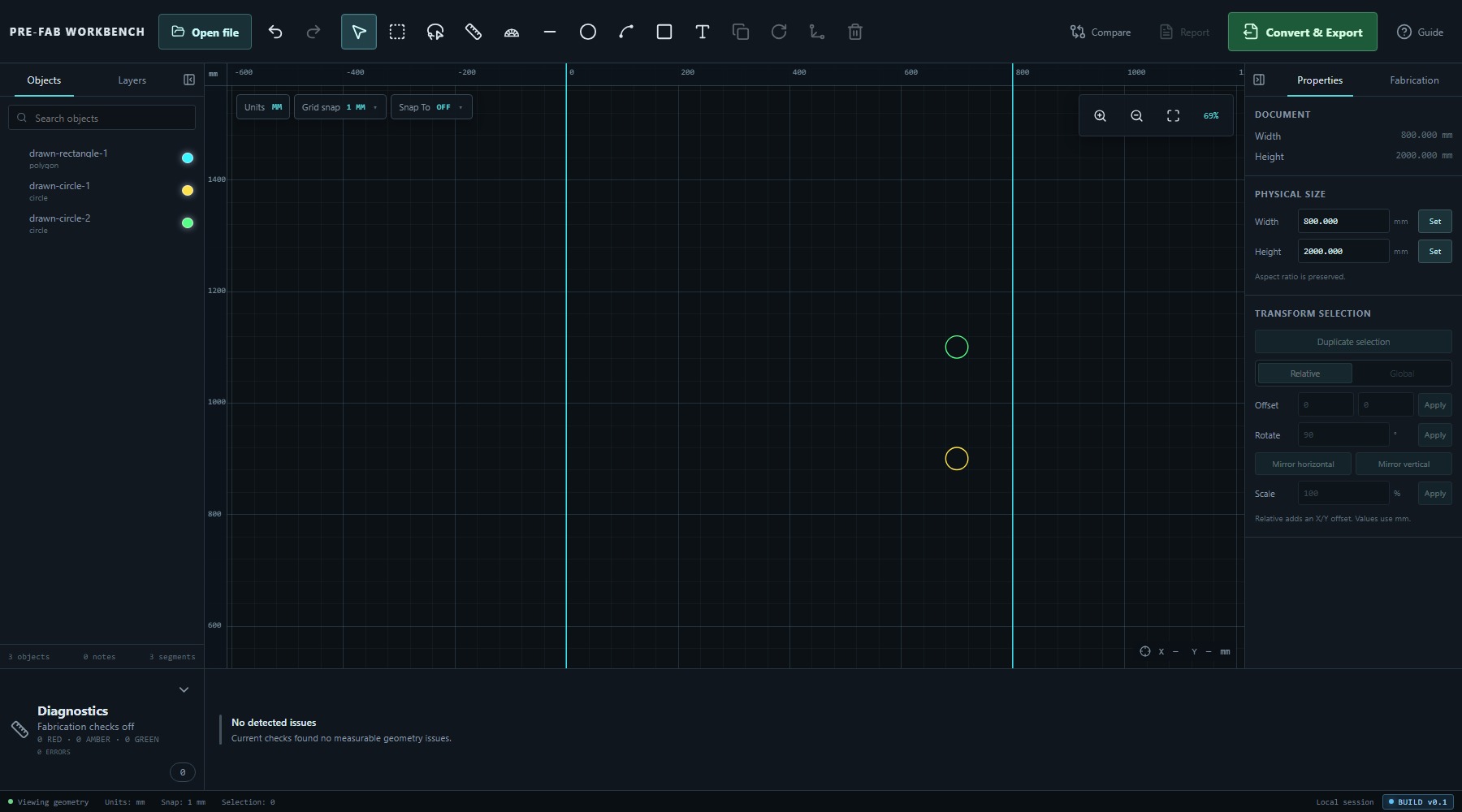
Pan and zoom can be used while inspecting a selection. If the drawing seems to have disappeared, use Zoom to fit before concluding that geometry was removed.
Selection and context-sensitive controls
PRE-FAB enables commands according to the selected geometry. In the verified three-object selection, toolbar actions including Duplicate selection, Rotate 90 degrees, Scale to 110 percent and Delete became available. Properties enabled applicable controls under TRANSFORM SELECTION.
The exact set can vary because capabilities depend on the selection. Controls such as Join / Weld, Gap Close, Trim, Extend, Fillet, Chamfer or Break Apart are not universally applicable. A dimmed command means the current selection does not meet that command's requirements.
Right-click commands are also selection-sensitive. This lesson does not execute them; it only establishes that selection must be correct before opening or choosing a contextual command.
Clear and confirm
End a selection task by returning to a known state:
- Finish or cancel any pending tool.
- Press Esc or click empty viewport space.
- Confirm that no Objects rows remain highlighted.
- Confirm the status bar shows Selection: 0.
- Use Zoom to fit if you changed the camera during inspection.
This habit prevents the next command from acting on geometry selected during an earlier step.
Common mistakes / things to notice
- Clicking empty space inside a hollow outline is not the same as clicking its visible boundary.
- A normal click replaces the selection; Ctrl or Shift in the viewport changes the existing selection.
- Shift has a different list-specific meaning: it selects a contiguous range from the established Objects anchor.
- Ctrl-click in Objects toggles the clicked object. It does not create a second independent selection.
- Left-to-right box selection is enclosed-only; right-to-left box selection is crossing. Reversing direction can select more geometry than intended.
- A box-selection preview shows the rule before release: cyan for enclosed, green for crossing.
- Panning and zooming do not move geometry. Use Zoom to fit when orientation is lost.
- A dimmed command may be incompatible with the current selection; it is not necessarily unavailable globally.
- Esc cancels or resets a pending tool before it clears a settled selection.
- The Lasso select control and free-form overlay are present in this beta, but the automated authoring pass did not obtain a stable selection result on release. It is not part of this lesson's required workflow and should be retested before being taught as dependable behaviour.
Key points
- Selection is one shared state reflected in the viewport, Objects, Properties, toolbar and status bar.
- Normal viewport clicks replace selection; Ctrl or Shift adds geometry to the current set.
- In Objects, Ctrl toggles one object and Shift selects a contiguous range from the last ordinary-click anchor.
- Left-to-right box selection requires full enclosure; right-to-left box selection accepts crossing geometry.
- Wheel zoom, right-drag or middle-drag pan, and Zoom to fit change only the view.
- Context-sensitive commands enable only when the selected geometry meets their requirements.
- Clear and confirm selection before beginning a different operation.